Manage Datasets
In this demo, I’ll guide you through managing datasets inside FlyPix AI including reviewing dataset details, configuring model training, updating information, and removing datasets when needed.
Go to app.flypix.ai
1. Introduction
In this walkthrough, you’ll learn how to access your datasets, understand their structure, prepare them for training, edit dataset information, and manage them efficiently within your workspace.
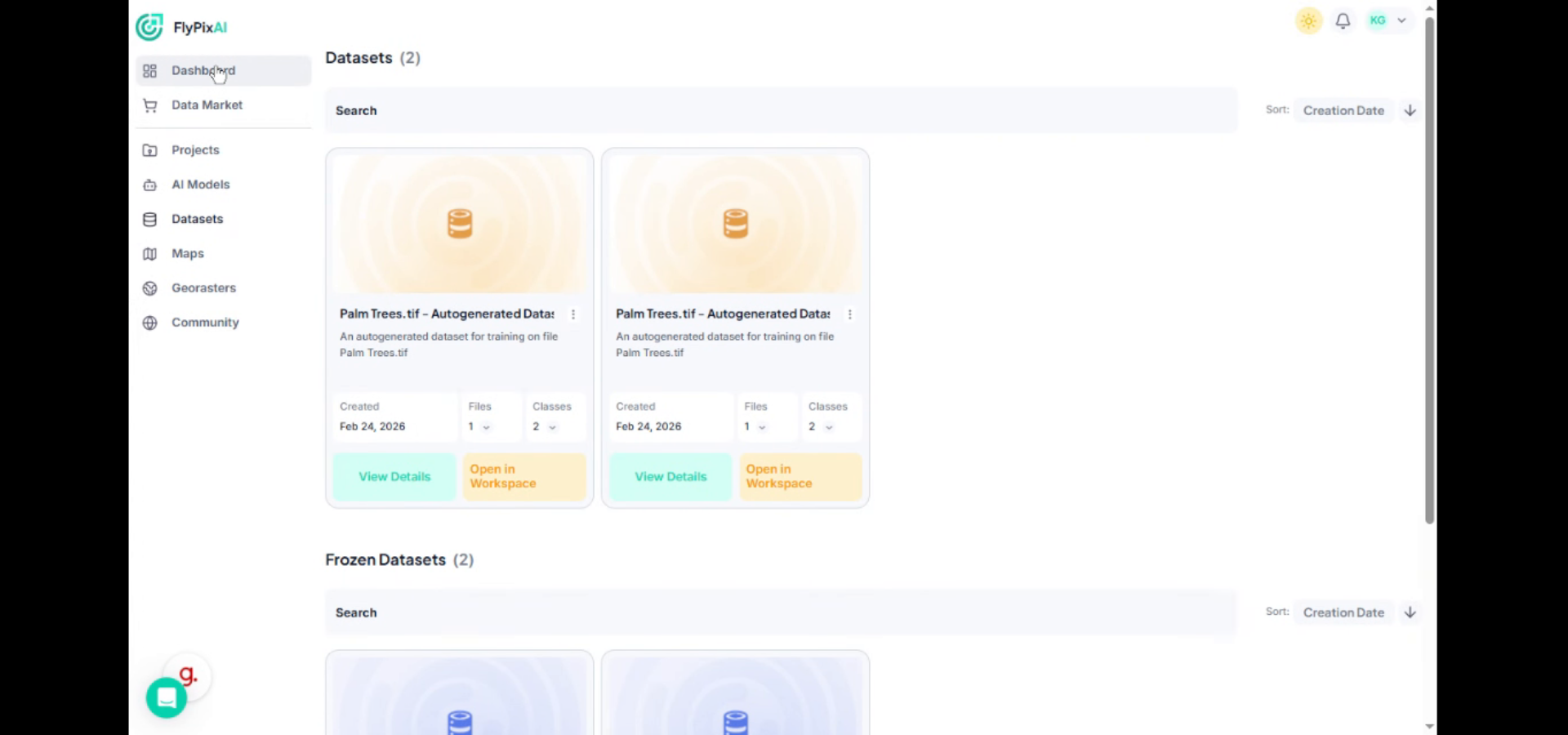
2. Access Datasets Section
Start by going to the left navigation panel and clicking on Datasets. This will open a list of all datasets available in your workspace.
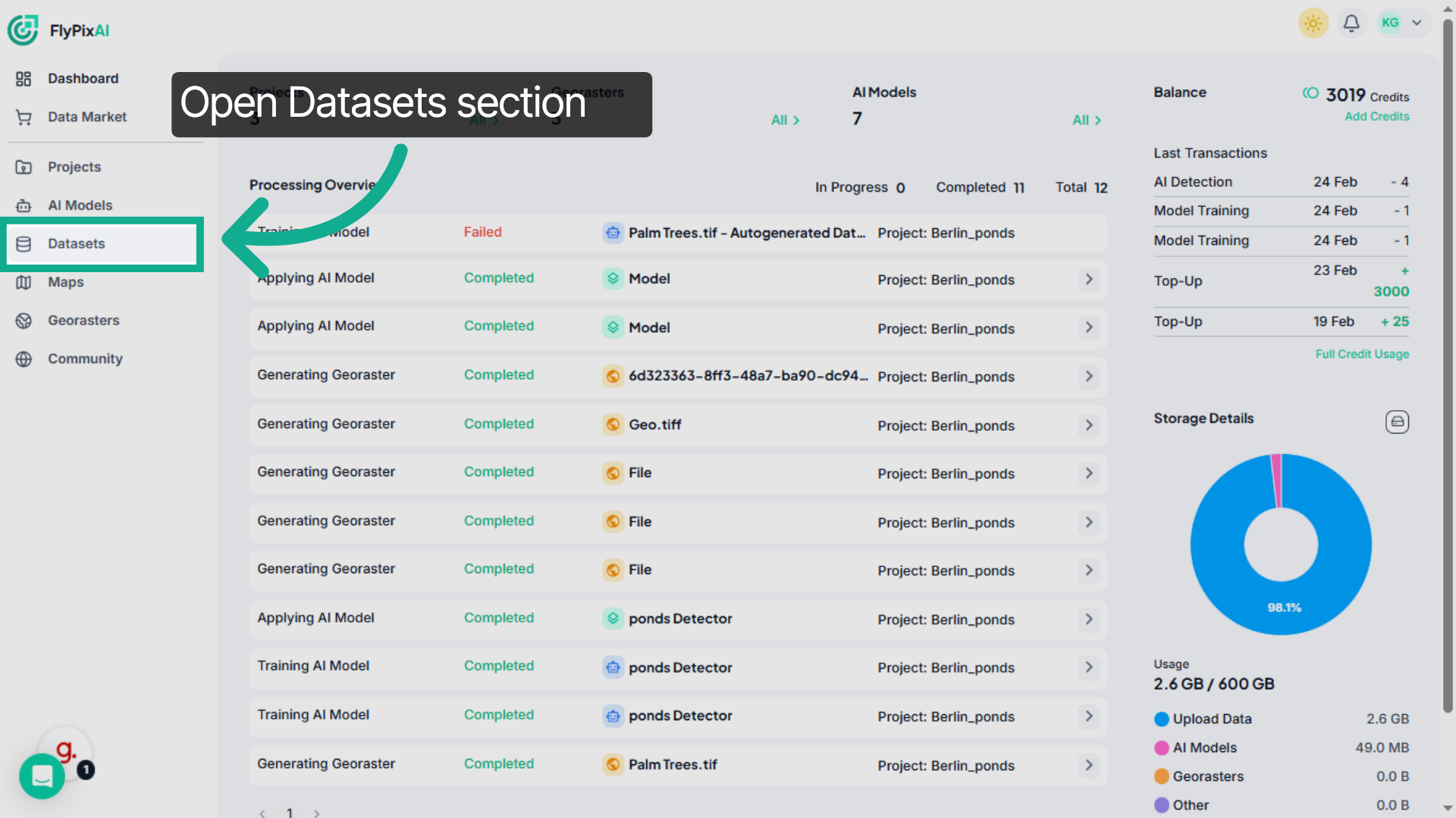
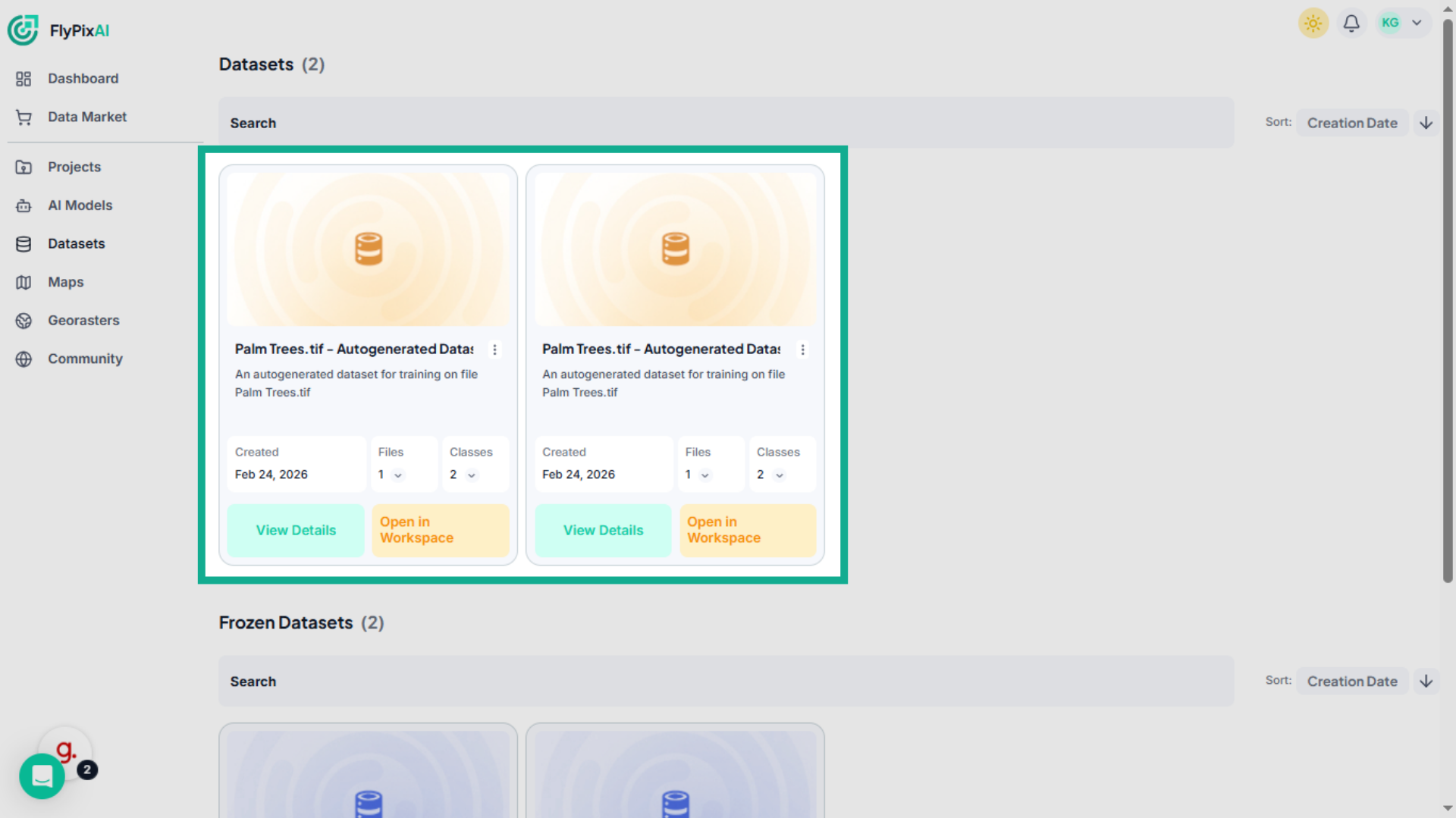
3. View all Datasets
On this page, you can see every dataset you’ve created. Each dataset displays important details such as the number of linked files, associated classes, and the creation date. This gives you a quick overview of your dataset library.
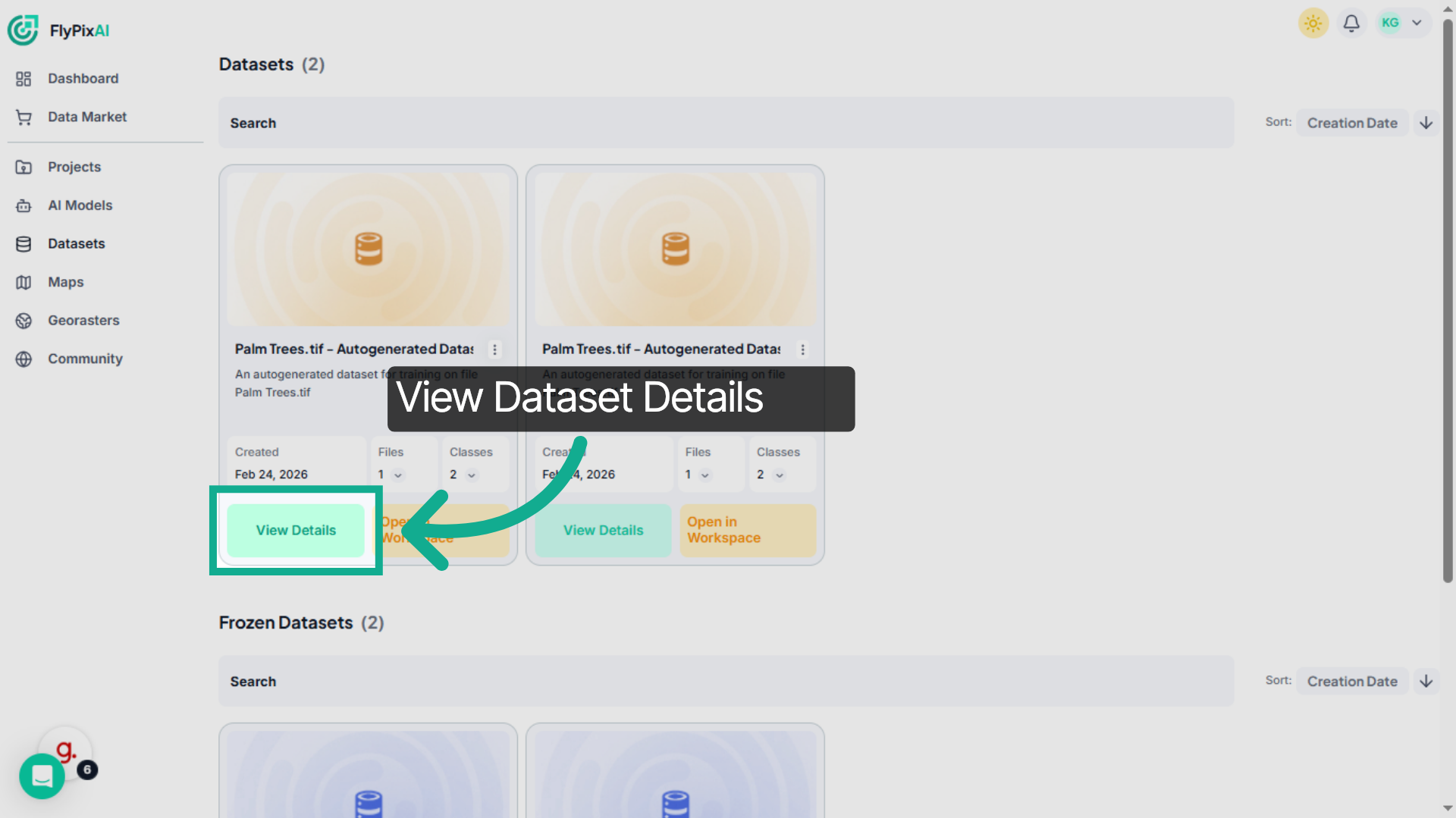
4. Open Specific Dataset Details
To explore a specific dataset in more detail, click on View Details.This opens the full dataset overview.
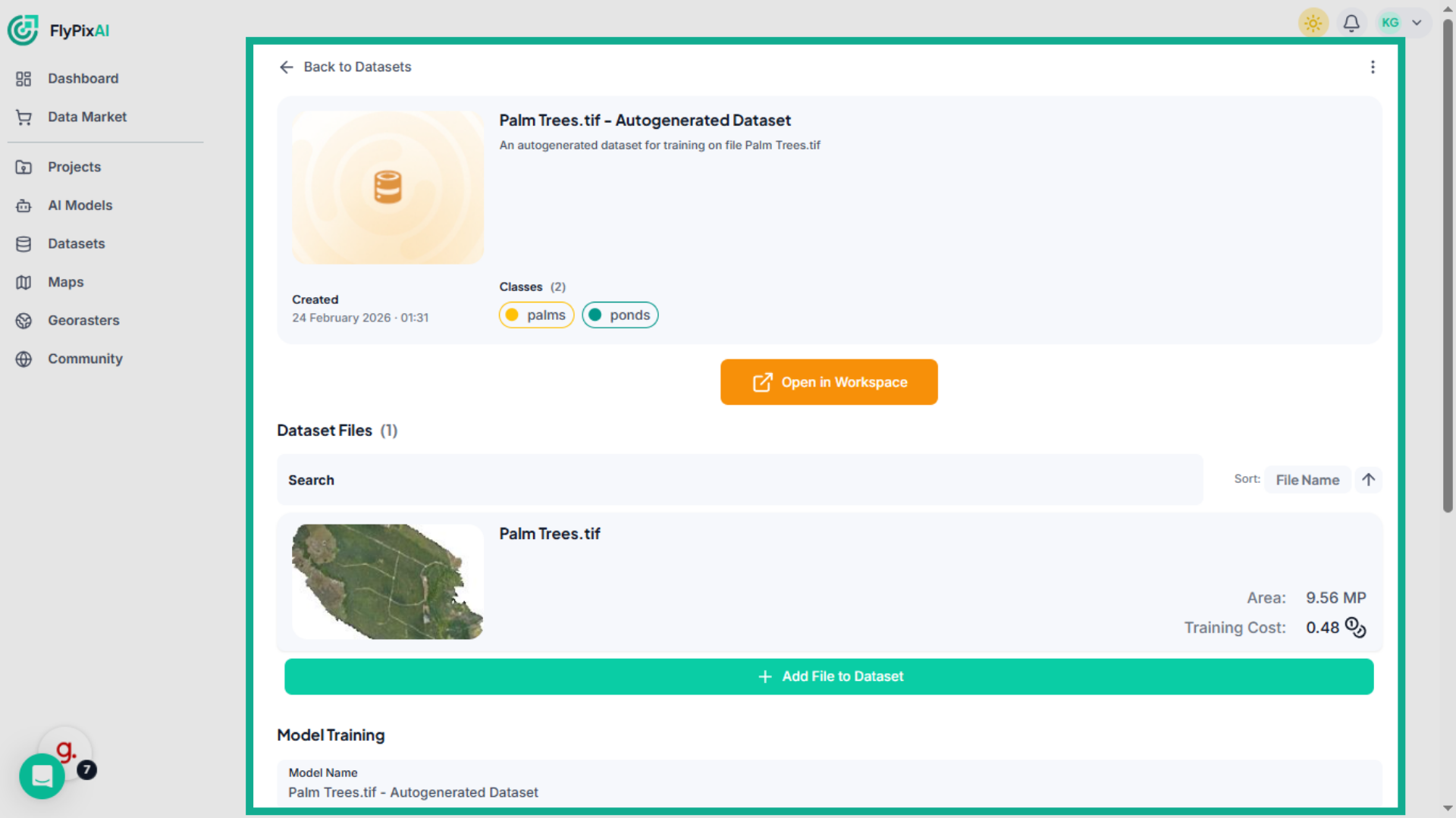
5. Review Dataset Overview
Here, you can review the dataset name, description, creation date, associated classes, and linked raster files. This helps you understand how the dataset is structured and whether it’s ready for training.
6. Explore Dataset Files
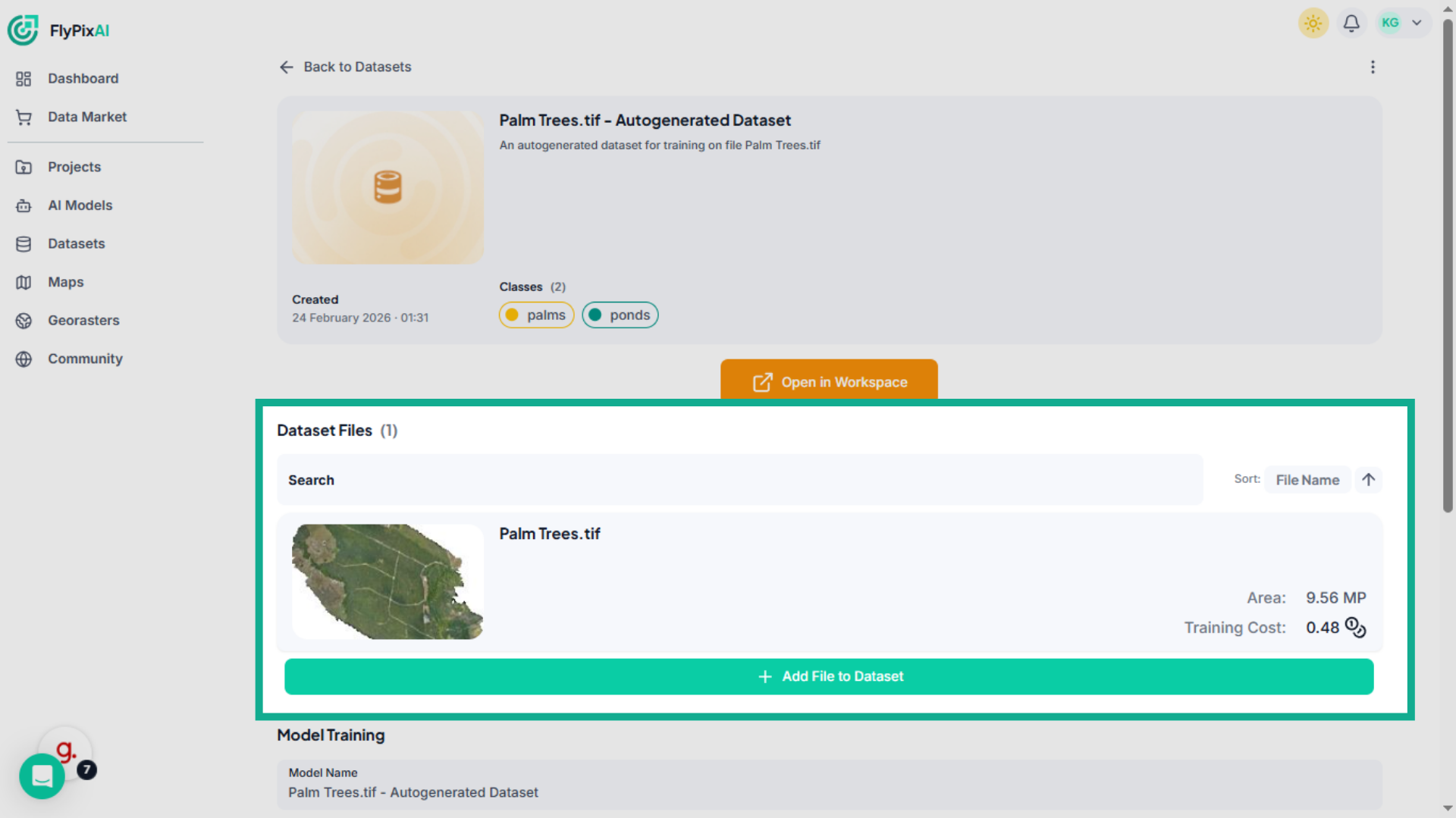
Scroll to the Dataset Files section. Here, you can see the linked raster file along with its total area and estimated training cost. This gives you insight into dataset size and expected resource usage during training.
7. Configure Model Training
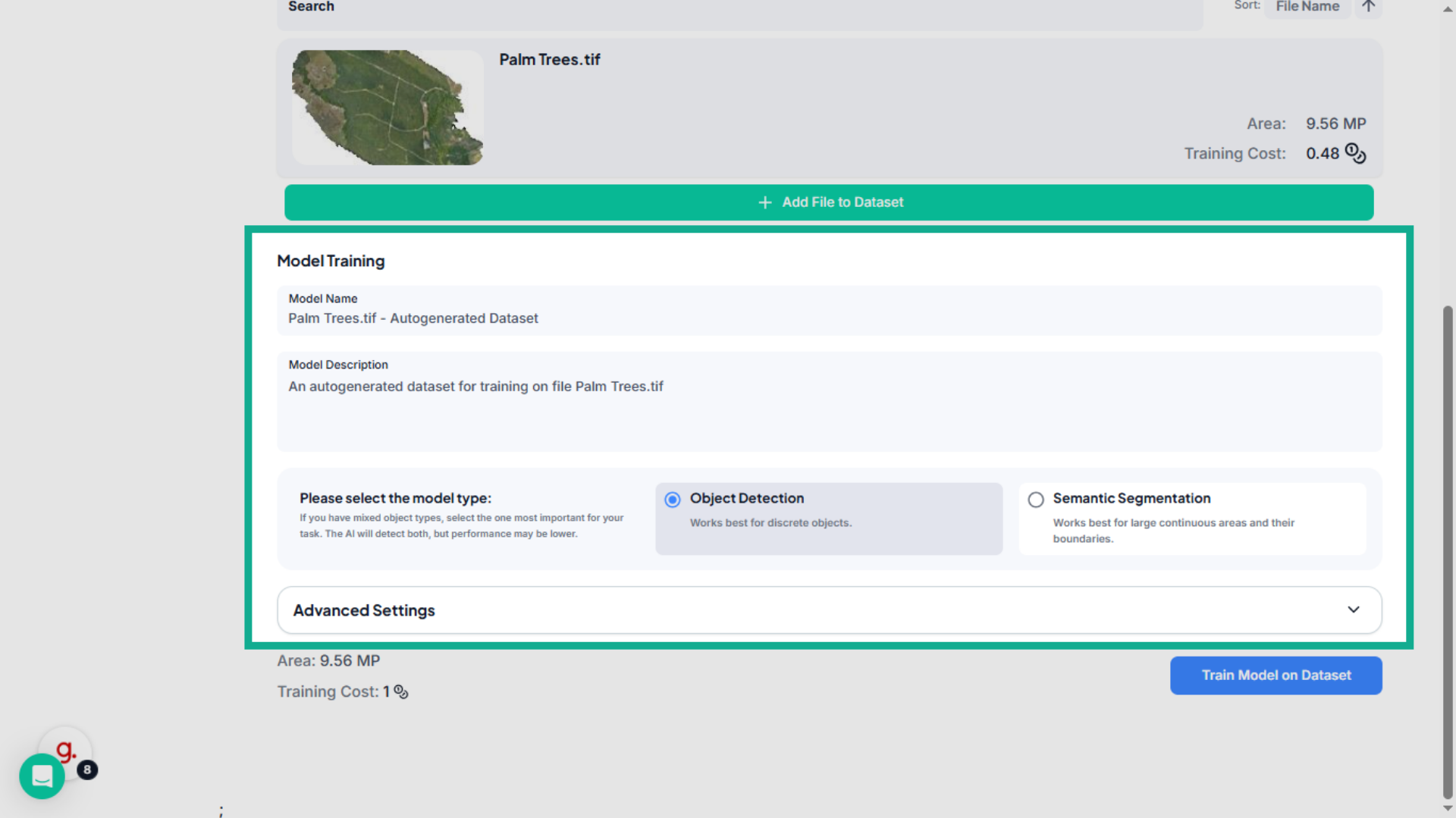
In the Model Training section, you can prepare a new training run using this dataset. Select the model type that matches your objective, for example, Object Detection or Semantic Segmentation. If needed, expand Training Settings to customize training parameters.
8. Initiate Model Training
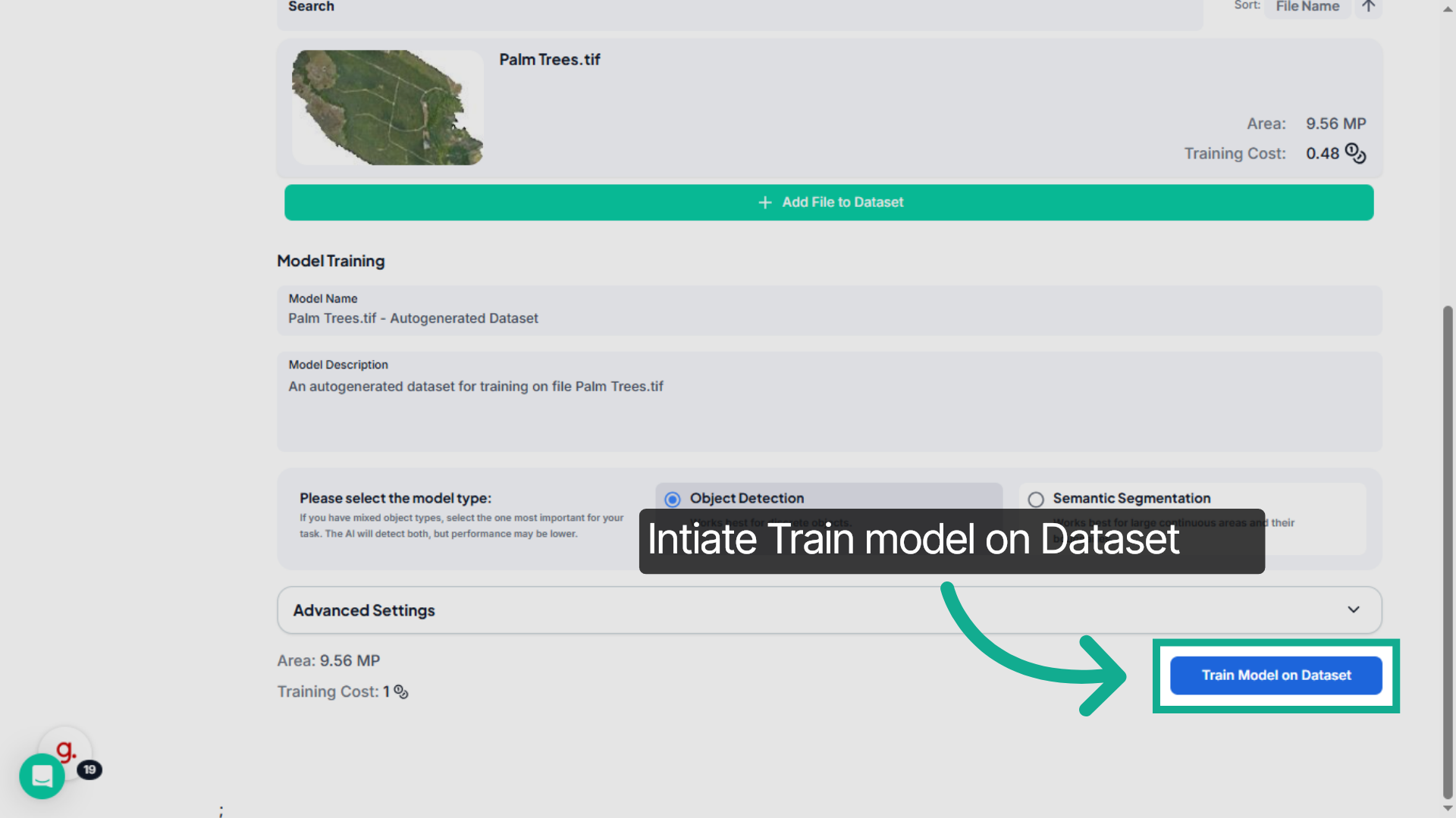
Once your configuration is complete, click Train Model on Dataset begin generating a new model based on this dataset. The system will initiate training using the selected parameters.
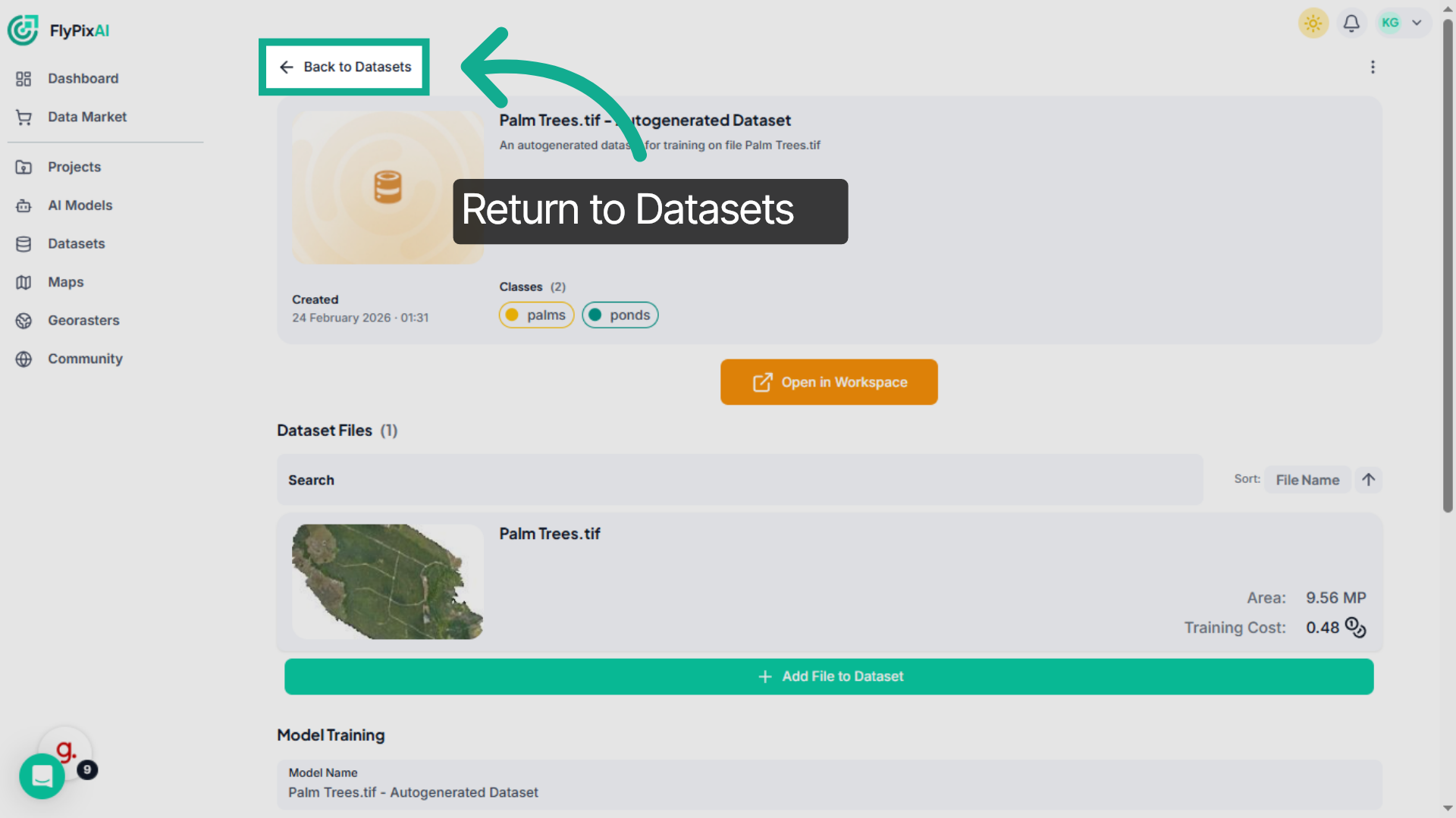
9. Return to Datasets
After reviewing details or initiating training, you can navigate back to the Datasets page to continue managing your dataset collection.
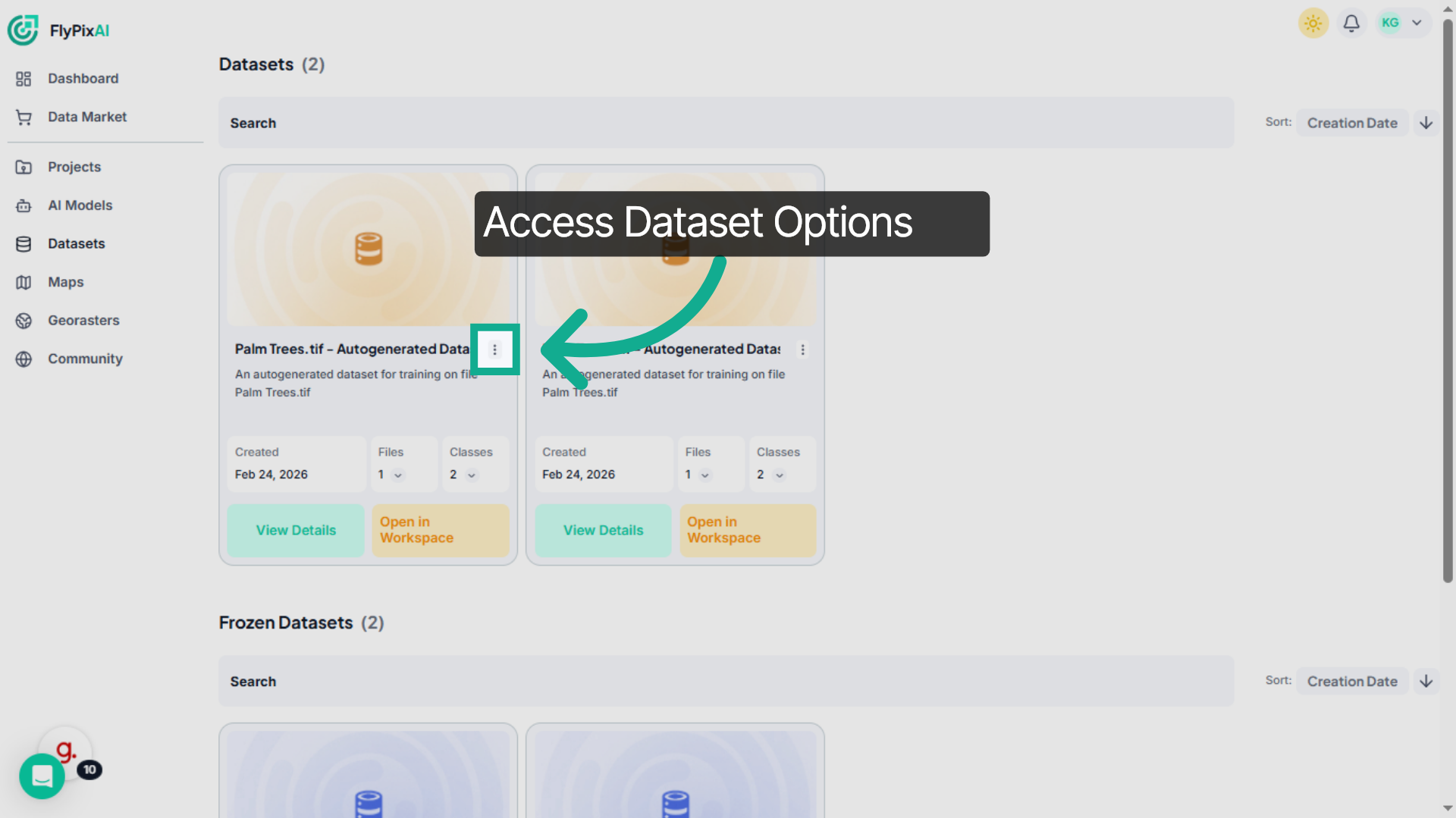
10. Access Dataset Options
Each dataset includes a management menu with additional options. Click on the menu to access editing or deletion controls.
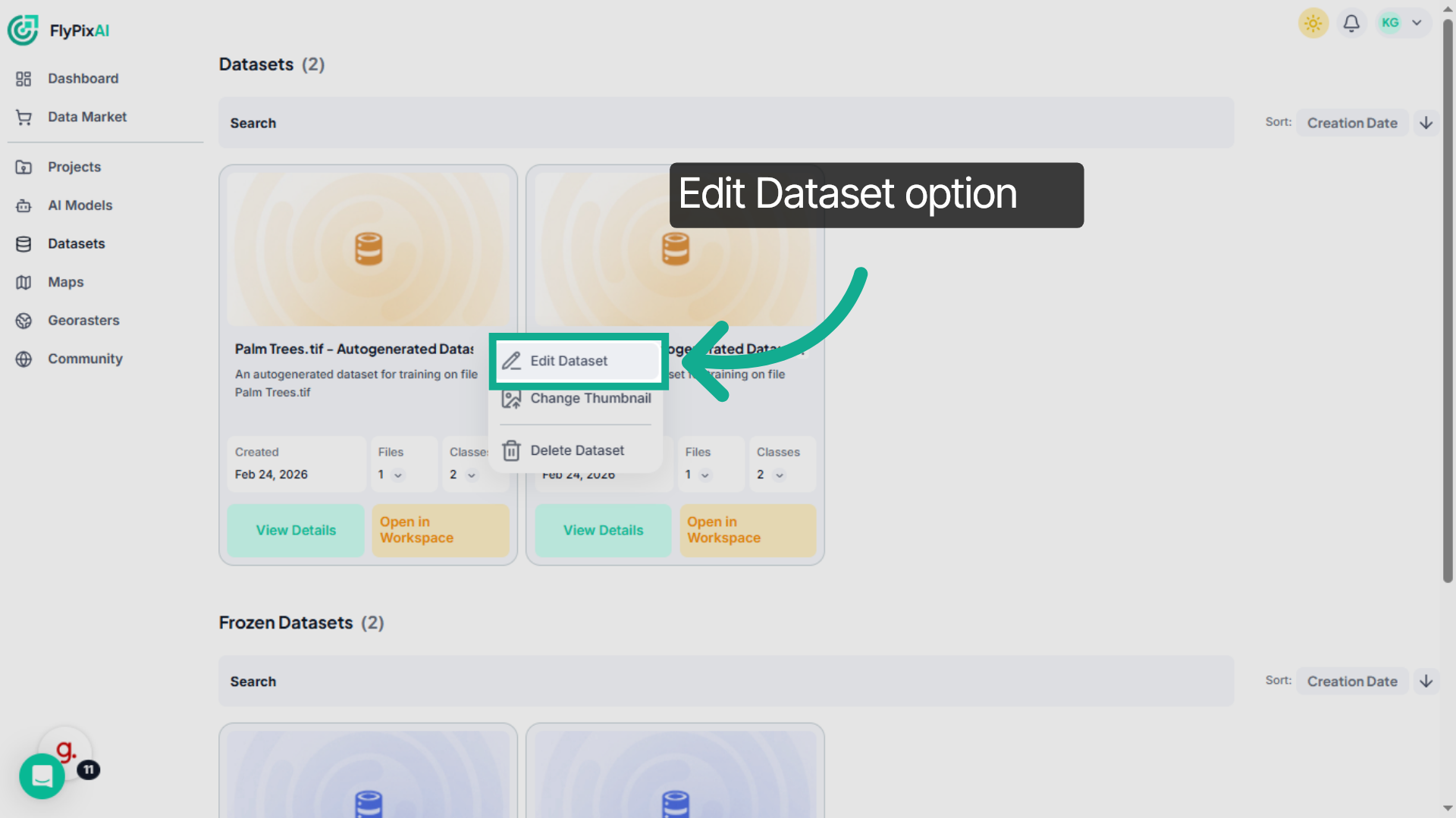
11. Enter Dataset Edit Mode
If you need to update dataset details, select Edit Dataset.
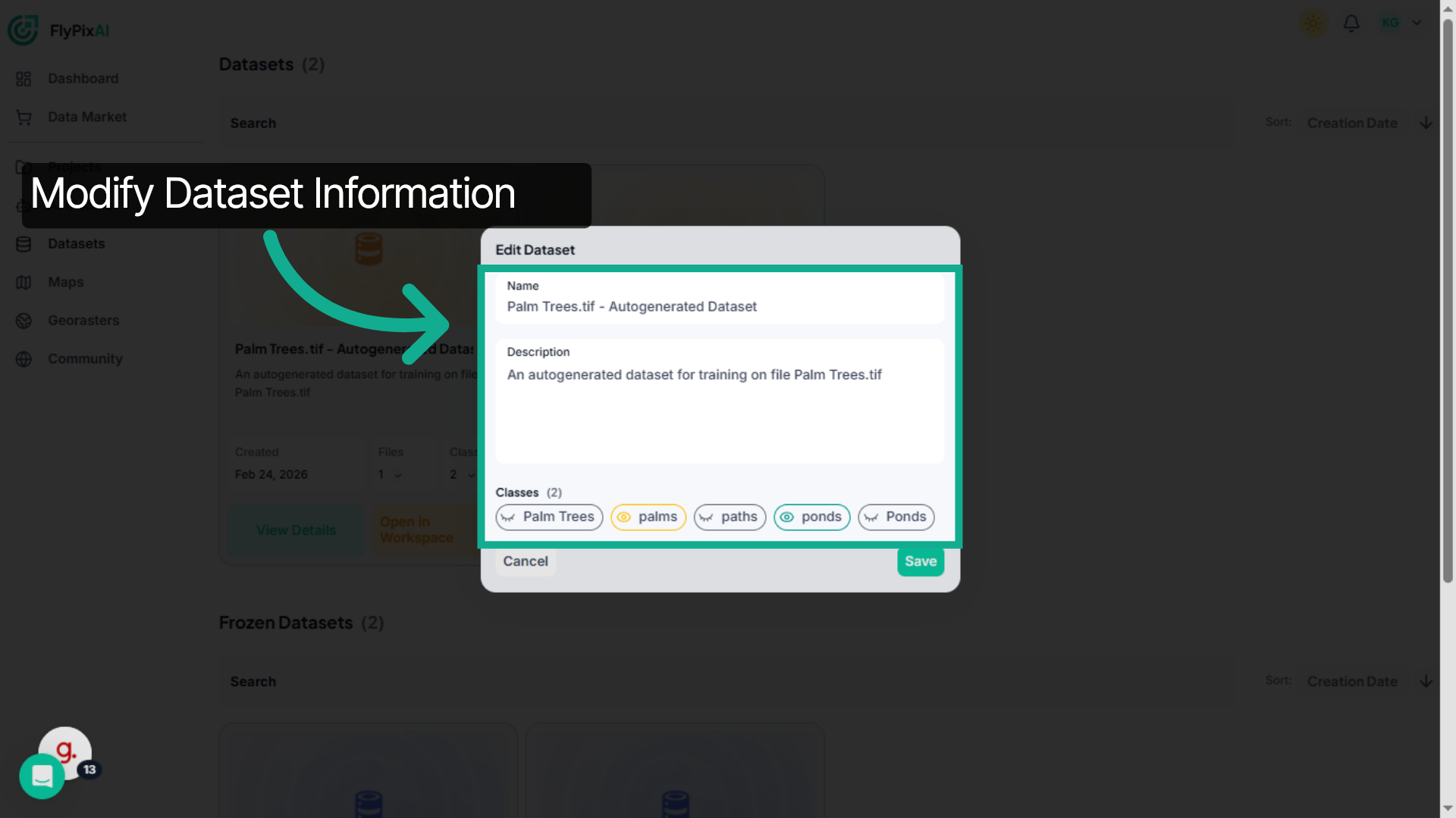
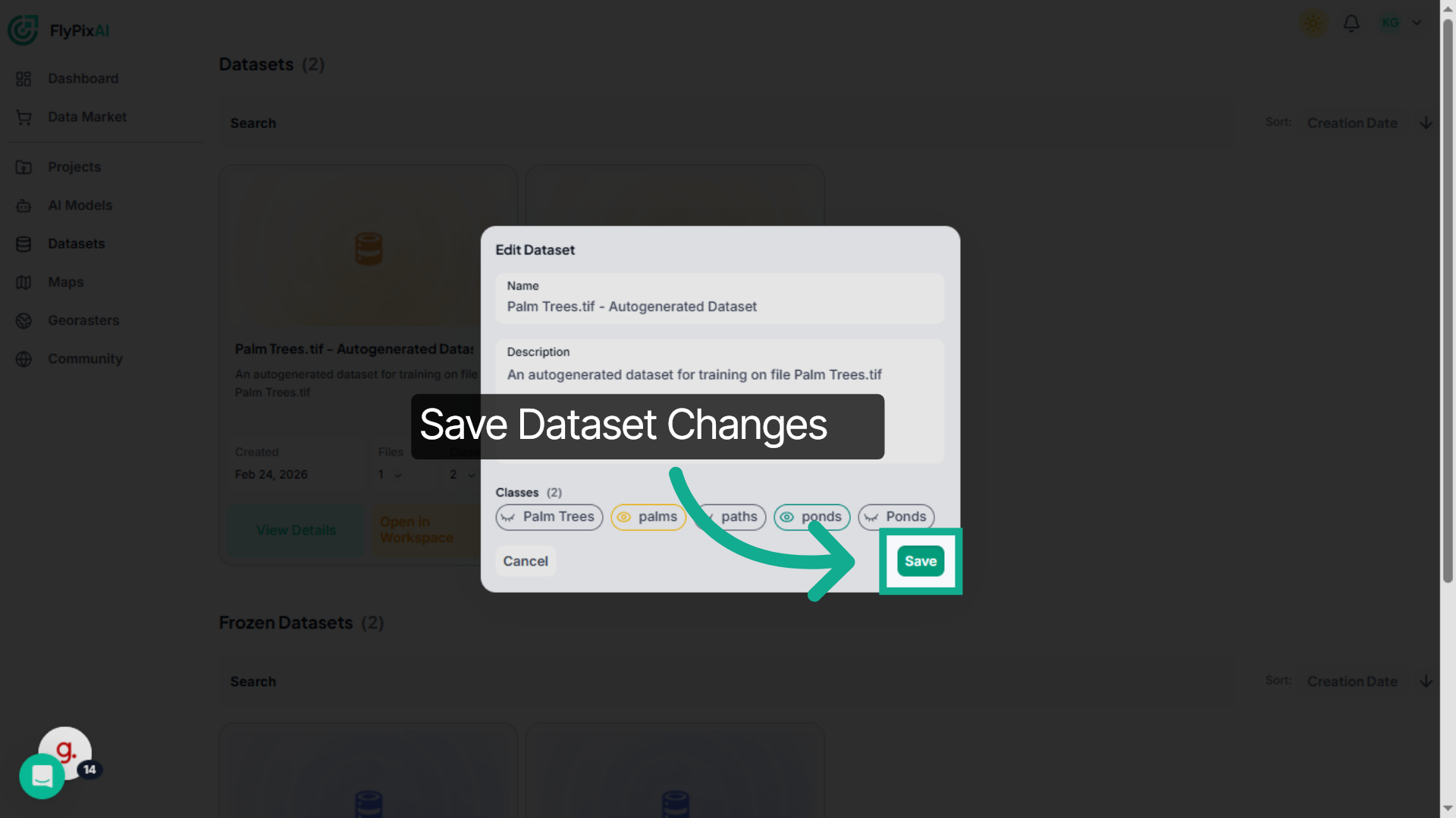
12. Modify Dataset Information
You can modify the dataset name, description, or associated classes to keep everything properly organized.
13. Save Dataset Changes
After making your updates, click Save to apply the changes. This ensures your dataset information remains accurate and up to date.
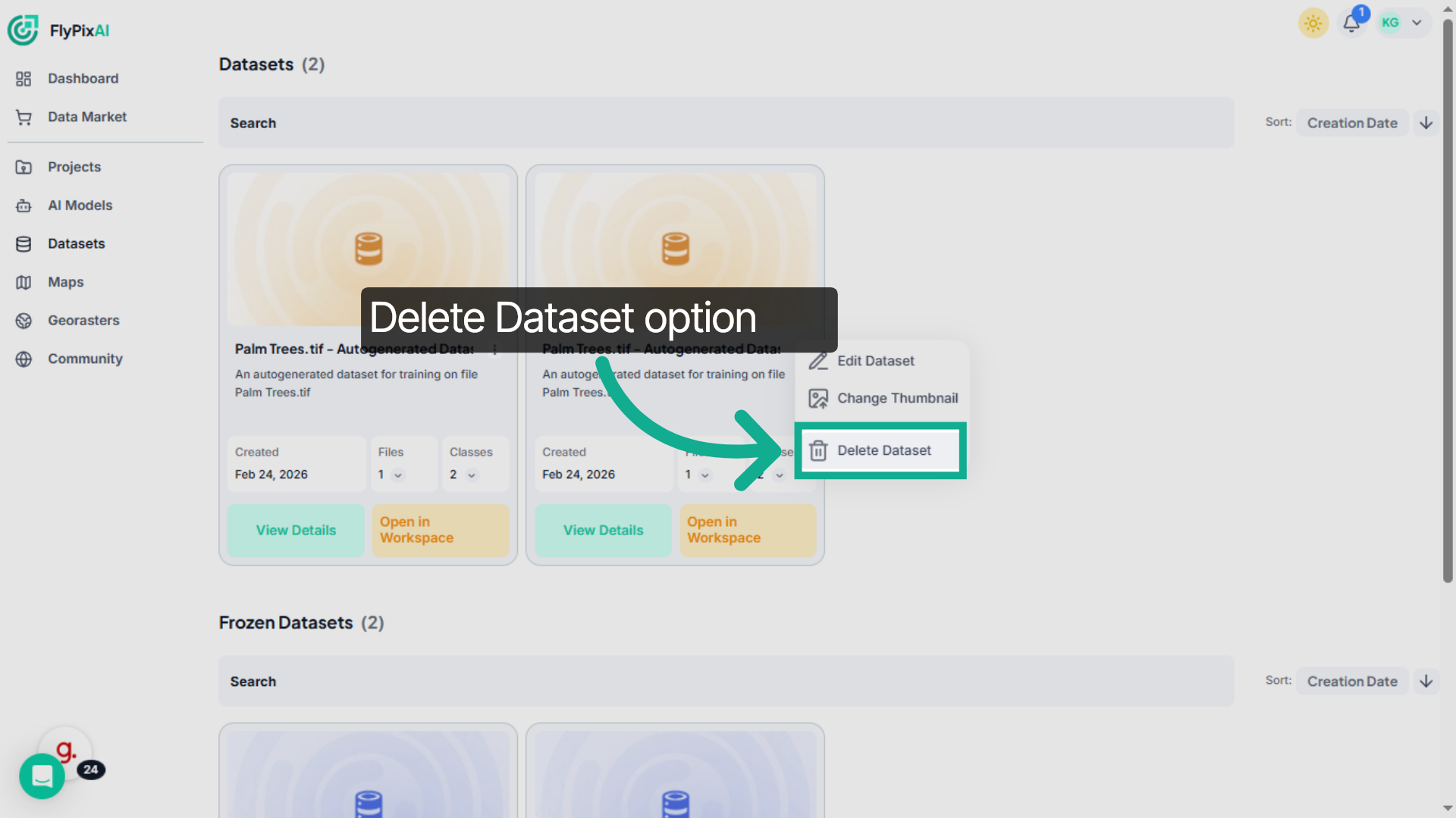
14. Initiate Dataset Deletion
If a dataset is no longer needed, open the management menu and select Delete.
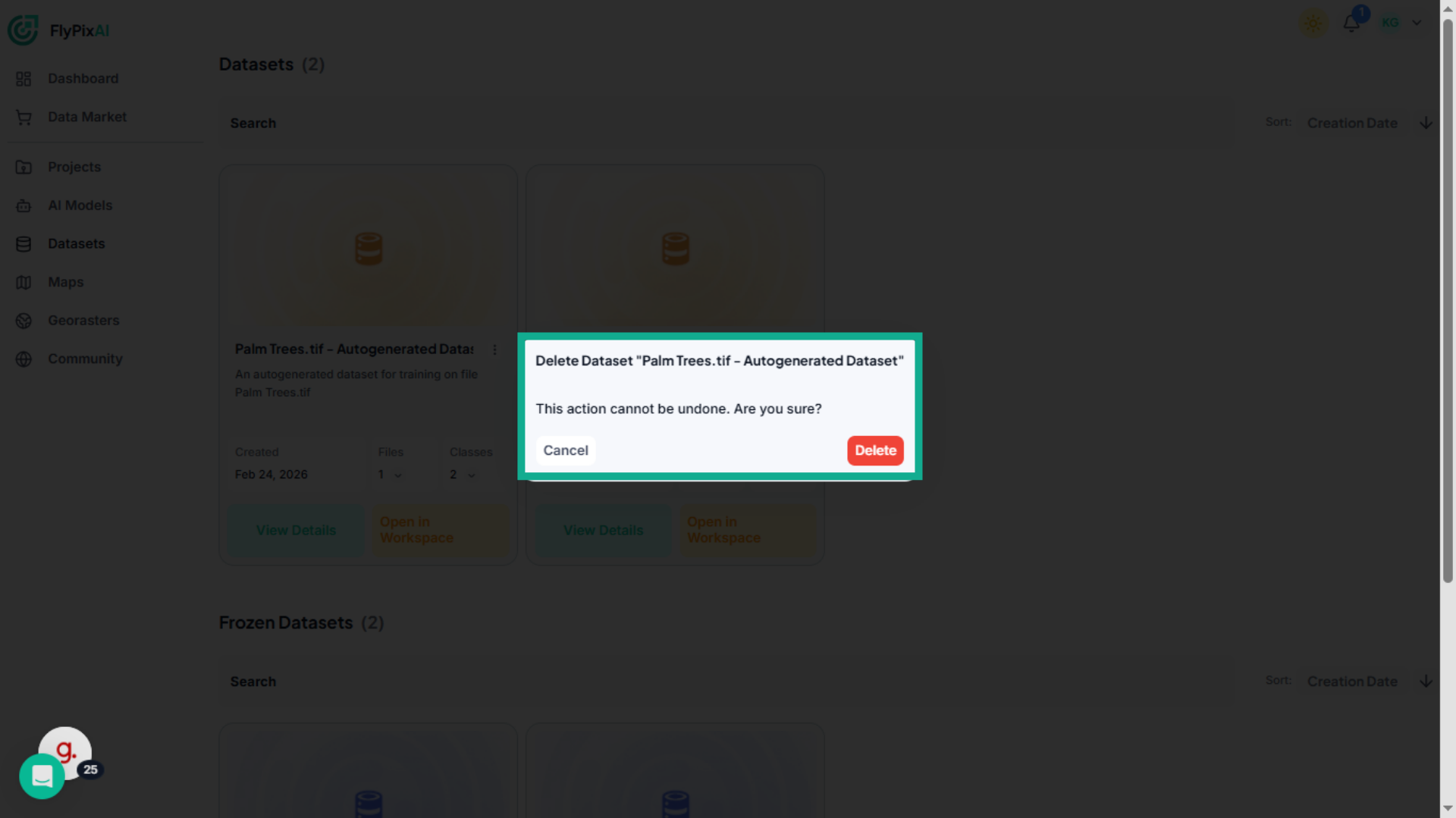
15. Confirm or Cancel Deletion
A confirmation prompt will appear. You can either cancel to keep the dataset, or confirm to permanently remove it from your workspace.
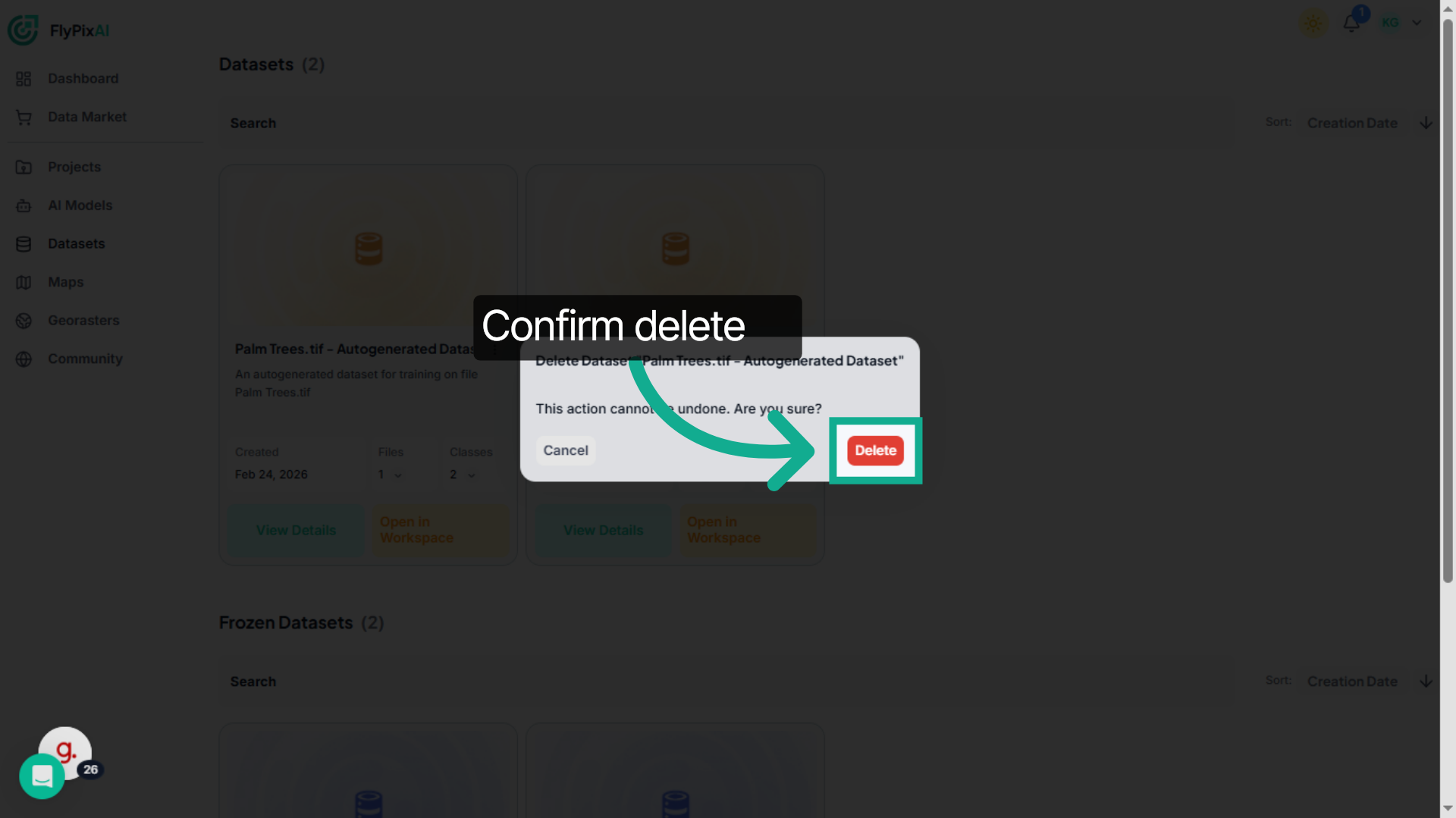
16. Confirm Dataset Deletion
Confirming the action permanently removes the dataset from your workspace.
Choose Bands and Normalization
Below the dataset's files, the collapsed Band settings section controls which
bands of your rasters a model trains on, and how their values are scaled.
Opening it requires the same plan feature as Training Settings in the Model
Training section. Its one-line summary, such as Bands 4, 3, 2 · normalized,
stays visible while it is collapsed.
Bands
The section first lists the band layout of the dataset's rasters: how many
bands they have, their data type (for example uint16) and the name of each
band, such as Band 4 (Red), when the raster provides it.
- Bands to train on. Choose the grayscale icon to train on 1 band, or the colour icon to train on 3 bands. Drag a band card from the list onto a line to assign it; the lines are the order in which the model receives the bands. Dropping a band onto a line that already has one swaps them, and the × button empties a line. Use suggested fills in the bands FlyPix recommends for these rasters.
- Alpha band. Tick Alpha to enable its line, then drag a band onto it. The line stays visible but greyed out while the box is unticked. It marks which pixels contain valid data. It is never given to the model as a channel, so it cannot also be one of the bands to train on.
Any of a raster's bands can fill the lines, so a single band out of an 8-band raster is a valid choice. Save stays disabled, and the problem is shown, until every line has a band.
Band settings apply to every raster in the dataset. If some rasters have a different band layout from the first one, a warning names them. You can still save, but the chosen bands may not mean the same thing in each raster.
Normalization
Normalization rescales each selected band from a min to a max value before training, which matters for imagery with a wide value range, such as 16-bit or reflectance data.
- Each selected band has its own min and max fields. Leave a field empty to have that bound measured from the data when the dataset is exported (auto). When both are set, min must be lower than max.
- Preset fills every selected band with the range of a common data type, such as Sentinel-2 L2A. You can adjust individual bands afterwards. Auto removes the normalization from every band.
- The button at the end of a row sets that band back to auto.
- When every raster in the dataset is plain 8-bit RGB, normalization is unavailable and the section says so.
Removing a band from the selection also removes its normalization.
Save, discard and freeze
Save applies the bands first, then the normalization, and only sends what changed. Discard drops your edits. If rasters are added to or removed from the dataset, the settings that the new rasters can no longer satisfy are unset automatically; if that happens while you have unsaved edits, they are kept and a notice offers to discard them to see the current settings.
Freezing the dataset copies the saved settings to the frozen dataset, which shows them read-only under Bands & normalization. Freezing with unsaved changes asks for confirmation, because those changes are not included.
Managing datasets effectively ensures your AI training process remains organized, efficient, and scalable. By reviewing dataset structure, configuring training properly, updating information, and removing outdated datasets, you maintain a clean and optimized workflow within FlyPix AI.