GeoSense
GeoSense is our dedicated chatbot, designed in-house to derive insights from complex data in a simple, fast, and accessible way.
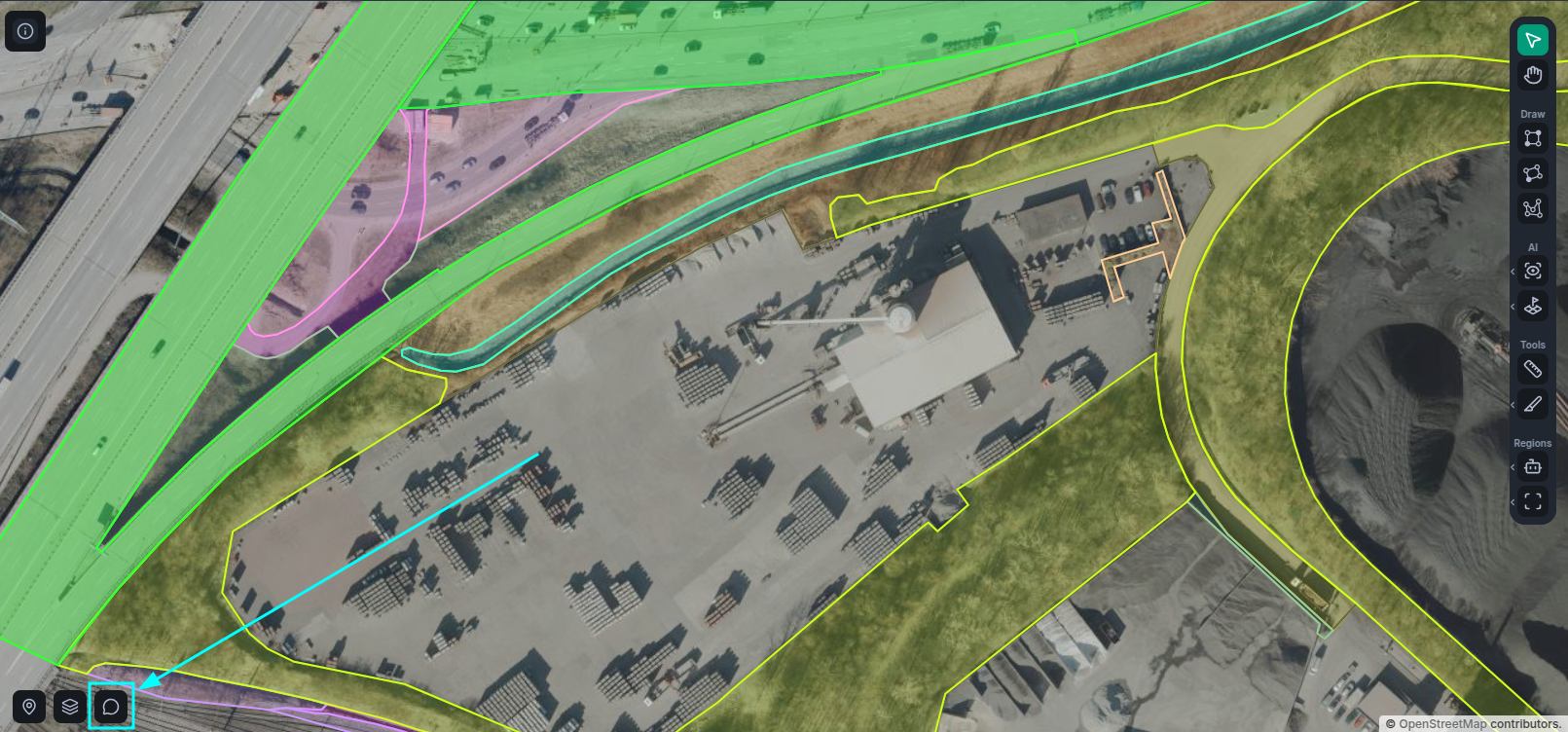
To open the GeoSense chat, simply click on the chat widget button on the bottom left corner of the workspace viewport.
Vector Selection
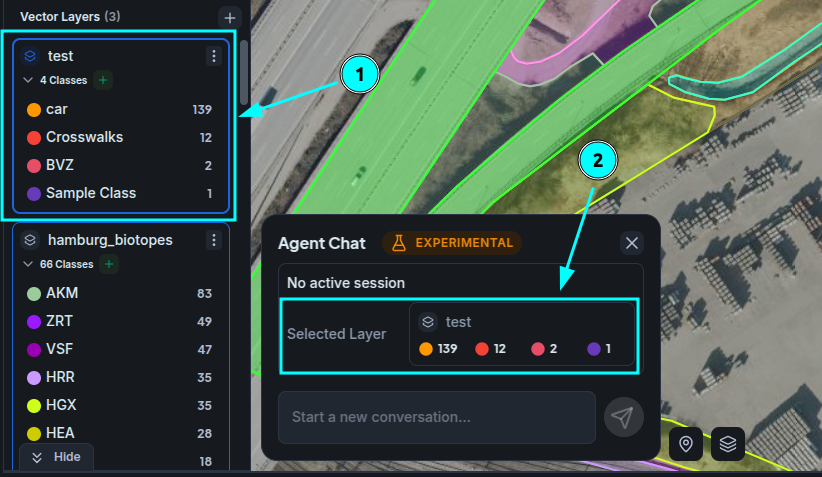
At this point in time, GeoSense must operate within the context of a single vector layer. To this end, each GeoSense Session is linked to one. When you first open the window, you'll see a single vector being highlighted at the top of the window; this is your selected vector.
You can change the selected vector at any time by simply clicking on any of its classes in the workspace sidebar, in view mode.
In the image below, you can see the selected vector layer in the sidebar (1) and the vector layer summary in the session overview (2).
Once you are happy with your vector selection, you can start a session by sending a message asking about the selected vector layer!
Sessions
Sessions are automatically started when you send a new message. Note that once started, you will not be able to change the selected vector layer for that session.
Sessions maintain and handle the context of your interaction with the chatbot, this includes messages, as well as your vector selection and internal tool results that the bot can reference in later responses.
At this time, you can't yet manage multiple sessions. So in order to change to a different vector layer, or once you are done with a task and no longer need its context, you can end the session by pressing the End Session button at the top of the session overview.
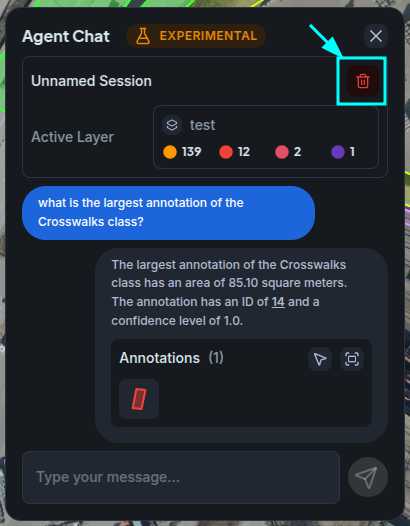
Once you do, you'll be back at the stage where you can select a new vector layer and send a message to start a brand new session with a clean context.
Messages and Previews
The messages you send to the bot are largely just regular plaintext. However, the messages you receive from the bot are typically enhanced with embedded data about the results you're asking for.
For example, if you ask about the 'largest annotation' of a given class, the response will likely contain a preview of this annotation that you can interact with to view the annotation in the workspace viewport.
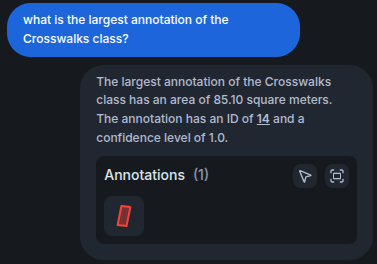
Furthermore, you can also Select the results or pan to a global view of them that encapsulates every single one of them.
These are typically just references to the underlying data, so if you delete the annotation they're referencing, they will stop being visible.
Development Notes
GeoSense is still largely in development, so expect to see a broad range of new features and capabilities as we progress.