Roles & Permissions
FlyPix AI controls what a member can see and do through roles. This guide explains how roles are scoped, who can manage them, and exactly what each role grants.
Scope: Tenant vs. Project
Every role applies at one of two scopes:
- Tenant roles apply to tenant-level resources — things like subscription management or creating new projects — and to the organization as a whole.
- Project roles apply to one specific, existing project.
Tenant-scoped permissions are inherited everywhere: if a member has a permission at the tenant scope, they have that same permission in every project in the tenant automatically, without needing a matching project role. Project roles only ever grant access to the one project they're assigned on.
Managing Roles
Only the owner(s) of a scope can modify permissions in that scope:
- A tenant (organization) owner can modify roles for the whole tenant, and — because of the inheritance rule above — for any project in the tenant.
- A project owner can modify roles for that one project.
Anyone who can read permissions in a scope can see the roles assigned there, even if they can't change them.
Managing tenant roles
Tenant-level role management happens from the Members page in the tenant. See Inviting Users for how to open it and invite new members.
Tenant Guest grants next to no access on its own — it exists so a newly added member has a role to build on. Give new members a real tenant-level role, or specific project roles, before expecting them to be able to do anything.
Managing project roles
Project-level role management happens from the Share button on a project.
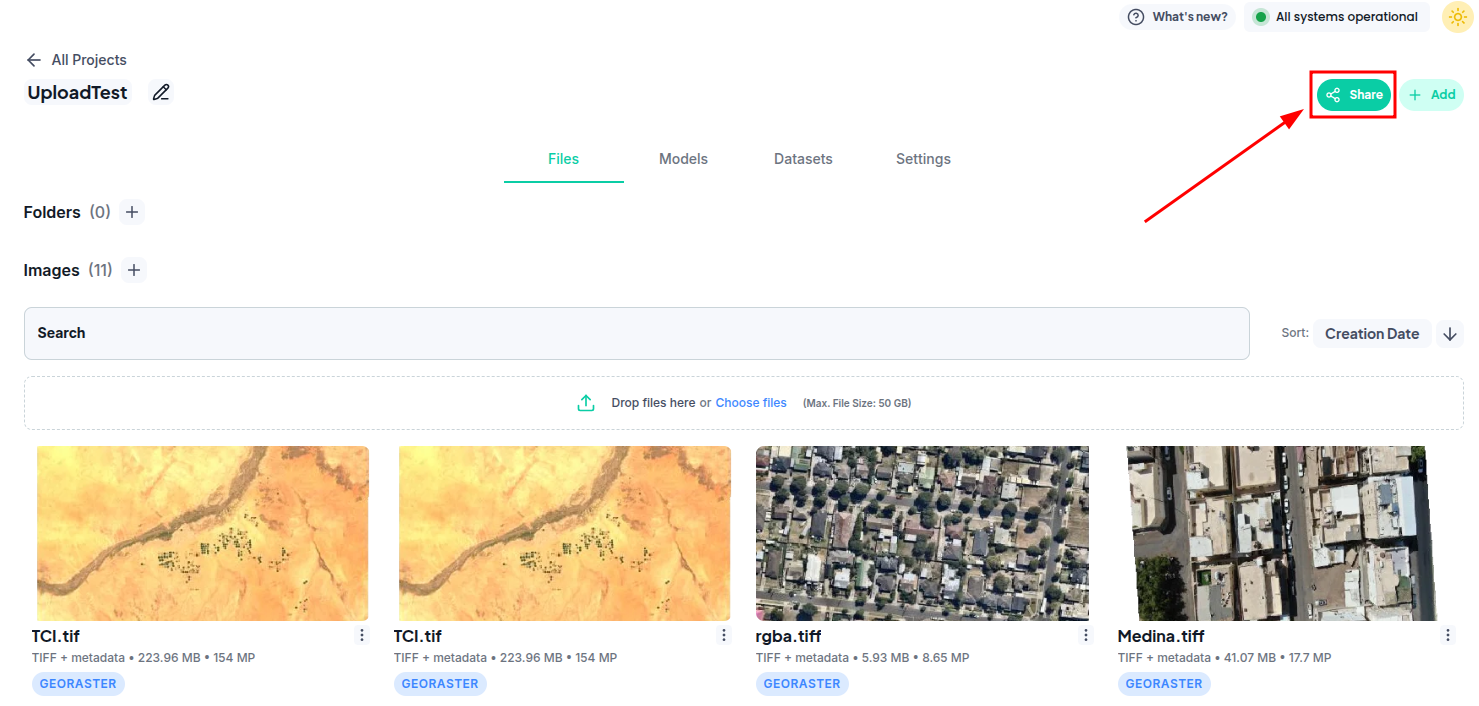
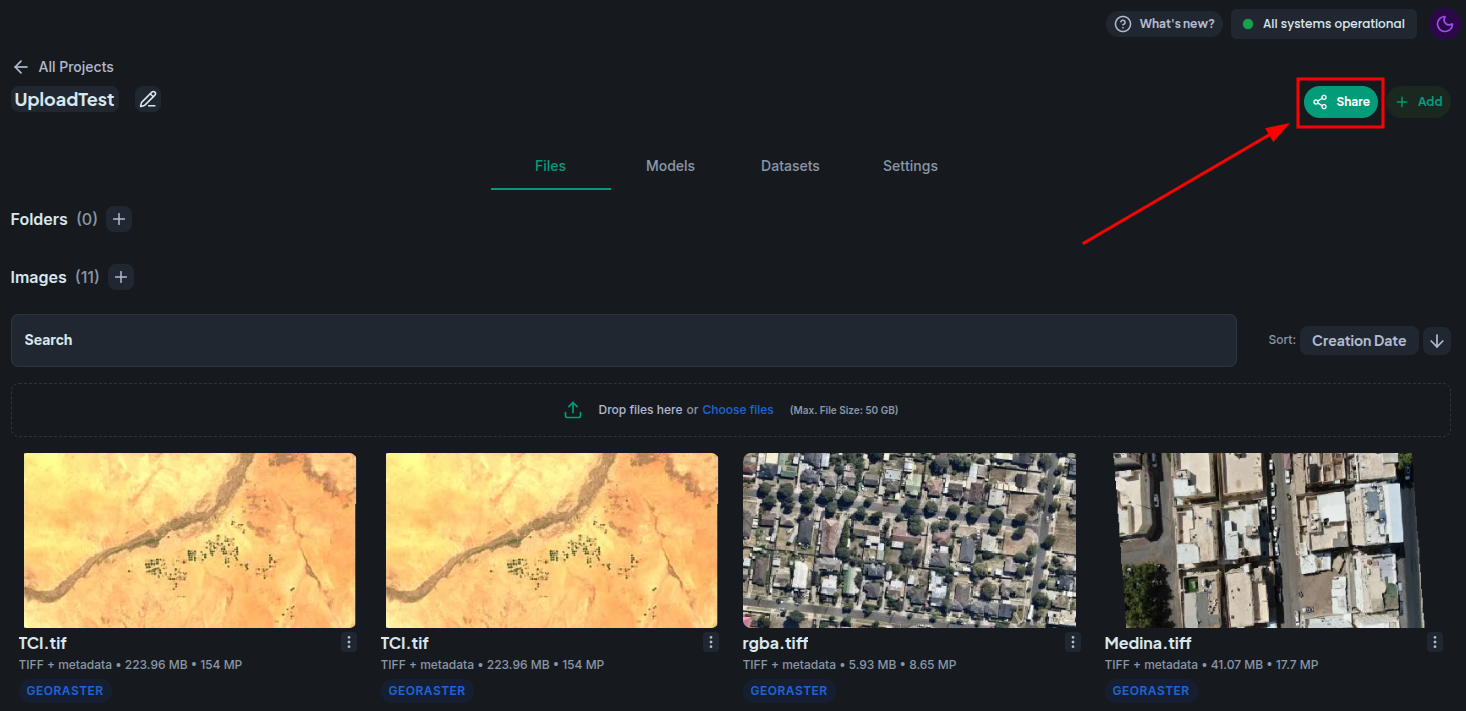
This opens the Manage Project Access modal:
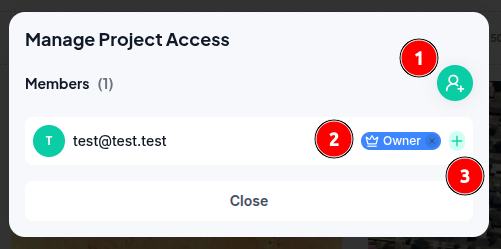
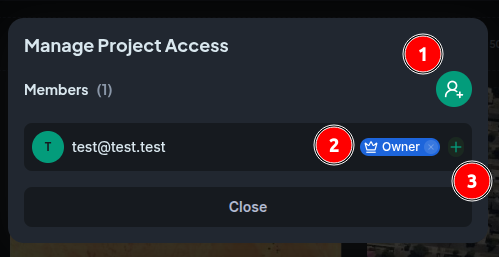
- Add member — adds an existing tenant member to the project. They automatically gain the Project Viewer role.
- Role list — every role currently assigned to that member on this project. Click the x on a role to remove it; a member left with no roles is removed from the project entirely.
- Add role — grants the member an additional project role.
The same pattern applies when adding a member to the tenant itself (see Inviting Users), except the automatically granted role is Tenant Guest instead of Project Viewer.
Permissions
Roles are additive. If a member holds several roles, and any one of them grants a permission in the applicable scope, the member can take that action — there's no concept of one role's restrictions overriding another's grant.
An API key created by a user inherits that user's permissions dynamically, so the same roles and rules described here apply to requests made with it.
The tables below list every permission granted by each visible role, grouped by entity. A ✓ means that role grants the permission (subject to the scope rules above); a ✗ means it doesn't.
Tenant roles
| Entity | Action | Guest | Viewer | Operator | Member | Owner |
|---|---|---|---|---|---|---|
| Projects | View | |||||
| Create | ||||||
| Edit | ||||||
| Delete | ||||||
| Folders | View | |||||
| Create | ||||||
| Edit | ||||||
| Delete | ||||||
| Rasters | View | |||||
| Create | ||||||
| Edit | ||||||
| Delete | ||||||
| Download | ||||||
| Datasets | View | |||||
| Create | ||||||
| Edit | ||||||
| Delete | ||||||
| Annotations | View | |||||
| Create | ||||||
| Edit | ||||||
| Delete | ||||||
| Export | ||||||
| Sync Deltas | ||||||
| Training Regions | View | |||||
| Create | ||||||
| Edit | ||||||
| Delete | ||||||
| Trainings | View | |||||
| Models | View | |||||
| Train | ||||||
| Apply | ||||||
| Edit | ||||||
| Delete | ||||||
| Inferences | View | |||||
| Create | ||||||
| Edit | ||||||
| Delete | ||||||
| Maps | View | |||||
| Edit | ||||||
| Delete | ||||||
| GeoSense | View Sessions | |||||
| Manage Sessions | ||||||
| Send Message | ||||||
| Data Requests | View | |||||
| Create | ||||||
| Data Market | Search | |||||
| Acquire | ||||||
| Invites | View | |||||
| Create | ||||||
| Edit | ||||||
| Delete | ||||||
| Subscriptions | View | |||||
| Manage | ||||||
| Tenant | View Info | |||||
| Roles & Permissions | Manage |
Project roles
Some entities and actions from the tenant table above don't appear here at all — that's expected, not an omission. Things like subscriptions, invites, the data market, and creating a project itself are tenant-level concepts with no equivalent inside a single project, so no project role grants them and their rows are dropped from this table entirely.
| Entity | Action | Guest | Viewer | Operator | Member | Owner |
|---|---|---|---|---|---|---|
| Projects | View | |||||
| Edit | ||||||
| Delete | ||||||
| Folders | View | |||||
| Create | ||||||
| Edit | ||||||
| Delete | ||||||
| Rasters | View | |||||
| Create | ||||||
| Edit | ||||||
| Delete | ||||||
| Download | ||||||
| Datasets | View | |||||
| Create | ||||||
| Edit | ||||||
| Delete | ||||||
| Annotations | View | |||||
| Create | ||||||
| Edit | ||||||
| Delete | ||||||
| Export | ||||||
| Sync Deltas | ||||||
| Training Regions | View | |||||
| Create | ||||||
| Edit | ||||||
| Delete | ||||||
| Trainings | View | |||||
| Models | View | |||||
| Train | ||||||
| Apply | ||||||
| Edit | ||||||
| Delete | ||||||
| Inferences | View | |||||
| Create | ||||||
| Edit | ||||||
| Delete | ||||||
| Maps | Edit | |||||
| Delete | ||||||
| GeoSense | View Sessions | |||||
| Manage Sessions | ||||||
| Send Message | ||||||
| Roles & Permissions | Manage |
Custom Roles
Custom roles — defining your own set of permissions rather than using the built-in ones — are a planned feature, but aren't available yet. If this would help your team, please reach out to us; we're always happy to hear what our users want prioritized next.