Inviting Users to Your Tenant
This guide walks you through inviting new members to your organization (tenant) in FlyPix AI, from opening member management to generating an invite link.
Go to app.flypix.ai
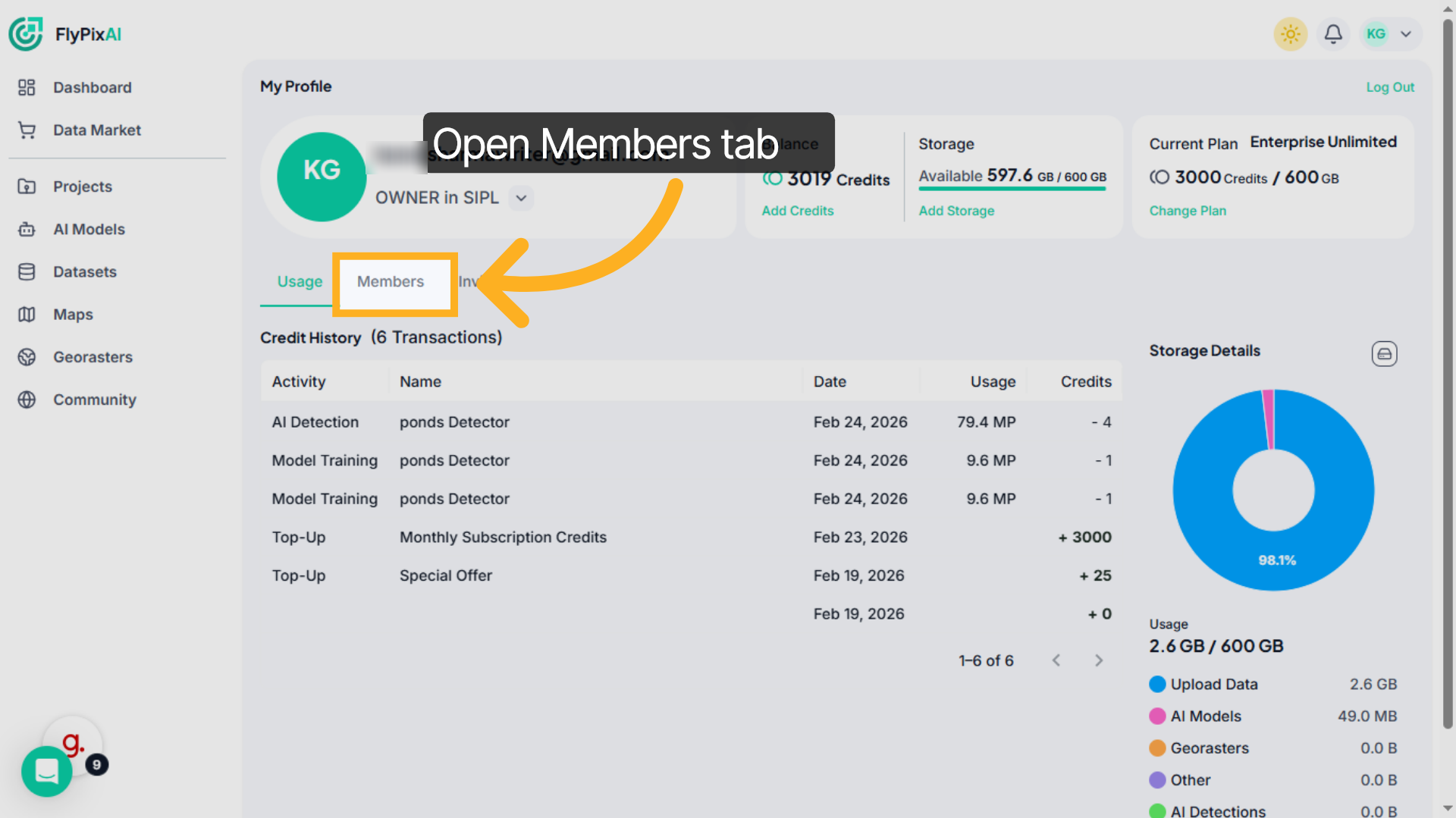
1. Open Members Management
Click the Members tab.
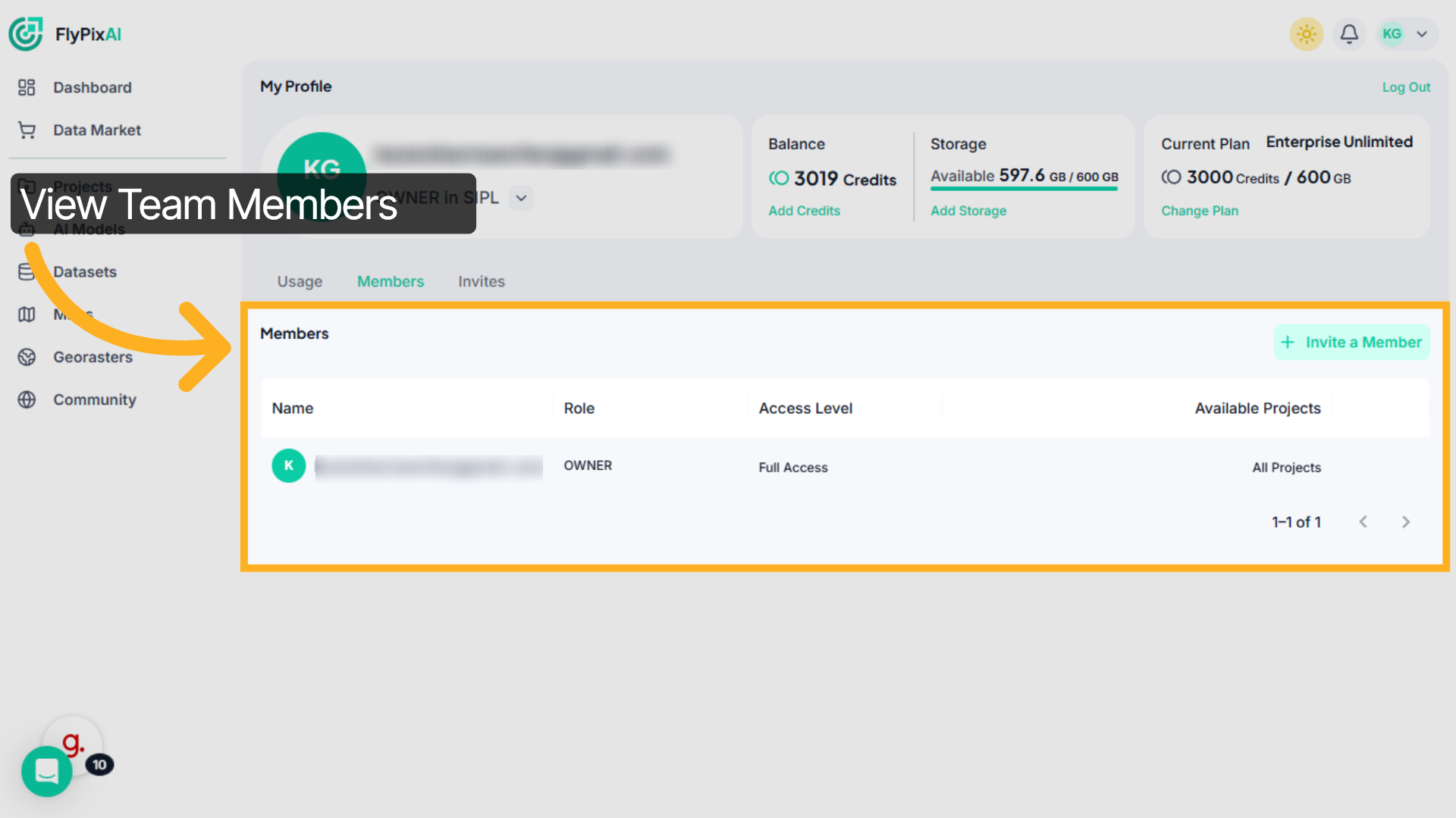
2. View Team Members
Here you can see all team members, their roles, access levels, and project availability.
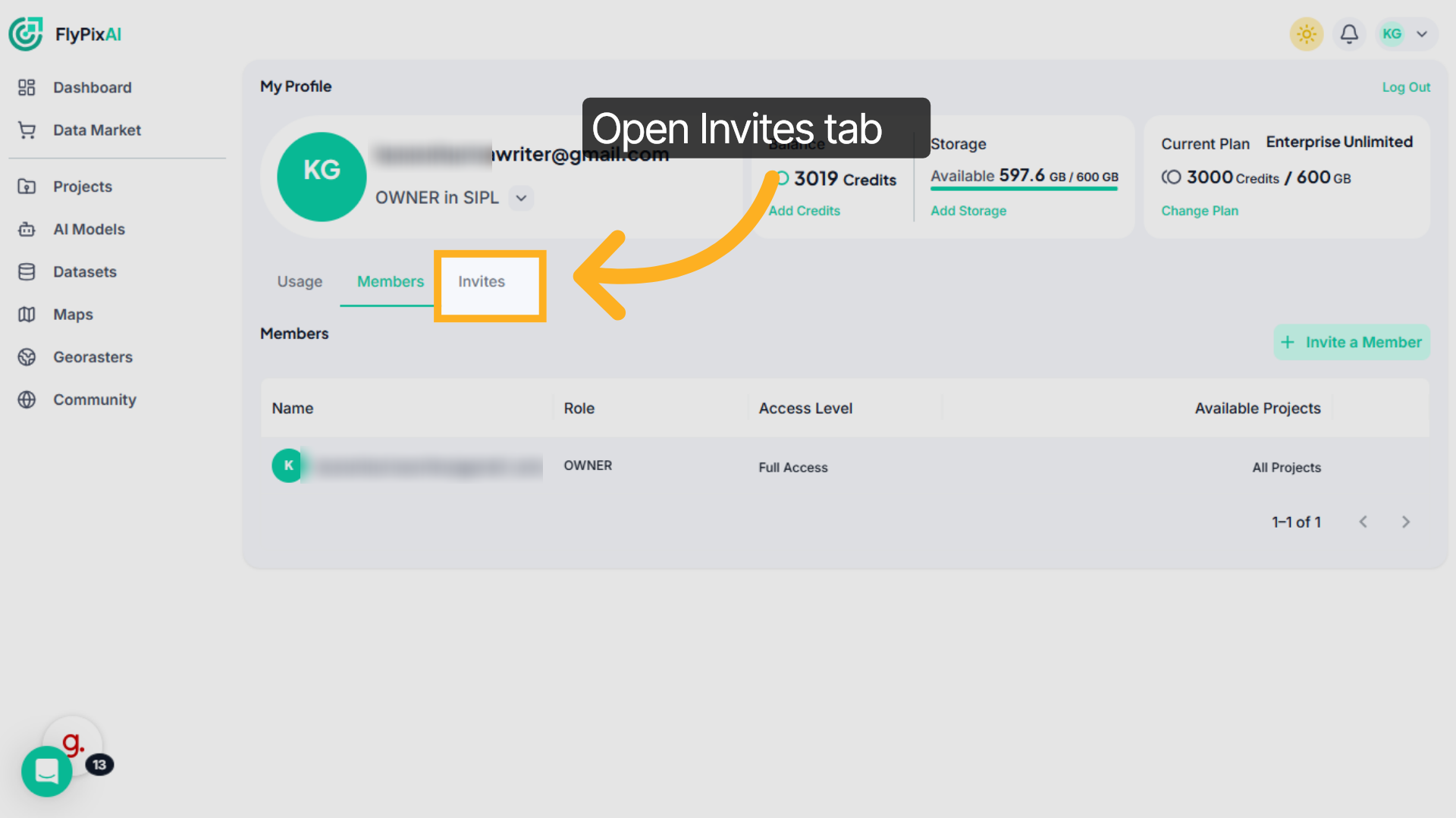
3. Open Invites Management
Switch to the Invites tab to monitor pending invitations and generated invite links.
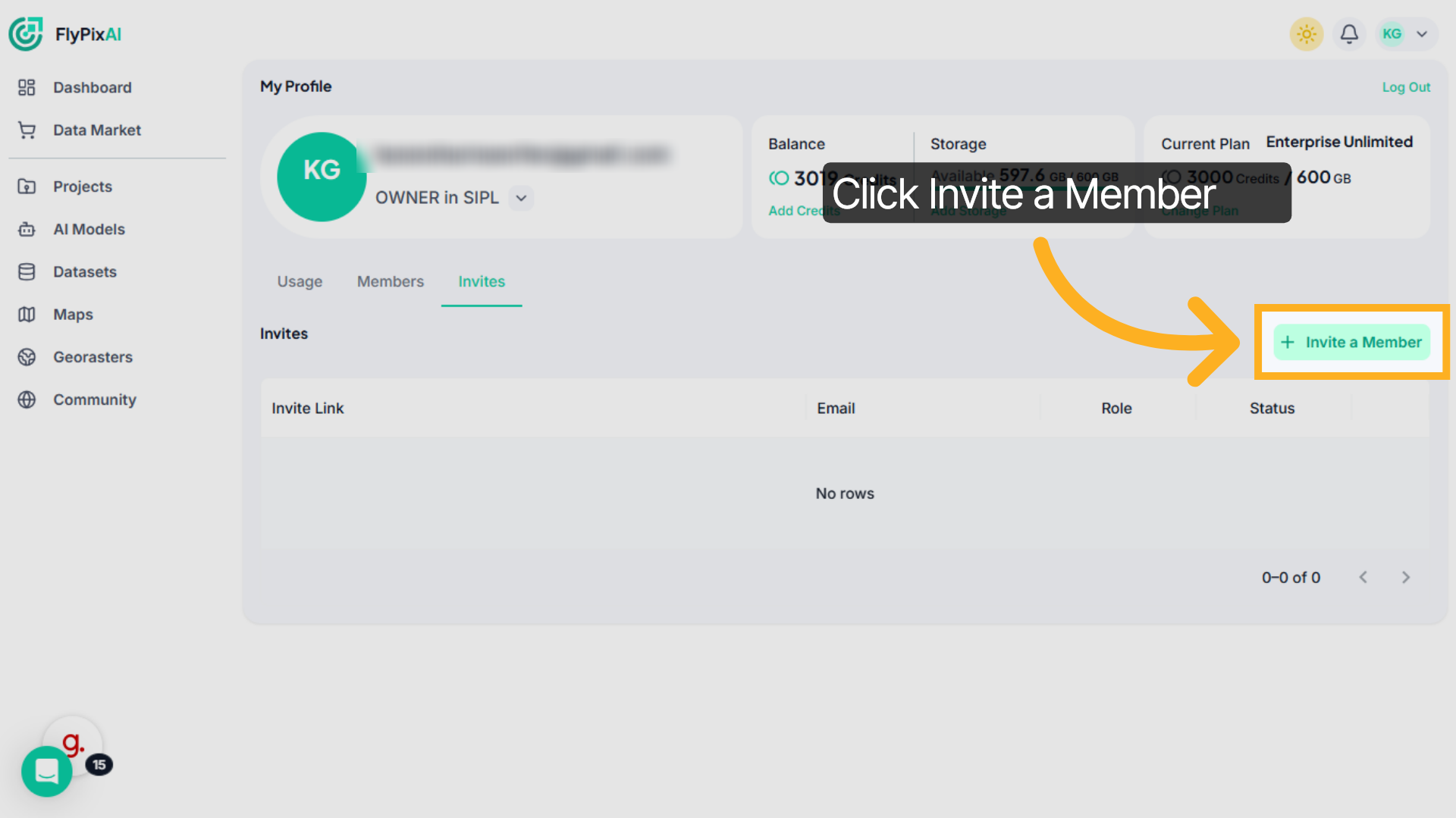
4. Initiate Member Invitation
To add someone new, click Invite a Member
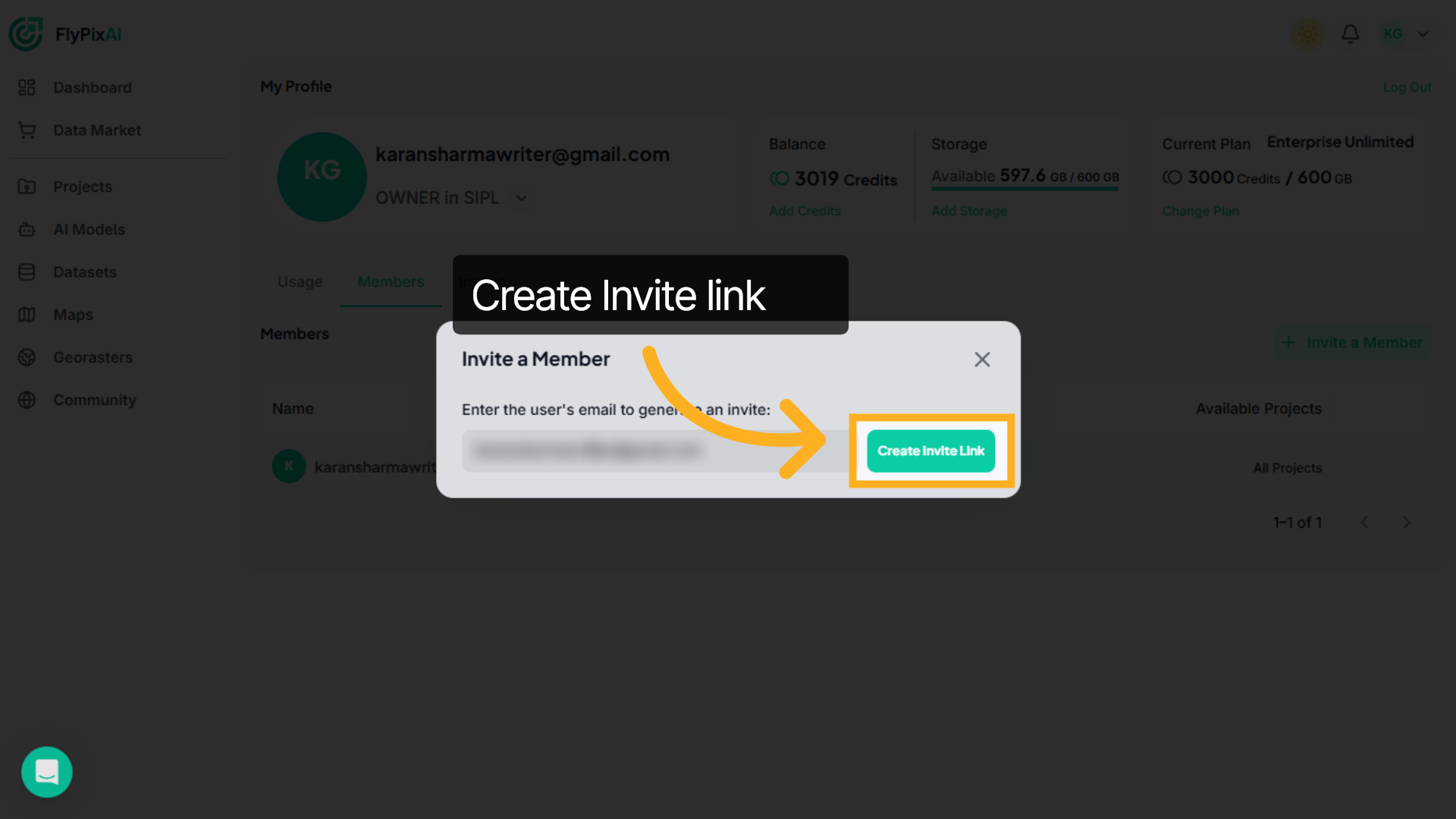
5. Create Invite Link
Enter the email address and then click on the "Create Invite Link" to send the invite link.
A newly invited member starts out with the Tenant Guest role, which grants no access on its own. Grant them a tenant-level role or add them to specific projects to give them real access — see Roles & Permissions for what each role allows and how to manage roles for a member.