Explore Dashboard Features In FlyPix AI Platform
This demo walks you through the FlyPix AI dashboard and shows how to monitor projects, processing activity, and resource usage efficiently.
Go to app.flypix.ai
1. Introduction
In this overview, you’ll learn how to navigate the dashboard, monitor processing tasks, and manage your credits and storage.
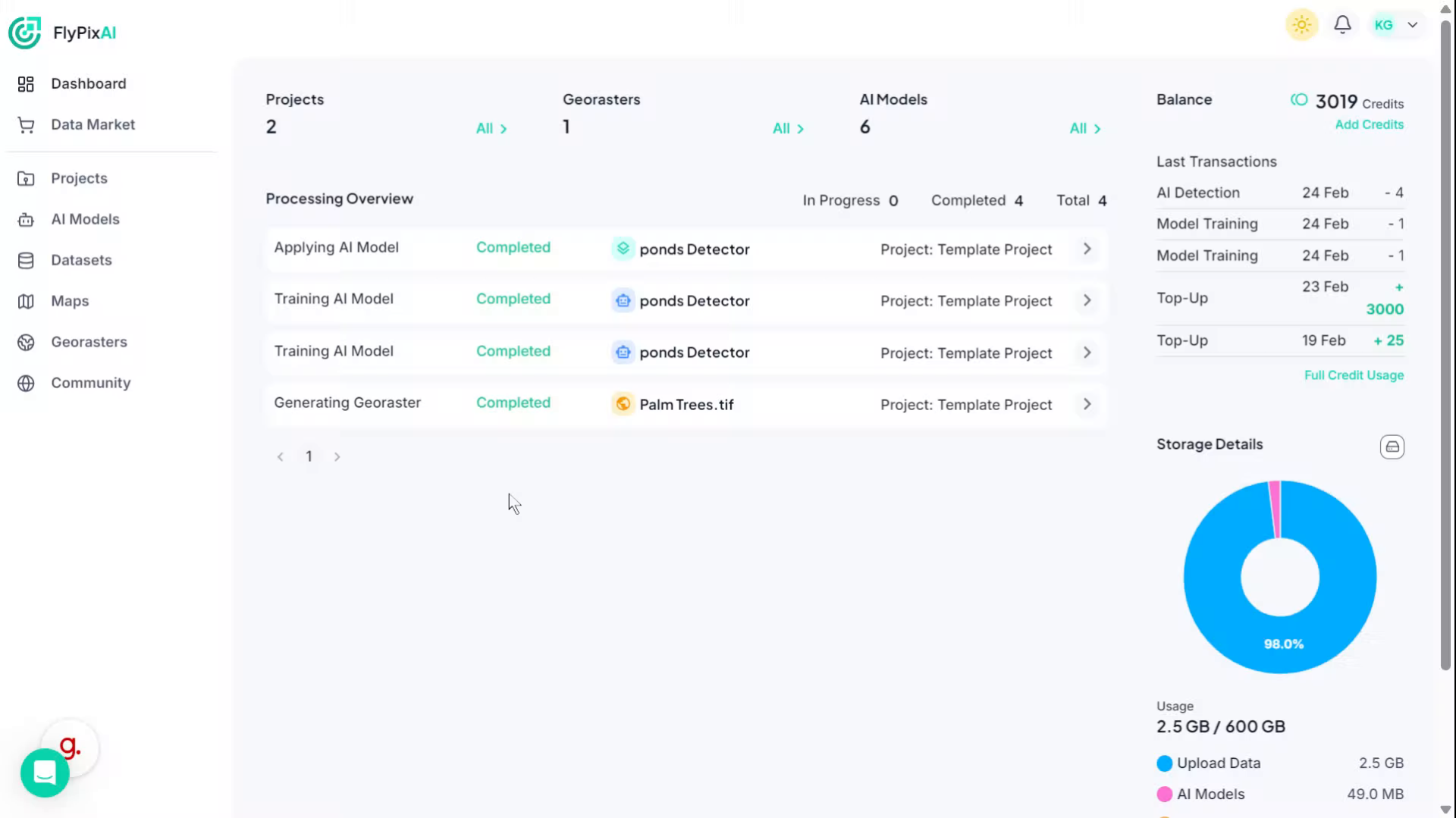
2. Quick Access Menu
On the left side, you’ll see the main navigation panel for quick access to key sections like Dashboard, Data Market, Projects, AI Models, Datasets, Maps, Georasters, and Community. Use this menu to easily move across different areas of the platform.
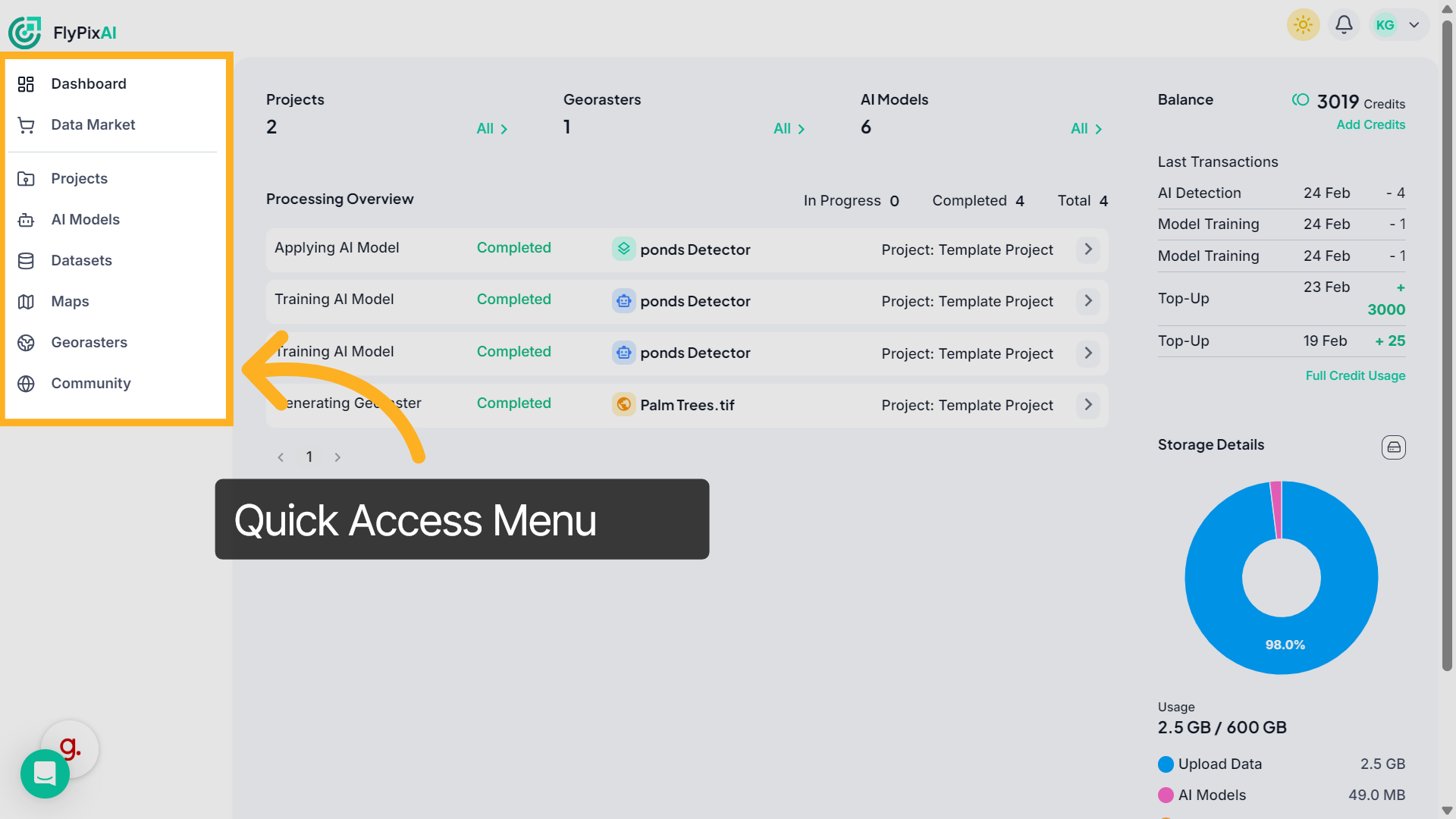
3. View Project Summary
At the top of the dashboard, you can see a summary of your total Projects, Georasters, and AI Models. Click “All” next to any category to view the complete list.
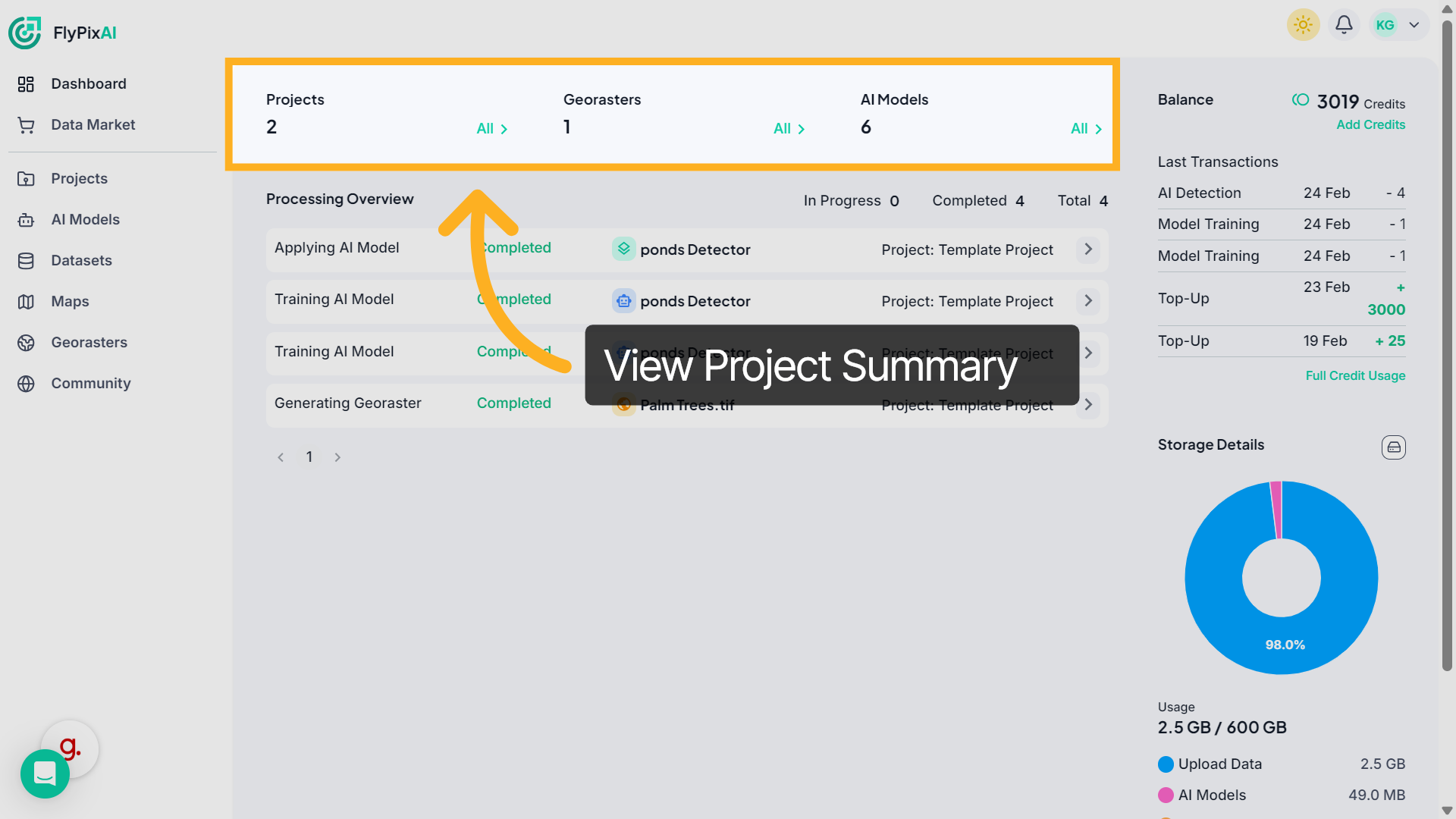
4. Monitor Processing Overview
In the Processing Overview section, track current and completed tasks. Each entry shows the task type, its status, and the associated project, helping you monitor workflow progress in real time.
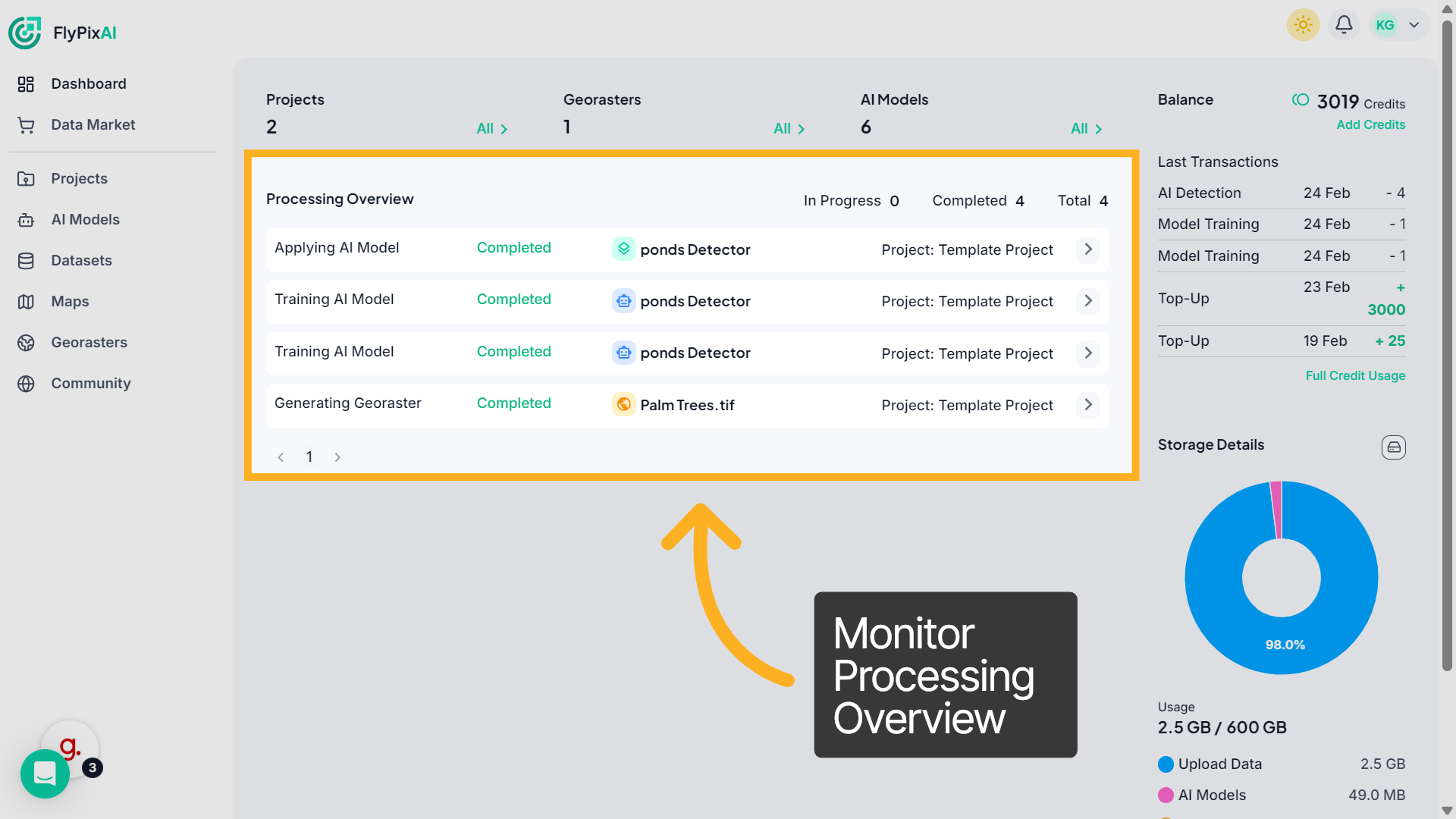
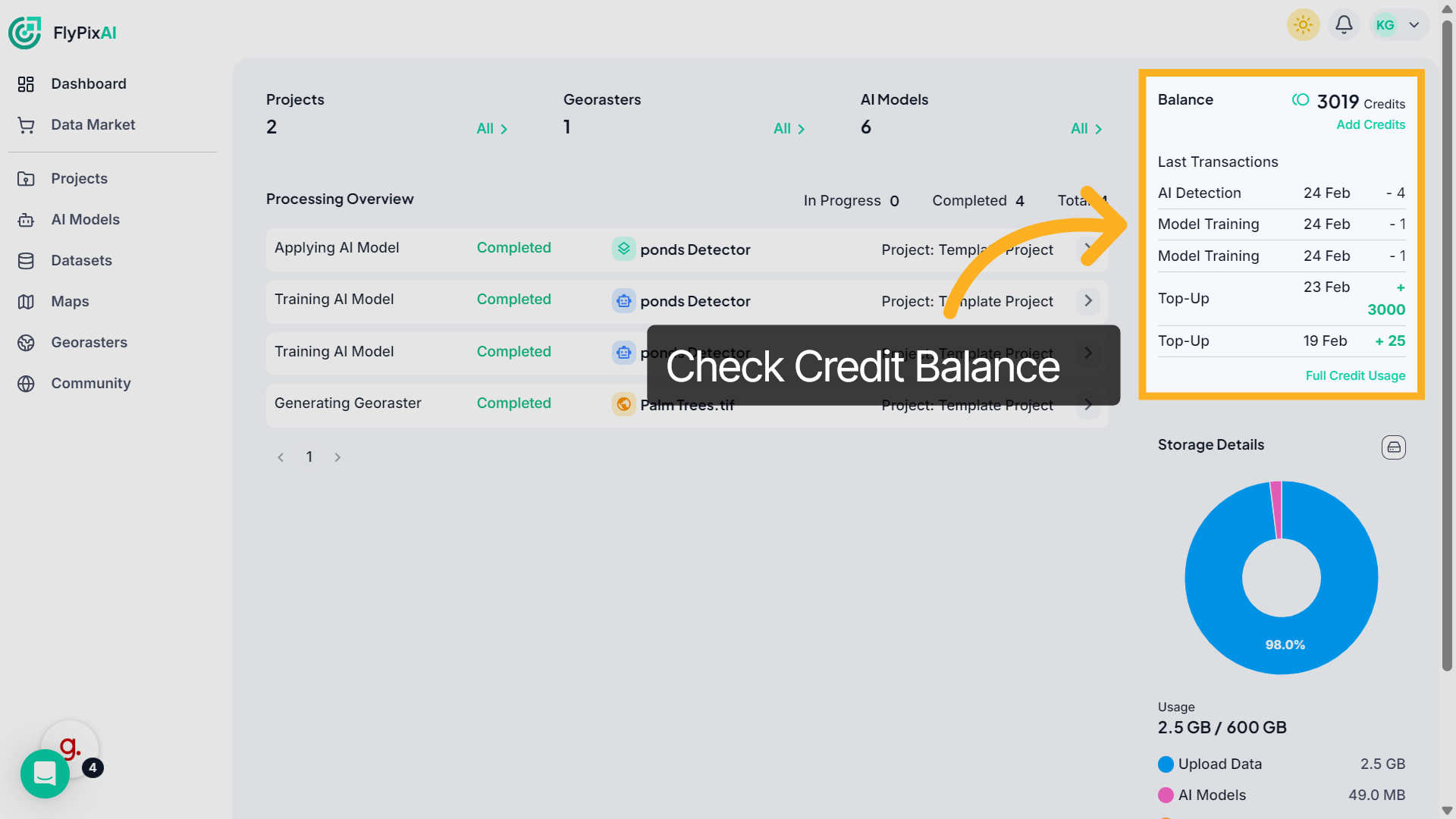
5. Check Credit Balance
On the right panel, view your available credit balance. You can review recent transactions and click “Add Credits” to top up your account if needed.
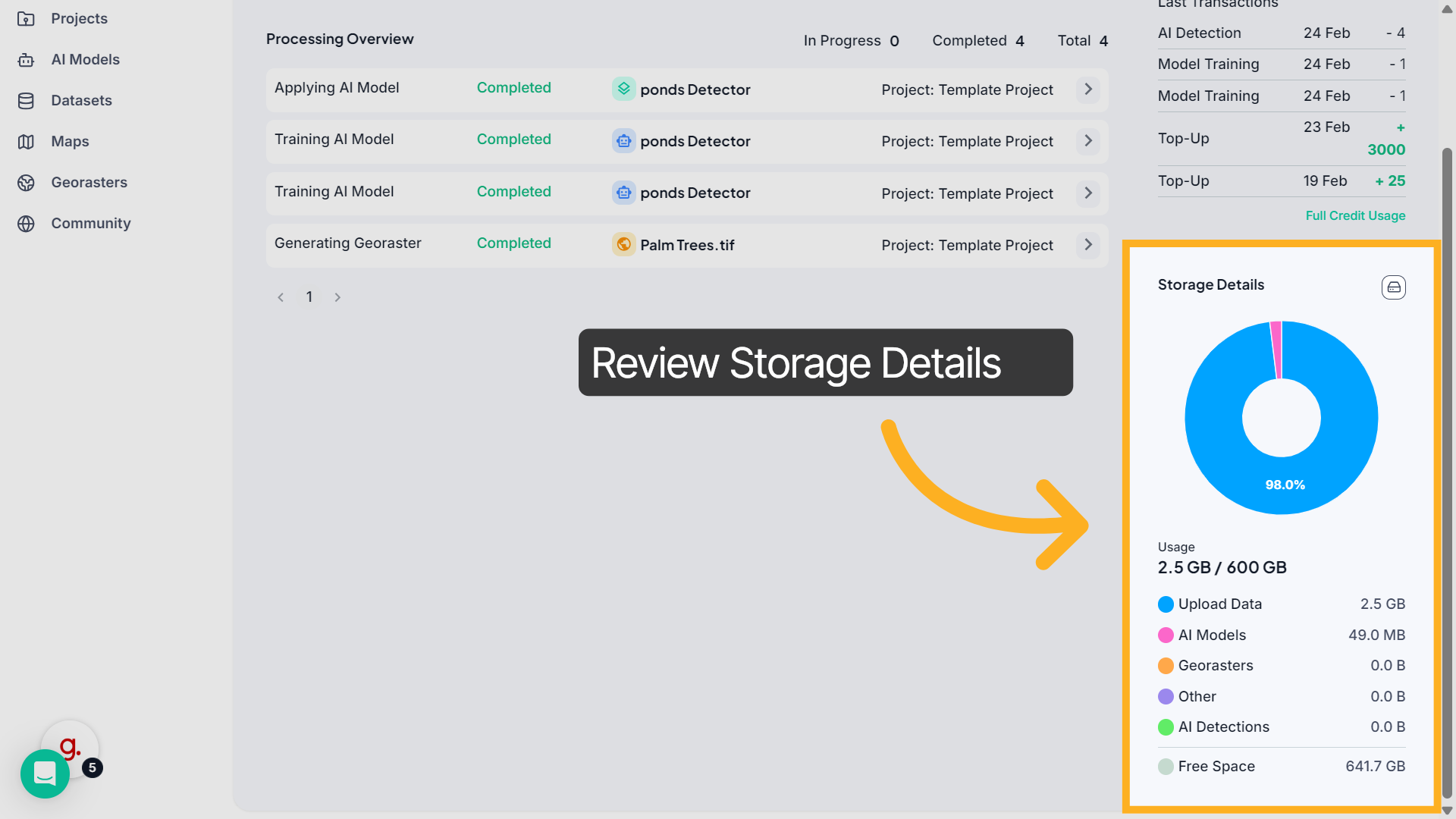
6. Review Storage Details
Below the balance section, the Storage Details panel displays your total storage usage and a breakdown by category, such as uploaded data and AI models.
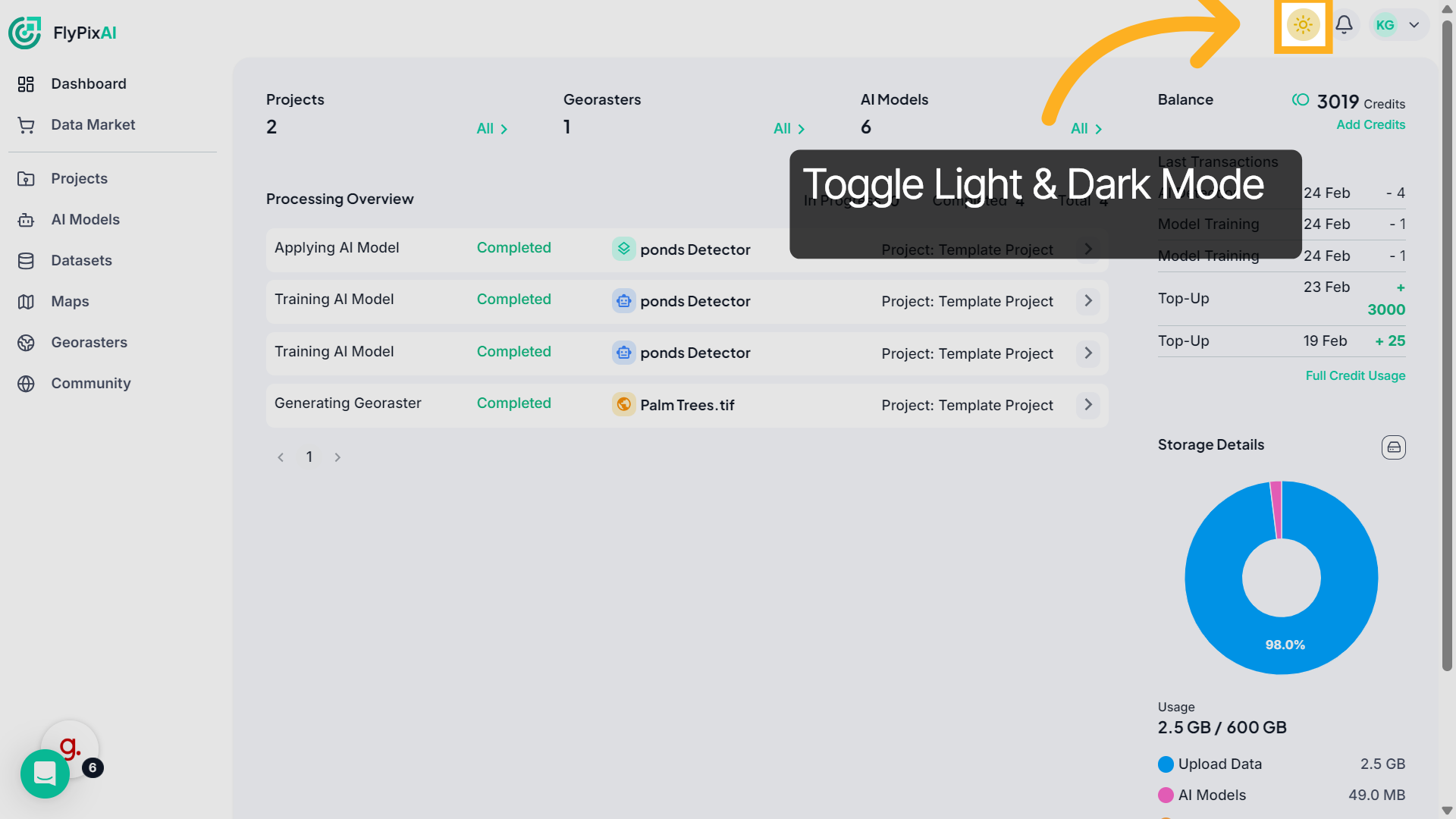
7. Toggle Light & Dark Mode
Click this theme icon to switch between Light Mode and Dark Mode.
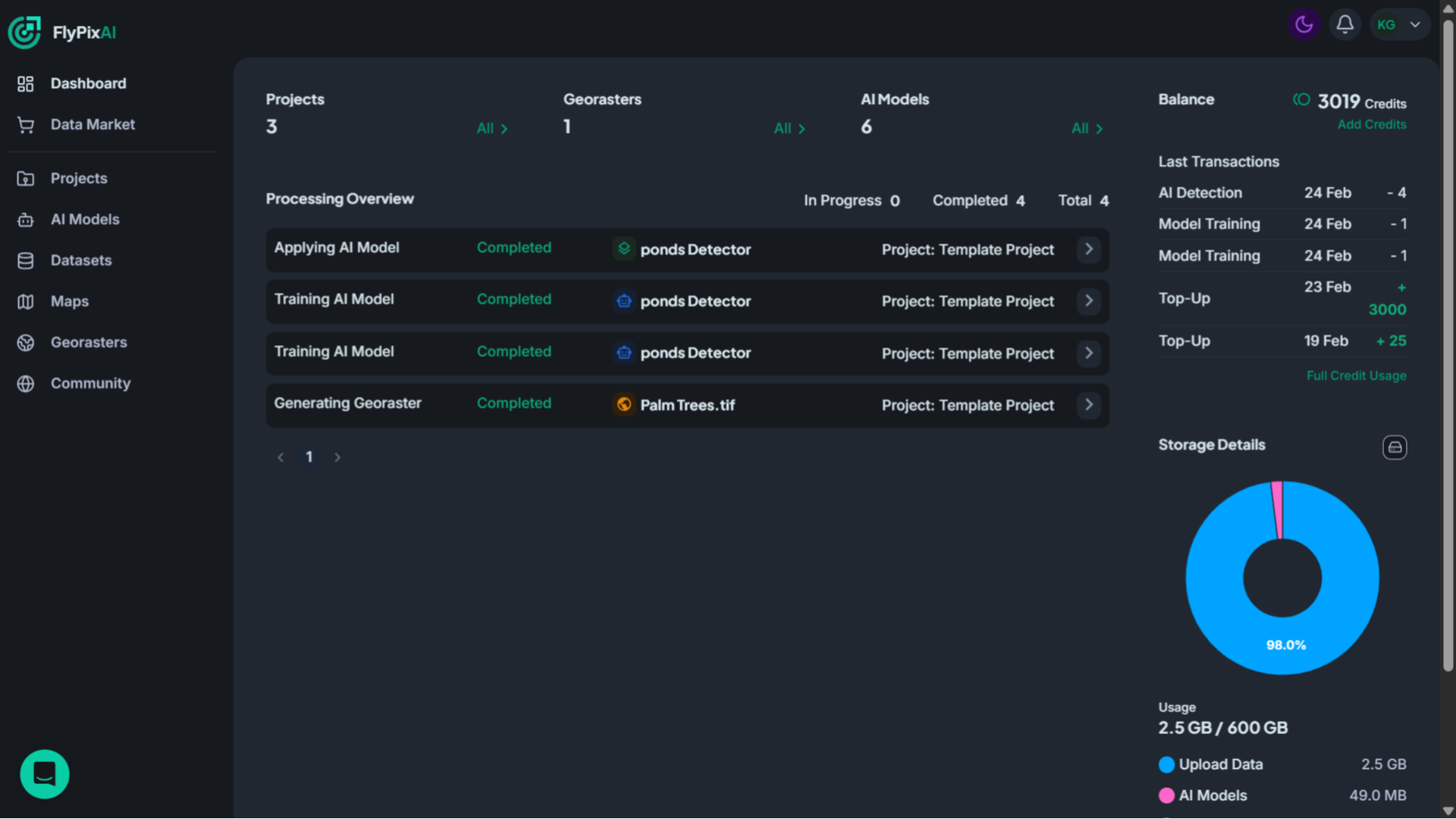
8. View Dark Mode Interface
As you switch to Dark Mode, the dashboard instantly transforms into a darker interface. Notice how the background shifts to deeper tones while panels and text adjust for better contrast and comfortable viewing in low-light environments.
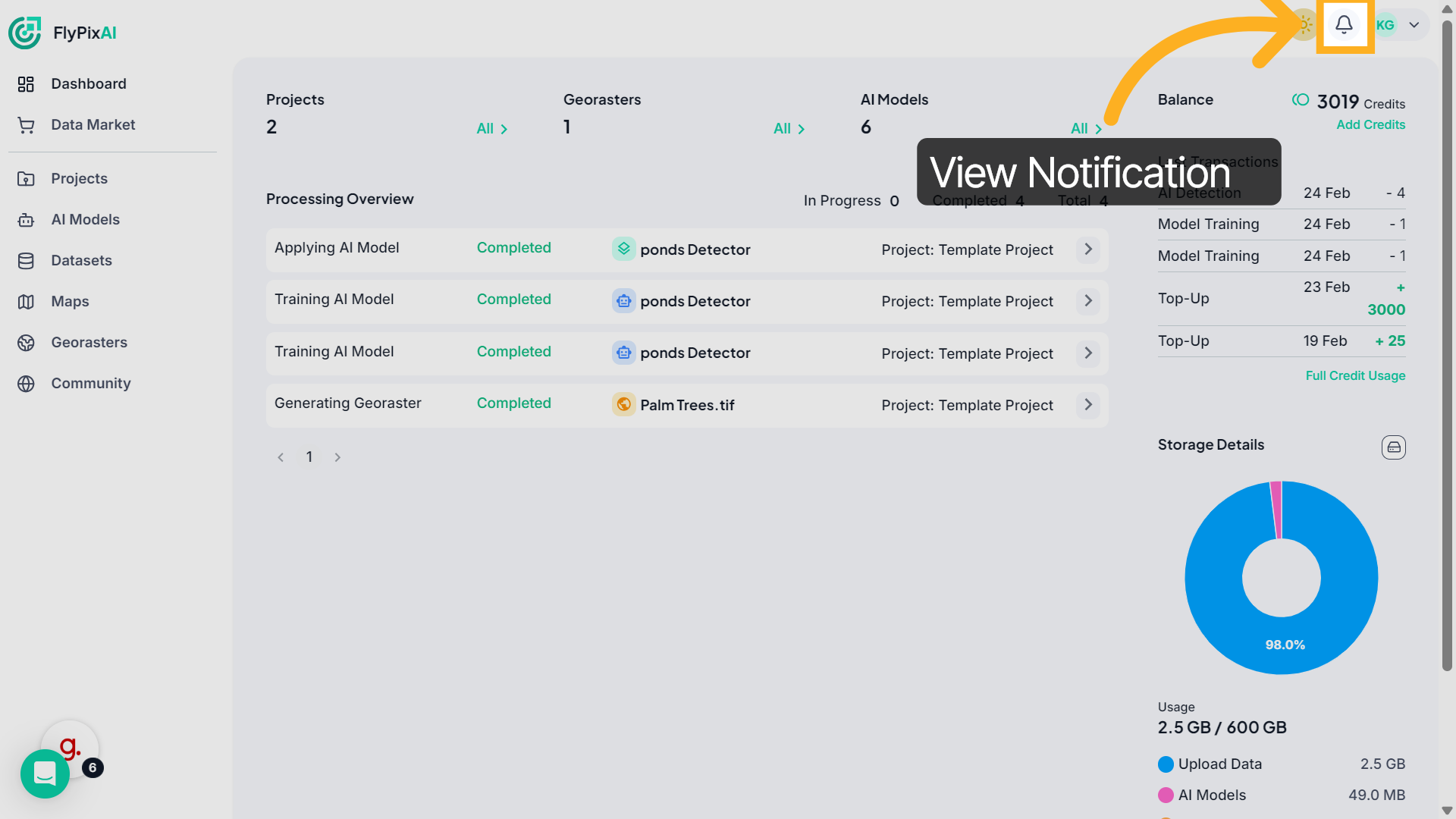
9. Notifications Panel
Click the bell icon in the top-right corner.
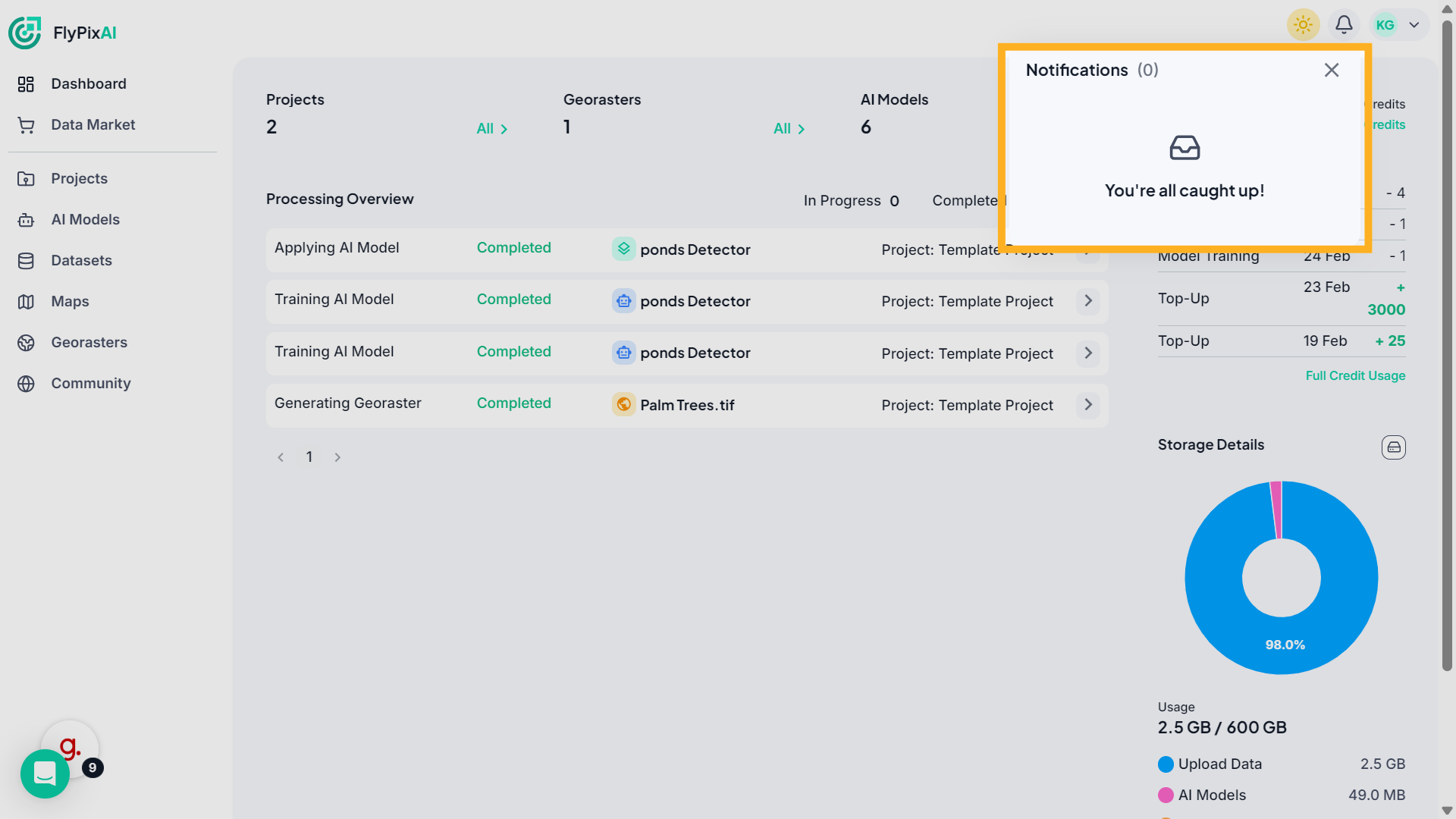
10. Open Notifications Panel
This opens the Notifications panel, where you can view recent processing updates, alerts, and account activity.
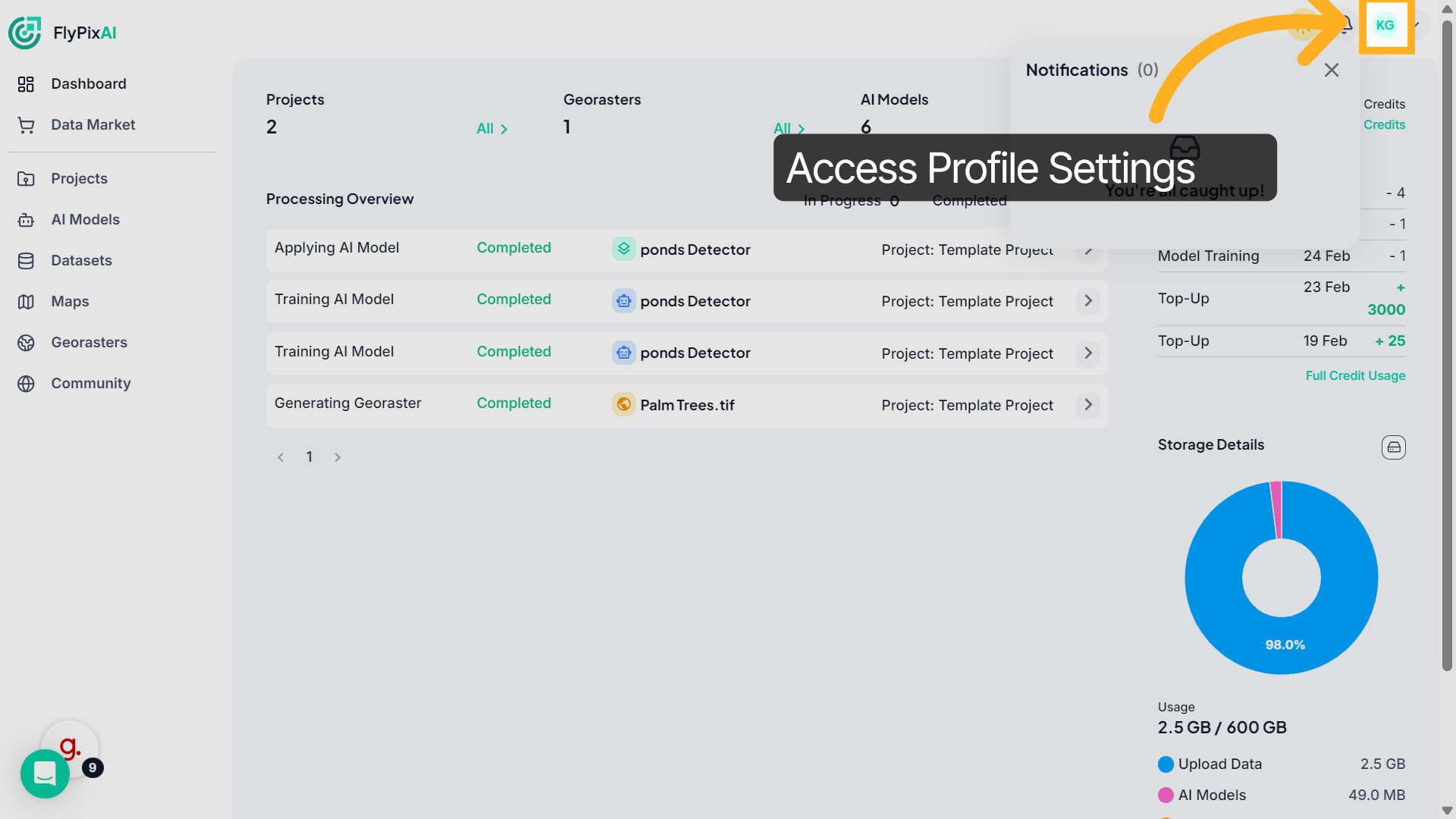
11. Access Profile Settings
Click your profile icon in the top-right corner.
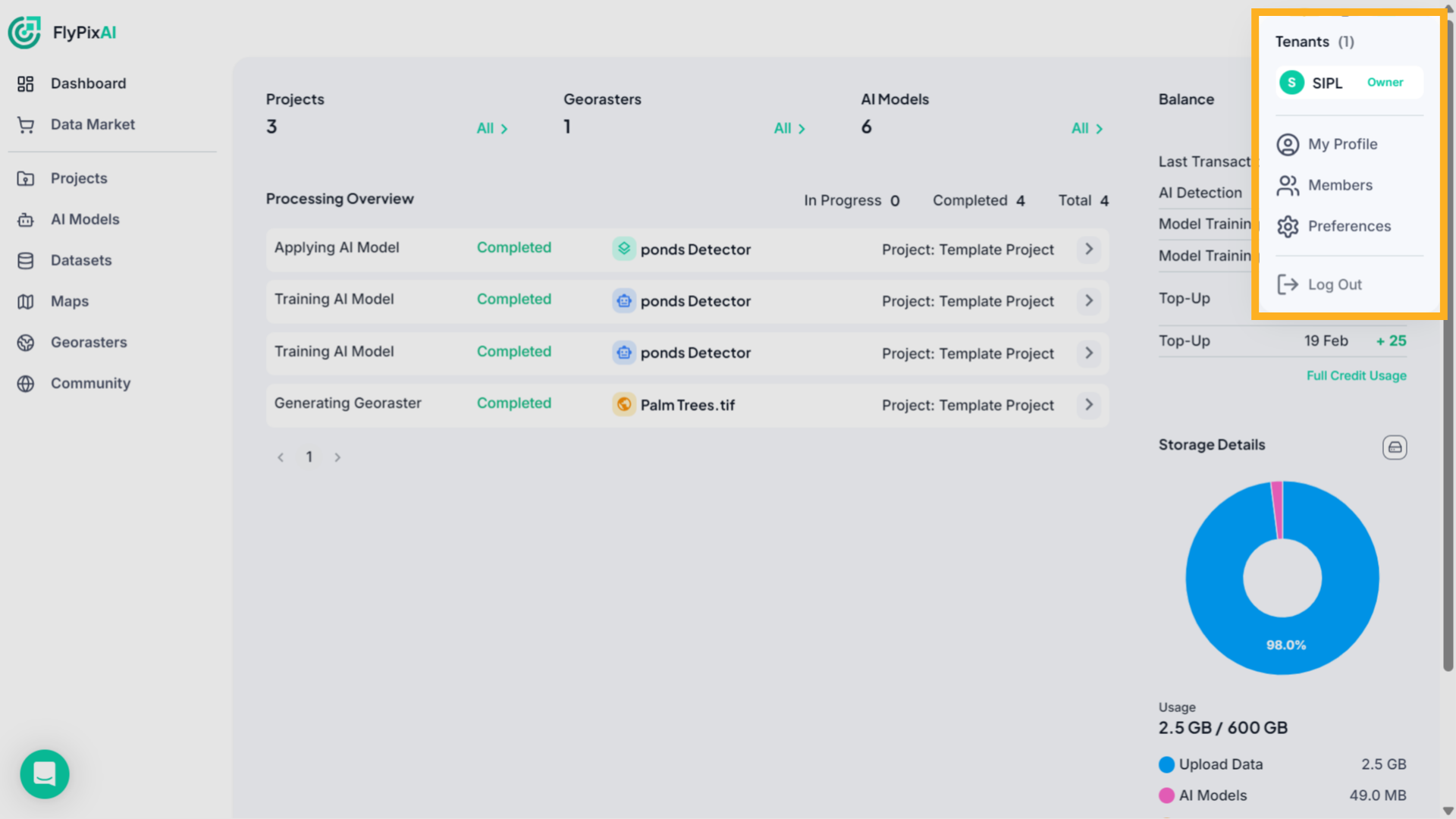
12. Open Account Settings
From the dropdown menu, you can select Account Settings to manage your profile details, preferences, or log out securely.
With quick access to processing insights, resource tracking, display settings, and notifications, the FlyPix AI dashboard keeps everything you need in one centralized view.