Import External Imagery
FlyPix AI lets you add imagery that does not require uploading a file from your device. Instead of processing a local GeoTIFF, you connect to an external data source — a tile service, a hosted file, or a map provider — and FlyPix creates a raster that streams data directly from that source.
There are three external imagery types:
| Type | Description |
|---|---|
| Public COG | A Cloud-Optimized GeoTIFF hosted at a URL you provide. |
| WMTS | A Web Map Tile Service endpoint with a specific layer. |
| Rasterless | A synthetic raster scoped to an extent you define, rendered using a base map provider. |
Public COG
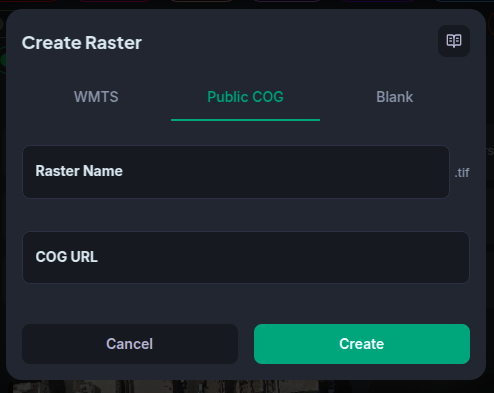
A Cloud-Optimized GeoTIFF (COG) is a GeoTIFF file laid out so that HTTP range requests can efficiently stream individual tiles. If you already have a COG hosted somewhere publicly accessible — an S3 bucket, a cloud storage URL, or any static server — you can reference it in FlyPix without re-uploading the file.
To add a Public COG:
- Open a project and go to the Files tab.
- Click + Add > Import External Imagery and select the Public COG tab.
- Paste the public URL of the COG file.
- Give the raster a name and confirm.
The file will appear in the project immediately, without any processing delay.
WMTS (Web Map Tile Service)
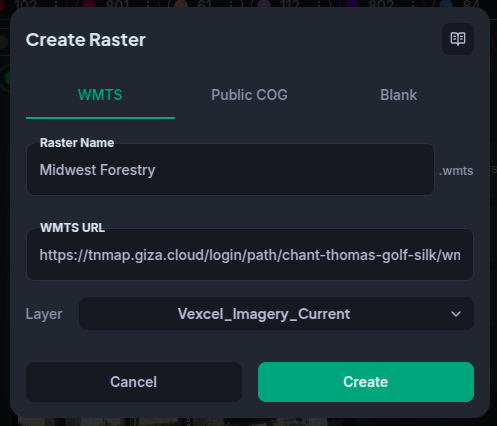
WMTS is a standard protocol for serving pre-rendered map tiles. Many national mapping agencies, satellite providers, and GIS platforms expose their imagery as WMTS endpoints. You can connect any compatible service directly to a FlyPix project.
To add a WMTS source:
- Open a project and go to the Files tab.
- Click + Add > Import External Imagery and select the WMTS tab.
- Enter the service URL (the GetCapabilities endpoint) and the layer name.
- Give the raster a name and confirm.
The layer will be available in the project immediately and rendered on the map canvas in the workspace.
Rasterless
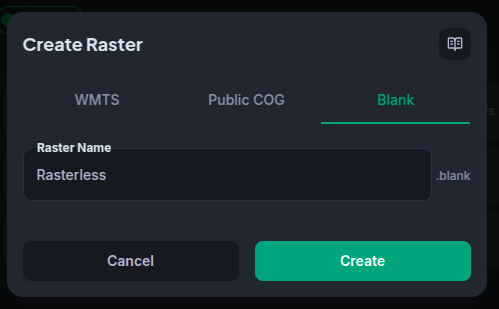
A Rasterless file is a synthetic raster scoped to a geographic extent that you define. It is useful as a background map for annotation or spatial reference when you do not have your own imagery for an area.
There are two ways to create a Rasterless file:
Using the creation modal
- Open a project and go to the Files tab.
- Click + Add > Import External Imagery and select the Blank tab.
- Enter a name for the raster.
- Confirm to create the raster.
Dropping a GeoJSON file
If you have a GeoJSON file with data you wish to use, you can drag and drop it directly onto the imagery upload area:
- Drag a
.geojsonfile onto the Files drop zone in any project. - FlyPix will parse the file client-side and open a confirmation dialog.
- Configure the import and adjust the raster name if needed.
- Confirm to create the Rasterless file with your extent and data.
The GeoJSON file itself is not stored or uploaded — only the bounding box extent is used.
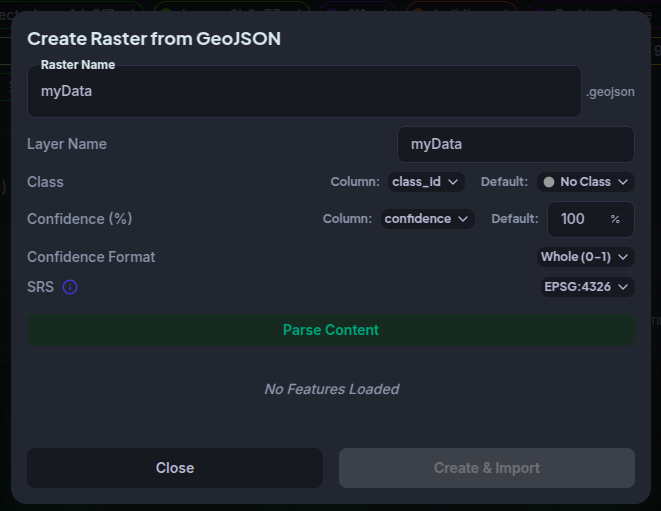
This option will import all your data into the raster immediately after creating it. This happens in your browser and may take some time depending on the size of your data.
Limitations
Training models and running inference are currently not supported for any external imagery type. If you try to open the Training mode or apply a model while an external raster is active, those controls will be disabled. Given this, external imagery cannot, for now, be added to datasets either.
Future support: We plan to enable training and inference for Public COGs and WMTS rasters in a future release. Rasterless files will remain excluded from processing workflows by design.
Files you did not upload into FlyPix yourself cannot be downloaded from the app. This applies to Public COG, WMTS, and Rasterless files — the Download option will not appear for these file types.
GeoJSON note: The GeoJSON file used to define a Rasterless extent is not stored in FlyPix and cannot be retrieved. However, if you imported annotation vectors alongside your work, you can always export them as GeoJSON from within the workspace using the export tool.