Export Vector Layers
FlyPix AI lets you export your annotations as a GeoJSON file directly from the workspace. You can control the coordinate reference system, filter which annotations to include, and choose exactly which annotation properties — as well as your project's own custom data properties — are written into each feature's properties object, including custom names for each field.
Opening the Export Dialog
There are two ways to open the export dialog:
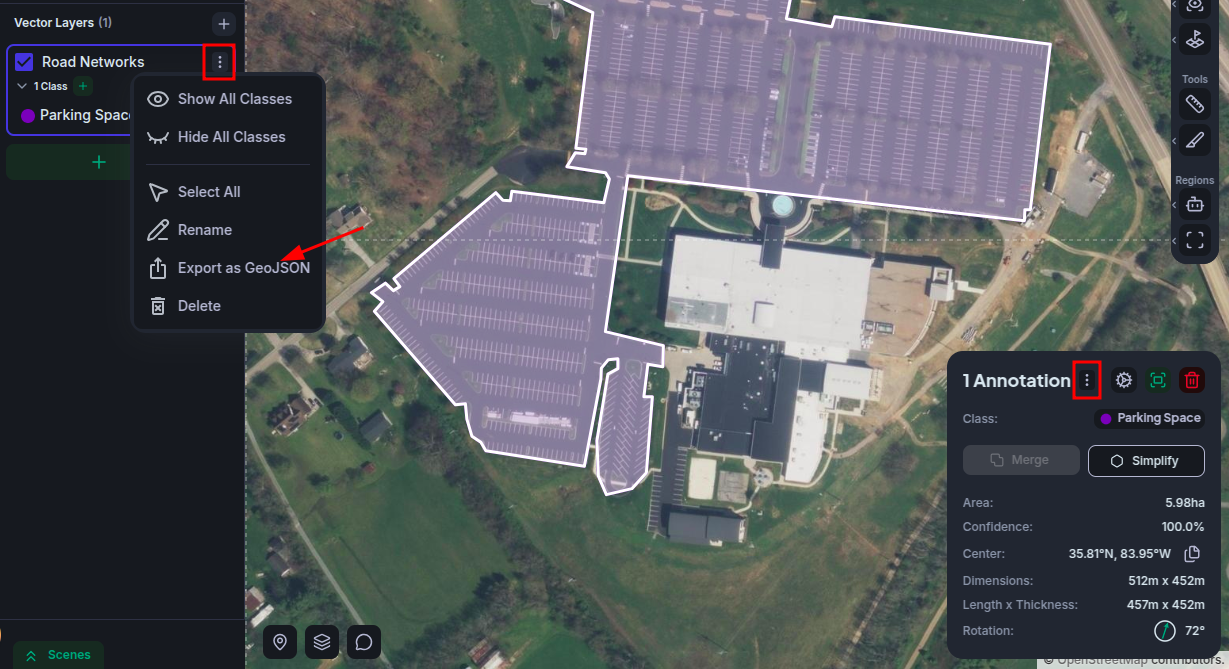
- From the vector layer menu — Open the layer panel, click the menu on any vector layer, and select Export.
- From the inspector — Select one or more annotations, then click the export action in the inspector toolbar. This lets you export exactly the annotations currently in your selection.
Exporting Whole Files, Datasets and Workspaces
You can also export every annotation of every vector layer of one or more files as a single GeoJSON file, without opening each layer:
- A file — In a project's file list, open the file's menu and select Export Annotations.
- Several files — Select the files, then choose Export Annotations from the More actions menu of the selection bar.
- A dataset — Open the dataset's menu and select Export Annotations.
- A workspace — In a project's Workspaces list, open the workspace's menu and select Export Annotations. Every file of every scene is included.
- From inside the workspace — In the Data panel, open the menu next to Vector Layers. Export all layers as GeoJSON covers the files of the current scene; Export full workspace as GeoJSON appears once the workspace holds two or more files.
The dialog offers the same options described below. When several files are exported, a Raster Selection filter lets you leave files out, and the Raster ID property is included by default so you can tell their annotations apart. Raster ID and Raster Name are available in every export.
The dialog first reads a summary of each vector layer, then loads its annotations, showing a progress bar per layer. You can adjust the settings while they load, and click Download When Ready to start the download as soon as everything has loaded. A layer that fails to load can be retried on its own.
The export keeps running while you work elsewhere in the app: close the dialog with its × button, or choose Continue in Background once the download has started, and a progress panel appears in the bottom-right corner, from which you can reopen or cancel it. Cancel in the dialog ends the export instead. Only one such export runs at a time; starting another asks whether to abort the current one. Leaving or reloading the page stops the export, so the app asks for confirmation first.
Chrome and Edge ask where to save the file and write it straight to disk, so exports of any size work. Other browsers keep the whole file in memory until the download starts, which limits how large an export can be.
Export Options
Filename
Set the name of the downloaded .geojson file. The extension is added automatically.
Export Format
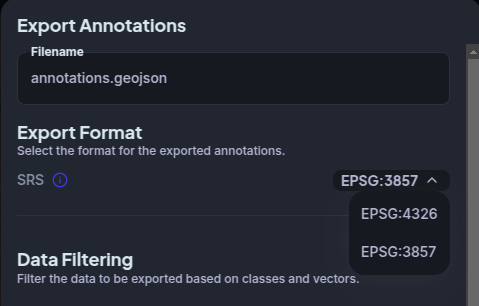
Choose the Coordinate Reference System (CRS) for all geometry coordinates in the output:
| CRS | Description |
|---|---|
| EPSG:4326 | Geographic coordinates (longitude/latitude in degrees). The default GeoJSON standard. |
| EPSG:3857 | Web Mercator projected coordinates (metres). Useful for tools that expect a projected CRS. |
Data Filtering
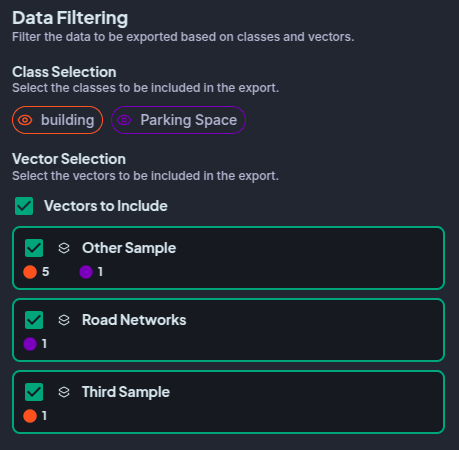
When your workspace contains multiple classes or vector layers, you can narrow the export to a specific subset before downloading.
- Class Selection — Deselect any classes whose annotations should be excluded from the output.
- Vector Layer Selection — Deselect any layers to omit all annotations belonging to those layers.
If all annotations share the same class and layer, filtering controls are not shown.
Properties to Export
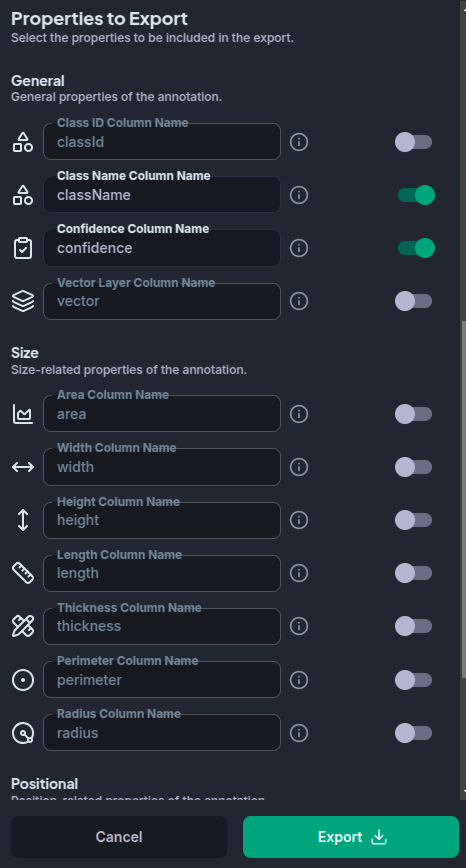
This section controls which computed values are written into the properties object of each GeoJSON feature. Properties are grouped into three categories:
| Category | Examples |
|---|---|
| General | Class ID, class name, model confidence, vector layer |
| Size | Area, width, height, length, thickness, perimeter, radius |
| Positional | Center, centroid, circumcenter, orientation |
Each property can be individually toggled on or off. You can also override the field name that will appear in the exported file — useful when your downstream tooling expects a specific schema.
For a full description of what each property represents and how it is calculated, see the Annotation Properties reference.
Data Properties
If the project has a data property schema defined, this section lets you export those custom, project-specific values alongside the computed properties above.
- If the schema describes a plain object, each of its top-level fields becomes its own exportable property, defaulting to a column named after the field's key.
- Otherwise, the entire custom data value is exported as a single property, defaulting to a column named
property.
Just like the properties above, each row can be individually toggled on or off and given a custom column name. If the project has no schema defined, this section has nothing to export.
See Custom Data Properties for how a project's schema is defined and how these values are edited.
Exporting
Once you are satisfied with the configuration, click Export. A progress indicator appears while the file is being prepared. For large annotation sets this may take a few seconds.
The resulting .geojson file is a standard GeoJSON FeatureCollection and can be opened in any GIS tool, imported back into FlyPix via the workspace import option — including its data properties, matched back up by column name (see Importing from GeoJSON) — or used to seed a Rasterless file.