Ask Questions About Your Data With GeoSense
GeoSense is FlyPix's built-in AI assistant for the workspace. Ask it questions about your annotations in plain language — it can filter, rank, compare, and summarize your data across all vector layers in your project.
Opening GeoSense
Click the GeoSense widget in the workspace widget bar at the bottom-left of the viewport to open the panel.
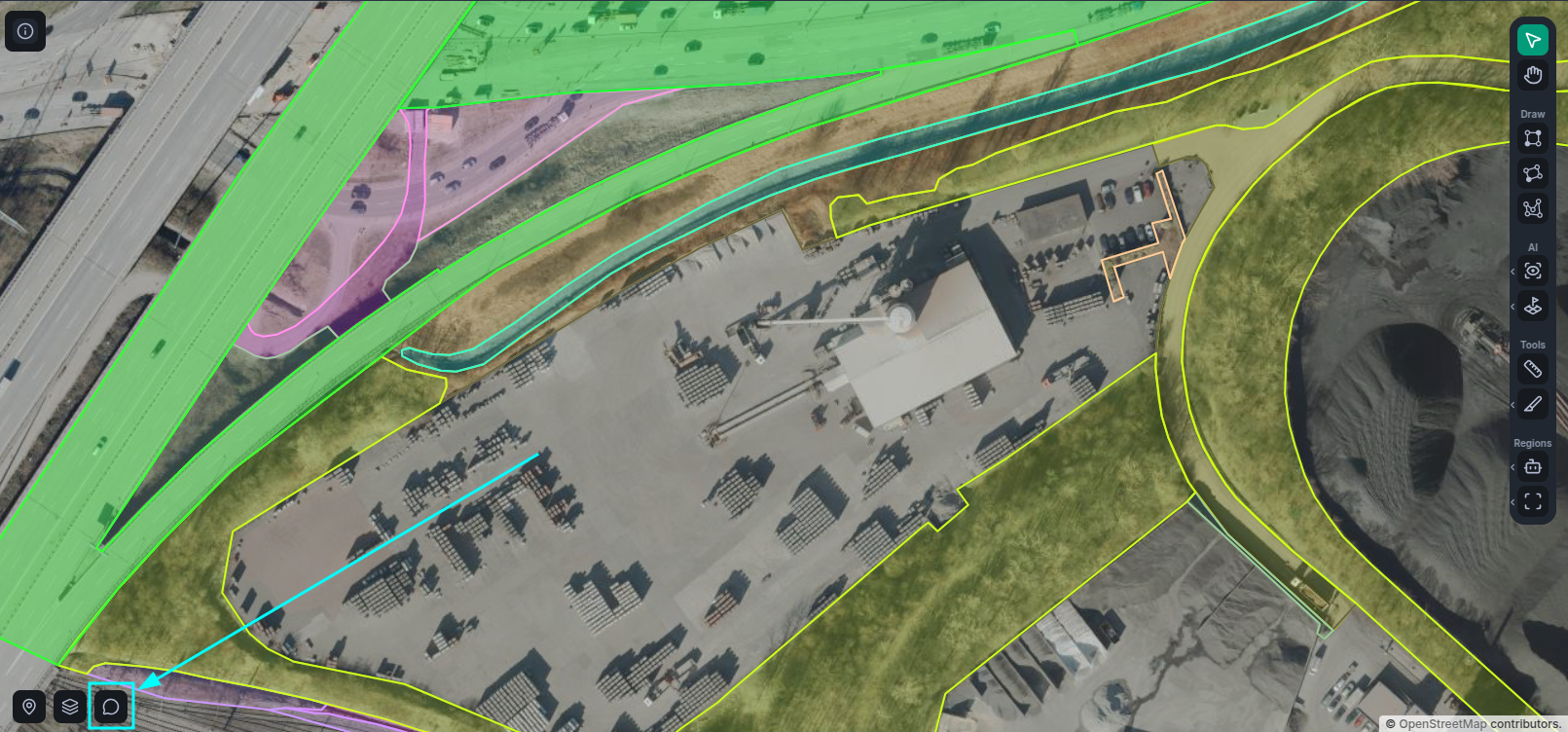
GeoSense is aware of all vector layers in your project, so you can ask about any class or layer without configuring it first.
Sessions
Sessions are contextful chat histories stored at the project level. Each session gets an automatically generated title and persists between visits so you can pick up where you left off.
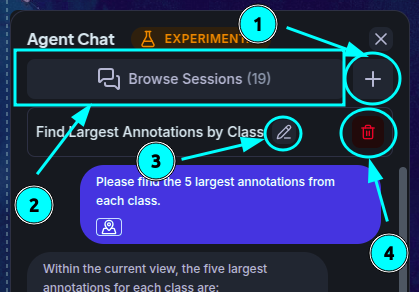
| (1) New session | Start a fresh session with a clean context. |
| (2) Browse sessions | Open the session panel to see all sessions for this project. |
| (3) Rename session | Edit the session name directly next to the current session title. |
| (4) Delete session | Remove the current session. |
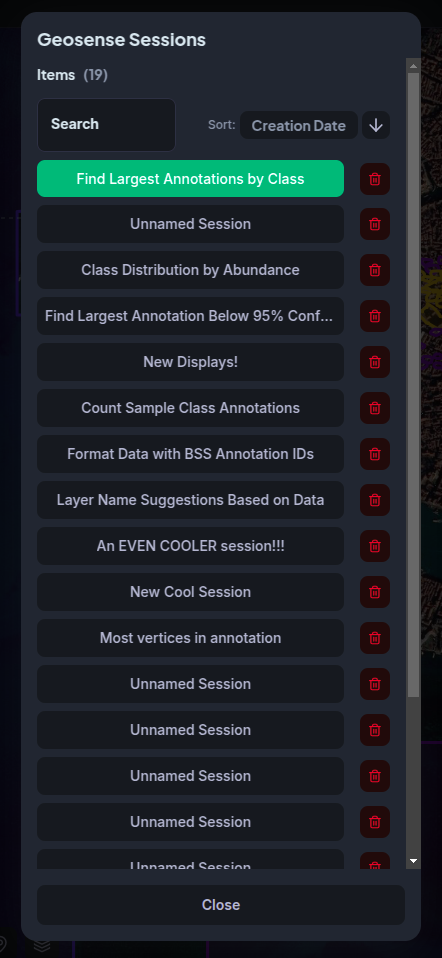
Clicking Browse sessions (2) opens the session panel, where every saved session is listed. Select any entry to make it the active session, or delete sessions you no longer need.
Sending Messages
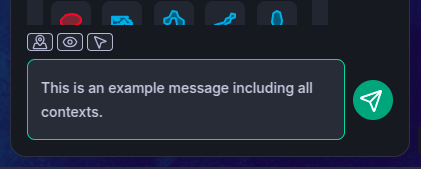
Click the message field at the bottom of the panel, type your question, then press Enter or click the send button to submit it.
Right above it, you can see what contexts you will send along with your message.
Context Settings
Context provides GeoSense with information about your current map state so it can give more accurate, situationally relevant answers. All three context types are active by default and can be toggled individually from the context settings in the widget.
| Context | What it provides |
|---|---|
| Selection | The annotations you currently have selected in the workspace |
| Position | Your current viewport bounding box — what part of the map you are looking at |
| Visibility | Which classes and vector layers you currently have hidden |
GeoSense may also ask you to share context it needs for a specific question. Selecting "Allow" on that request attaches the relevant context types to your reply automatically.
Contexts
Contexts let you refine your queries by sharing information about your current map state with GeoSense. Without contexts, GeoSense has no knowledge of what is visible in your viewport, what you have selected, or which layers you have hidden. Attaching a context closes that gap — for example, you can ask "find objects visible in my viewport" or "which of my selected annotations are trees?" and get a meaningful answer without any manual filtering.
Context chips appear at the bottom of each message, recording what state was attached when it was sent. Hovering a chip reveals a summary of its contents. A context is active (highlighted) when your current workspace state exactly matches the data it holds — for instance, a position context is active when your viewport matches its stored extent. Clicking a Visibility or Position chip restores your workspace to that stored state in one click.
Visibility Context
The Visibility context captures which vector layers and annotation classes are currently hidden, as well as any active property filters such as area or confidence thresholds. GeoSense uses this to answer questions scoped to what you are actually looking at, rather than your full dataset.
Hovering the chip shows a tooltip listing all hidden objects. A completely hidden vector layer is shown with reduced opacity; a vector with only some hidden classes shows those classes as colored dots beneath it.
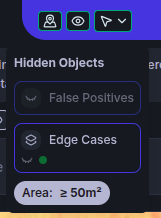
Clicking the chip itself activates the context, restoring your visibility settings and filters to match what it stored.
Position Context
The Position context captures your current viewport as a geographic bounding box. GeoSense uses this to answer questions scoped to the area you are viewing — without requiring you to draw a region or filter manually.
Hovering the chip shows the southwest and northeast corner coordinates of the stored viewport extent. You can copy any corner to the clipboard or pan directly to it.
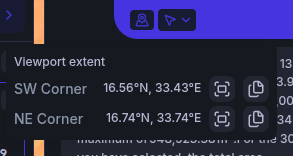
Clicking the chip activates the context, panning your viewport to match its stored extent.
Selection Context
The Selection context captures the annotations and regions you currently have selected. GeoSense can use this to answer questions scoped to your selection, rank or filter within it, or reference specific objects you have already identified visually.
Clicking the chip opens an interactive panel with a highlight block of all selected objects, including any regions. From there you can pan to the full set or export them, and click Select All to restore your active selection to match what the context holds.
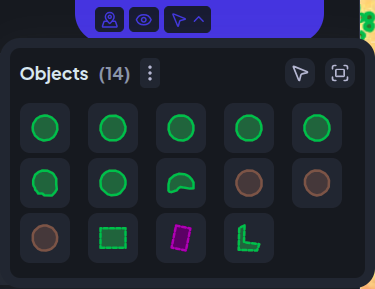
Because this panel contains interactive controls, the Selection context chip uses a click-to-open popover rather than a hover tooltip.
Example Use Cases
Finding the Largest Annotations of each Class in a Dataset
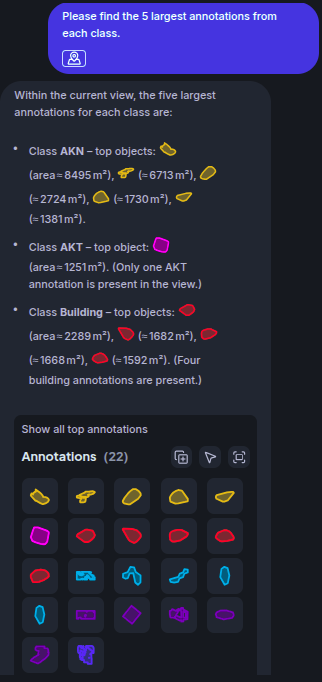
Rank your annotations by area and retrieve the top results. You can even group your results by class to avoid conflating results or having one class completely dominate, and get broadly applicable results.
"Show me the 5 largest annotations of each class."
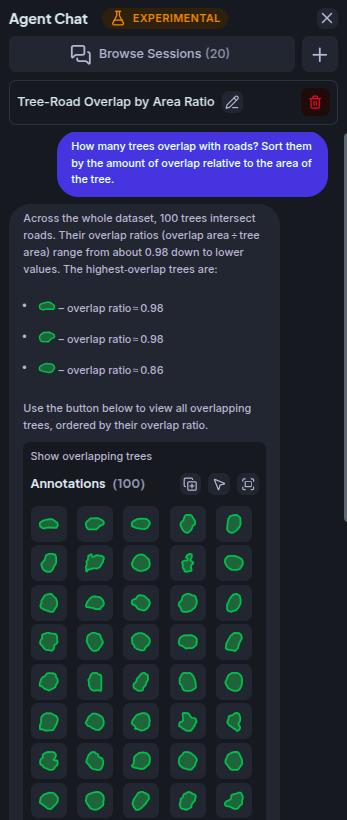
Finding Annotations That Overlap With Another Class
GeoSense can run spatial queries across classes, identifying annotations from one class that intersect geometrically with annotations from another.
"Which tree annotations are overlapping with a road?"
Calculating Aggregate Statistics Over a Filtered Set
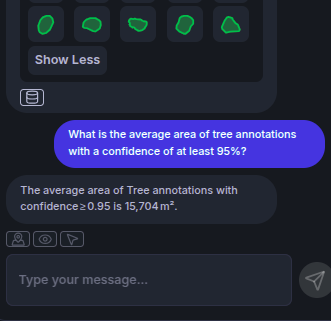
Ask GeoSense to compute statistics — count, average, sum, min, max — over a filtered subset of your data, not just the entire layer.
"What is the average area of tree annotations with a confidence of at least 95%?"
Querying Within Your Active Selection
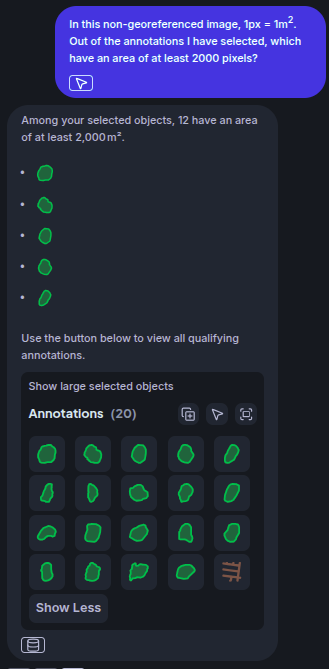
With the Selection context active, GeoSense can answer questions about exactly what you have selected — useful for drilling into a subset you have already identified visually.
It can also reason using that extra context, so you can ask about indirect derivations of your data.
"Out of the annotations I have selected, which ones have an area greater than 2000 pixels?"
Surfacing Low-Confidence Detections for Review
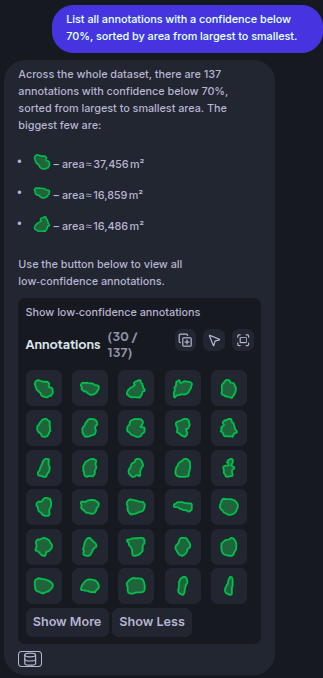
Sort detections by confidence to find the ones most in need of manual review. Combine with area to prioritize large, uncertain annotations first.
"List all annotations with a confidence below 70%, sorted by area from largest to smallest."
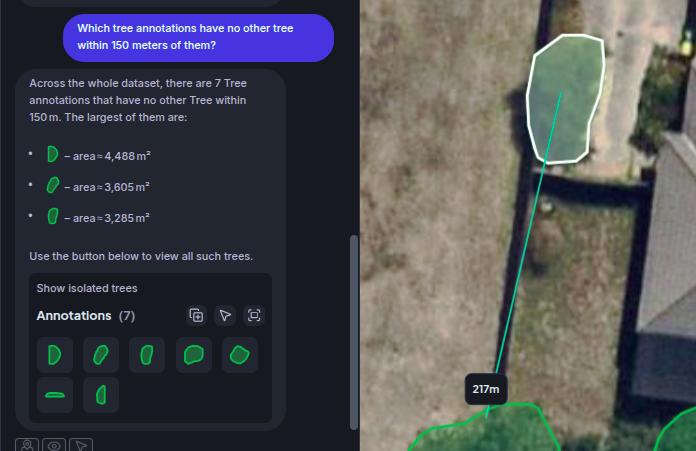
Finding Spatially Isolated Annotations
Identify annotations that have no neighbors of the same class within a given distance — useful for spotting outliers or lone detections that may be false positives.
"Which tree annotations have no other tree within 150 meters of them?"
Analyzing What Is Visible in Your Viewport
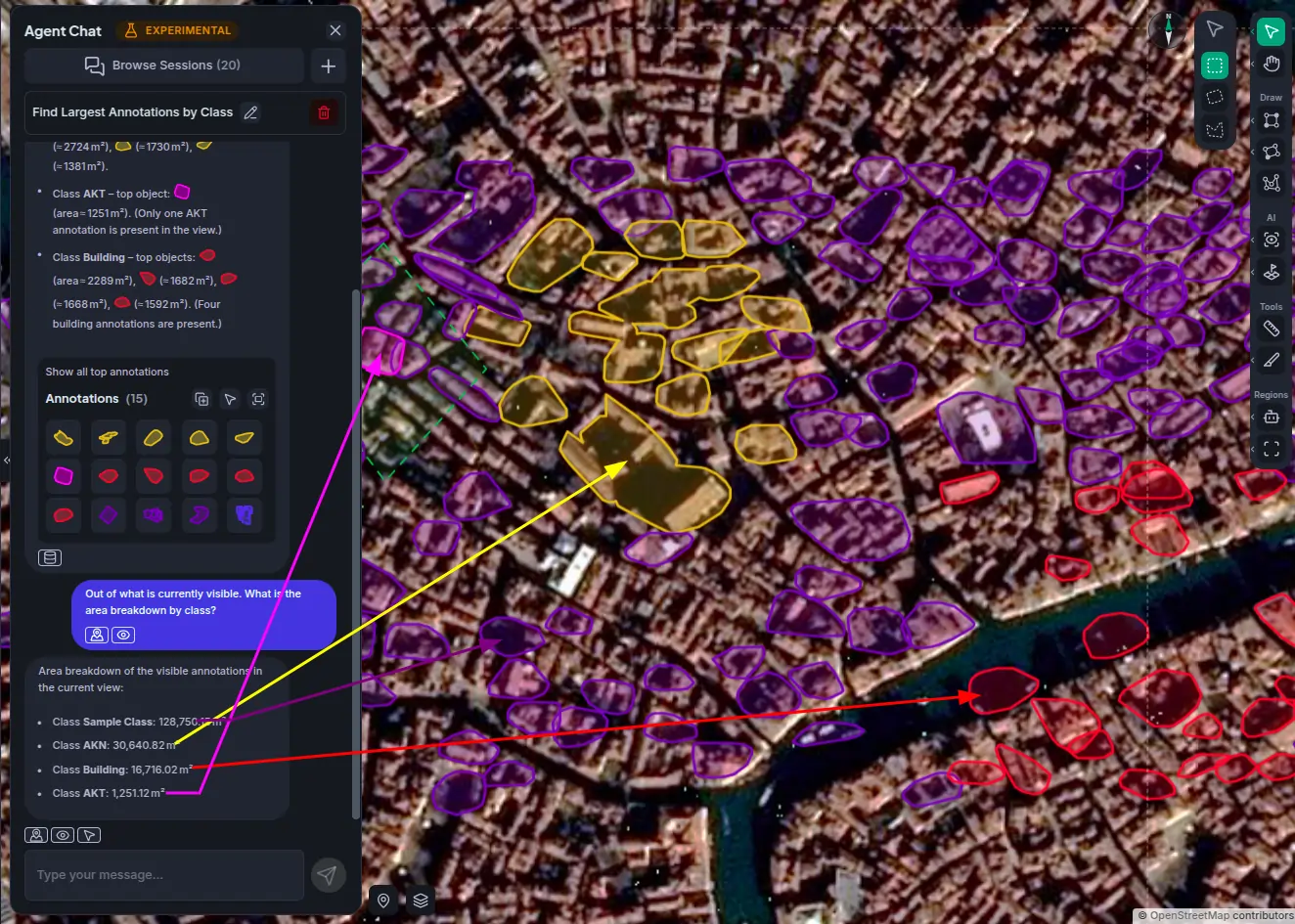
Using the Position context, GeoSense can answer questions scoped to what is currently visible in your viewport — without requiring you to draw a region or filter manually.
"What is the area breakdown by class in my current viewport?"
Interactive Elements
GeoSense provides a lot of UI support for various operations and analytical tasks. The following is a selection of the most impactful visual features it provides to streamline your processes.
Highlight Blocks
When GeoSense returns a set of matching annotations it presents them in a highlight block — a compact result grid that lets you work with the results directly from chat.
From a highlight block you can:
- Pan to any annotation to center the viewport on it
- Select the results to bring them into your workspace selection
- Copy to new layer — export the entire result set as a new vector layer in your project
A highlight block is also automatically appended to any message that references annotations inline, so the full set is always one click away.
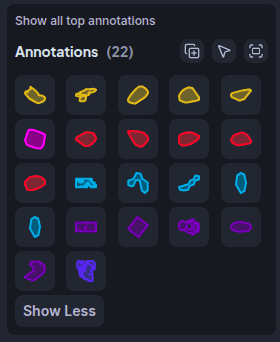
Annotation references in GeoSense responses are live — they point to the underlying data. If an annotation is deleted from its vector layer, its reference in chat will stop resolving.
Rich Responses
GeoSense formats its responses to make results easy to scan:
- Tables for comparing annotations side-by-side across multiple properties
- Lists for ranked or grouped outputs
- Property displays for measurements such as area, confidence, length, and coordinates, formatted to your workspace preferences
- Code blocks for generated query examples or technical output
Clarification Questions
When a question is ambiguous or GeoSense needs more information before it can answer, it will pause and ask a clarifying question. You can reply by selecting one of the provided options or by typing a free-form answer. If GeoSense needs specific context from your map state, it will ask for it and you can approve sharing it with a single click.