Floating Windows
Not everything wants a slot in the grid. A window floats above the workspace, goes wherever you put it, and takes its space from nothing — useful for the Inspector while you work across the whole map, for GeoSense while you read a result, or for anything you want beside the map rather than carved out of it.
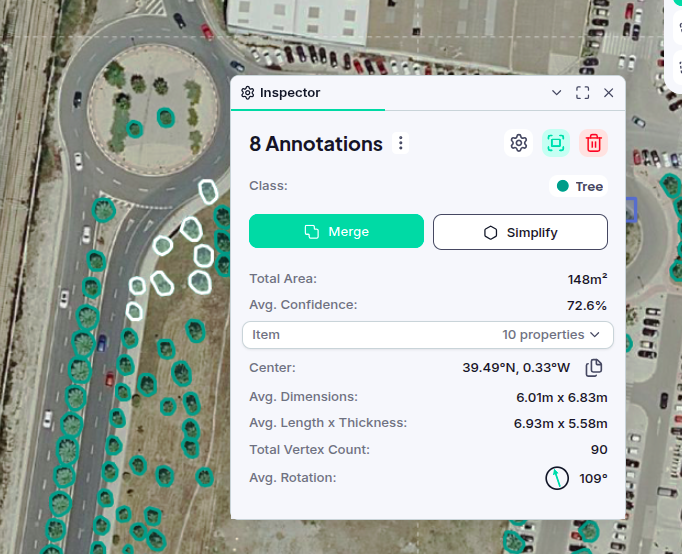
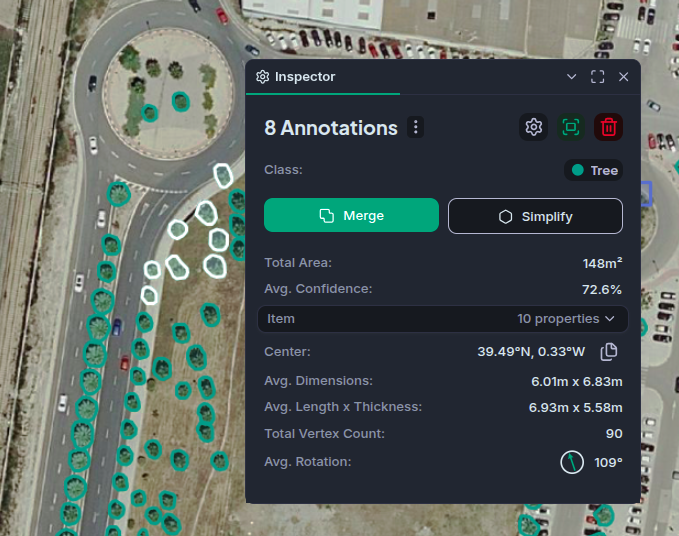
Popping a component out
Two ways:
- Click the pop out button in a panel's title bar. This takes the panel's active tab — the one you are looking at — not the whole panel.
- Drag a tab to somewhere that is not a panel, such as the workspace's outer border or outside the browser window entirely.
The new window appears just clear of the slot it came from, so it reads as having lifted off. If the panel it left had no other tabs, that panel closes up and its neighbours take the space.
Using a window
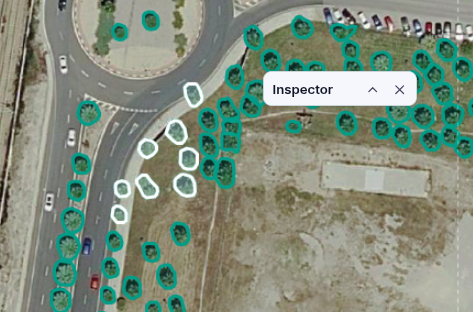
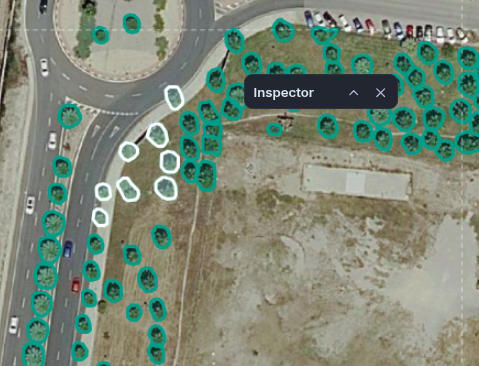
- Move it by dragging its bar — the empty stretch of the title bar, between the tabs and the buttons.
- Resize it from any edge or corner.
- Bring it to the front by clicking anywhere in it. Windows stack in the order you last touched them.
- Minimize it to just its bar, from the button in that bar, when you want the space back without losing the window. Click again to restore it, at the size and place it had.
- Close it with its ×.
A window is a panel like any other, so it can hold several tabs, and you can drag more components into it — into its tab strip, or against one of its own edges to split it in two.
Putting it back
Drag a tab out of the window and drop it into the docked workspace. The window closes on its own once nothing is left in it.
Windows are part of your saved layout, so they come back where you left them next time you open the workspace, and they are stored with your saved layouts too. They stay inside the workspace area — a window never ends up somewhere you cannot reach it, even after you resize the browser.
Moving and resizing a window stays available while the layout is locked; popping a new one out does not. The lock is about which panel a component lives in, and sliding a window across the screen does not change that.