Resizing and Collapsing
Moving panels around is only half of shaping a workspace; the other half is deciding how much room each one gets. Resizing, collapsing and maximizing all stay available even while the layout is locked — they change how much you can see, not where anything lives.
Resizing
Every boundary between two panels is a divider. Hover one and it highlights; drag it and the panels either side resize live, following your pointer.
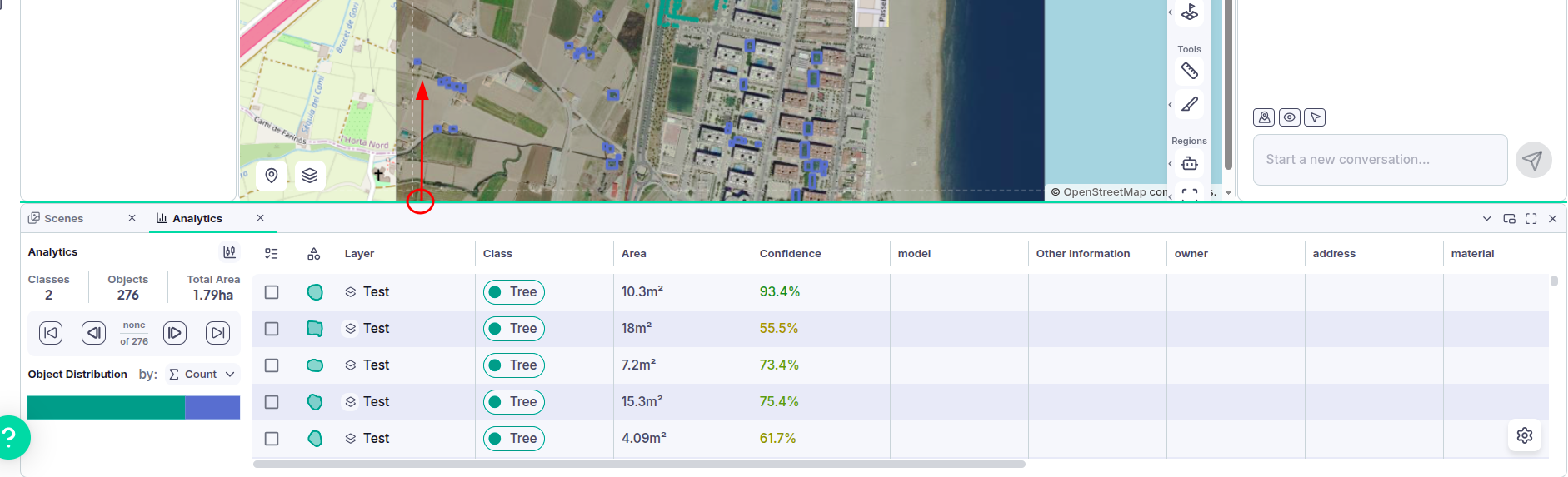
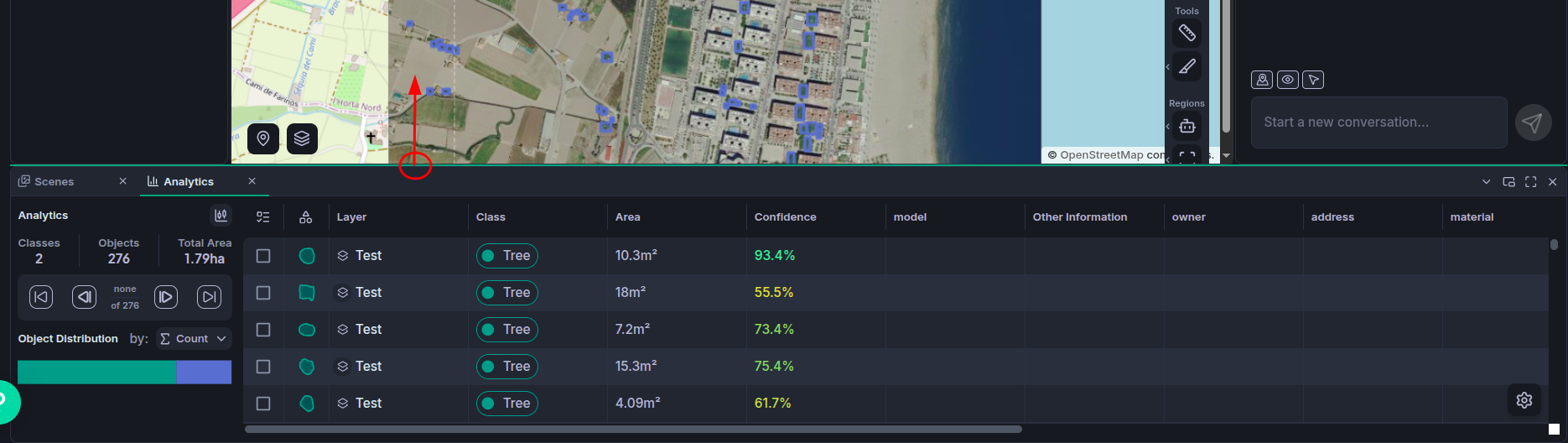
Space is traded between the two neighbours, so growing one shrinks the other and the rest of the workspace stays where it is. Panels stop shrinking at a minimum size — enough to stay usable — so a divider will refuse to go further even if your pointer does.
Some panels size themselves to their contents until you resize them. Controls is the clearest example: it is taller in training mode than in view mode, and it adjusts on its own when you switch. The first time you drag its divider you take over, and it keeps the height you gave it from then on. Layout → Default hands that automatic behaviour back.
Collapsing a panel
A panel you need occasionally, but not right now, can be collapsed to a rail: a thin strip along the edge carrying its icon and name.
There are two ways to collapse one:
- Click the chevron in the panel's title bar. It points toward the edge the panel will fold against. It appears only while at least one sibling panel in the same split is still open — the last one open has no neighbour to hand its space to.
- Drag the panel's divider well past the point where the panel stops shrinking. An overlay appears across the panel — "Release to hide Panel" — and releasing collapses it. Stop short, or drag back, and nothing happens. The same rule applies here: the last open panel in a split can't be dragged into a rail.

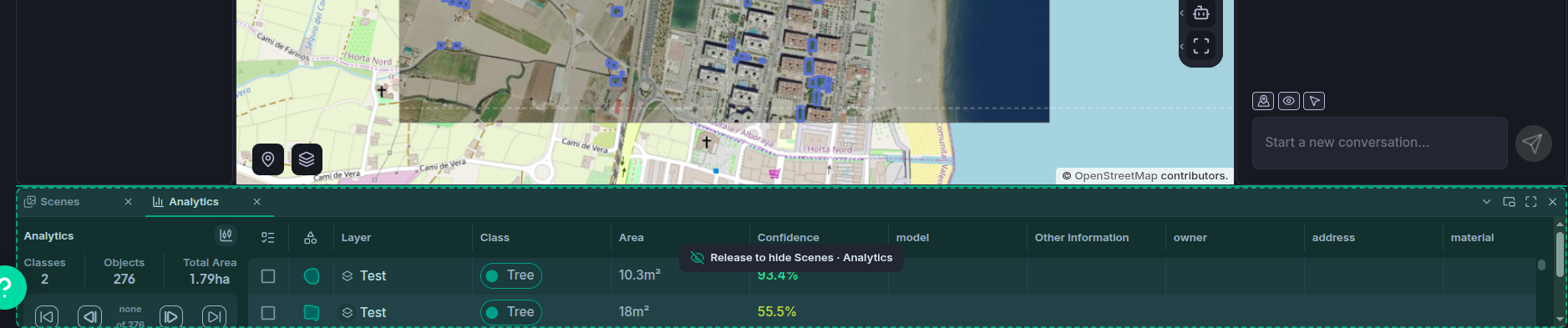
Collapsing never removes anything: the panel keeps its place in the layout, and everything in it keeps its state.
Working with a rail
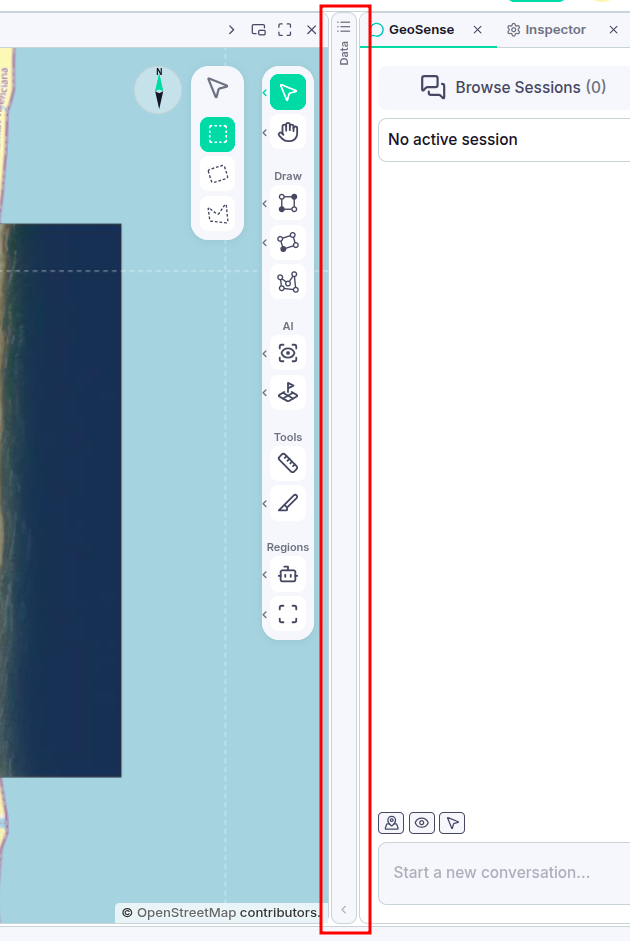
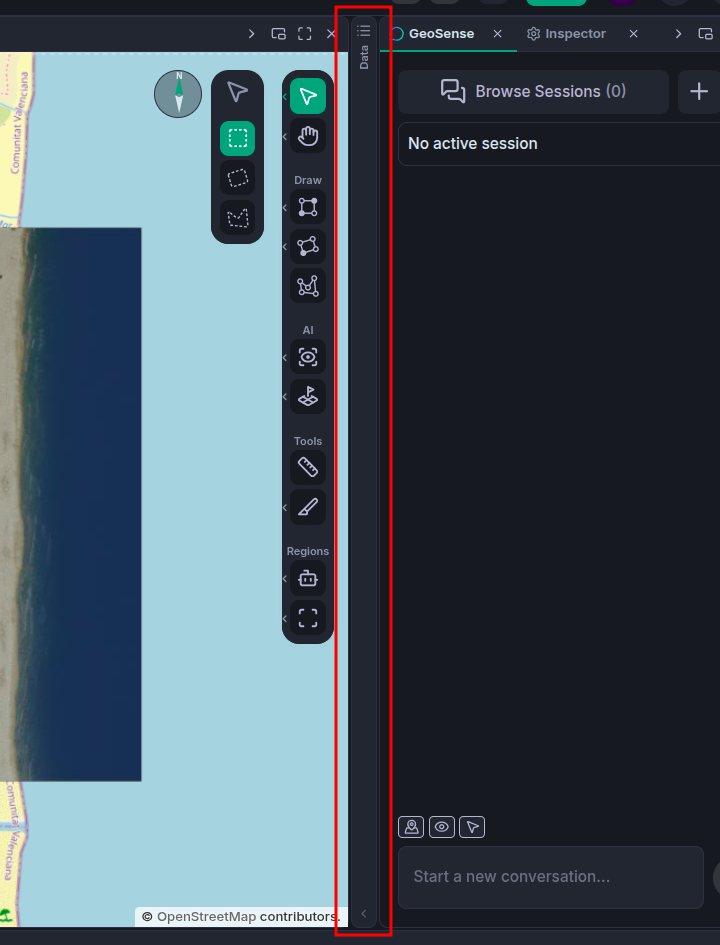
- Click the rail to put the panel back exactly the size it was.
- Drag the rail to move the boundary between the panels either side of it, which is how you decide which neighbour keeps the space the collapsed panel gave up.
- Drag the divider beside the rail outward to reopen the panel at whatever size you drag it to, rather than the size it had before.
- Drop a component onto the rail to add it to that panel and reopen it in one gesture.
Maximizing
Every panel's title bar carries a maximize button, which expands it to fill the whole workspace. Useful for a moment with the analytics table, or for drawing on a map with nothing else competing for room.
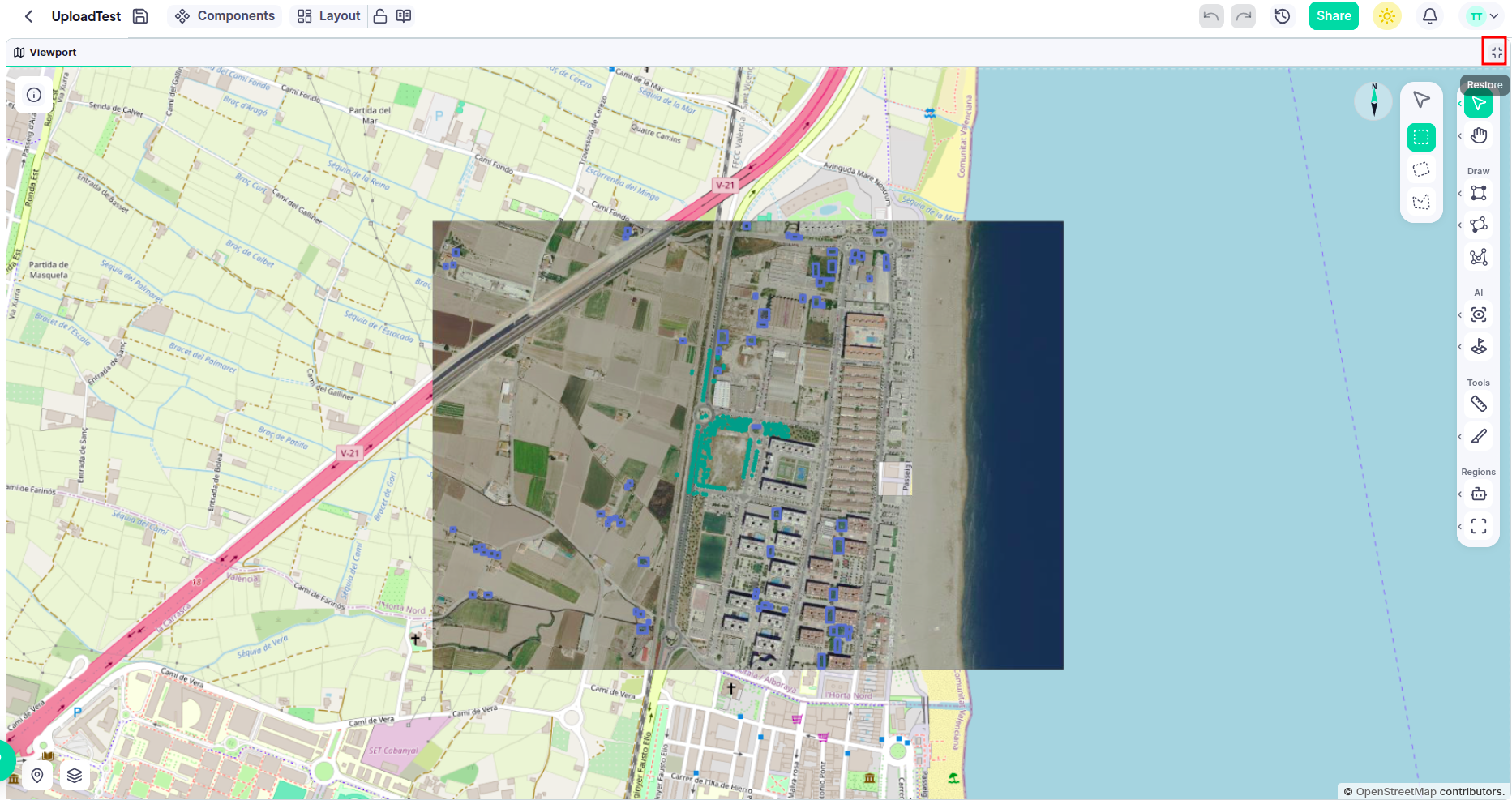
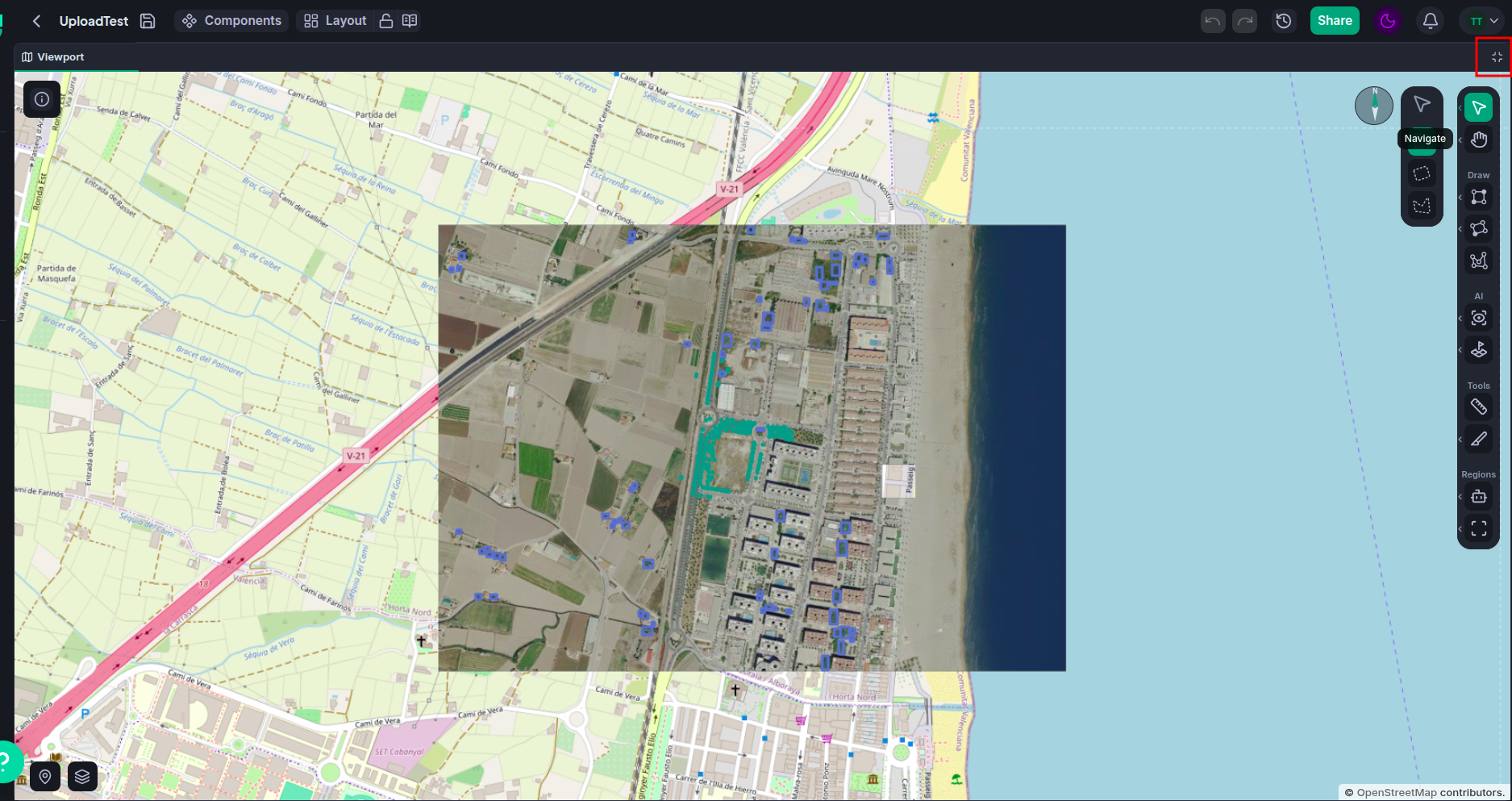
Maximizing is temporary and changes nothing: the rest of the workspace stays exactly as it was underneath, and restoring puts you straight back. While a panel is maximized the rest of the workspace is out of reach, so dividers, drags and windows all wait until you restore it.
Because it is a way of looking rather than an arrangement, it is the one thing saved layouts do not remember.