Saved Layouts
Your workspace arrangement is saved as you go — there is no save button for it, and no way to lose it by closing a tab. Saved layouts are for the next step: keeping several arrangements and switching between them.
Everything here lives in the Layout menu in the workspace header.
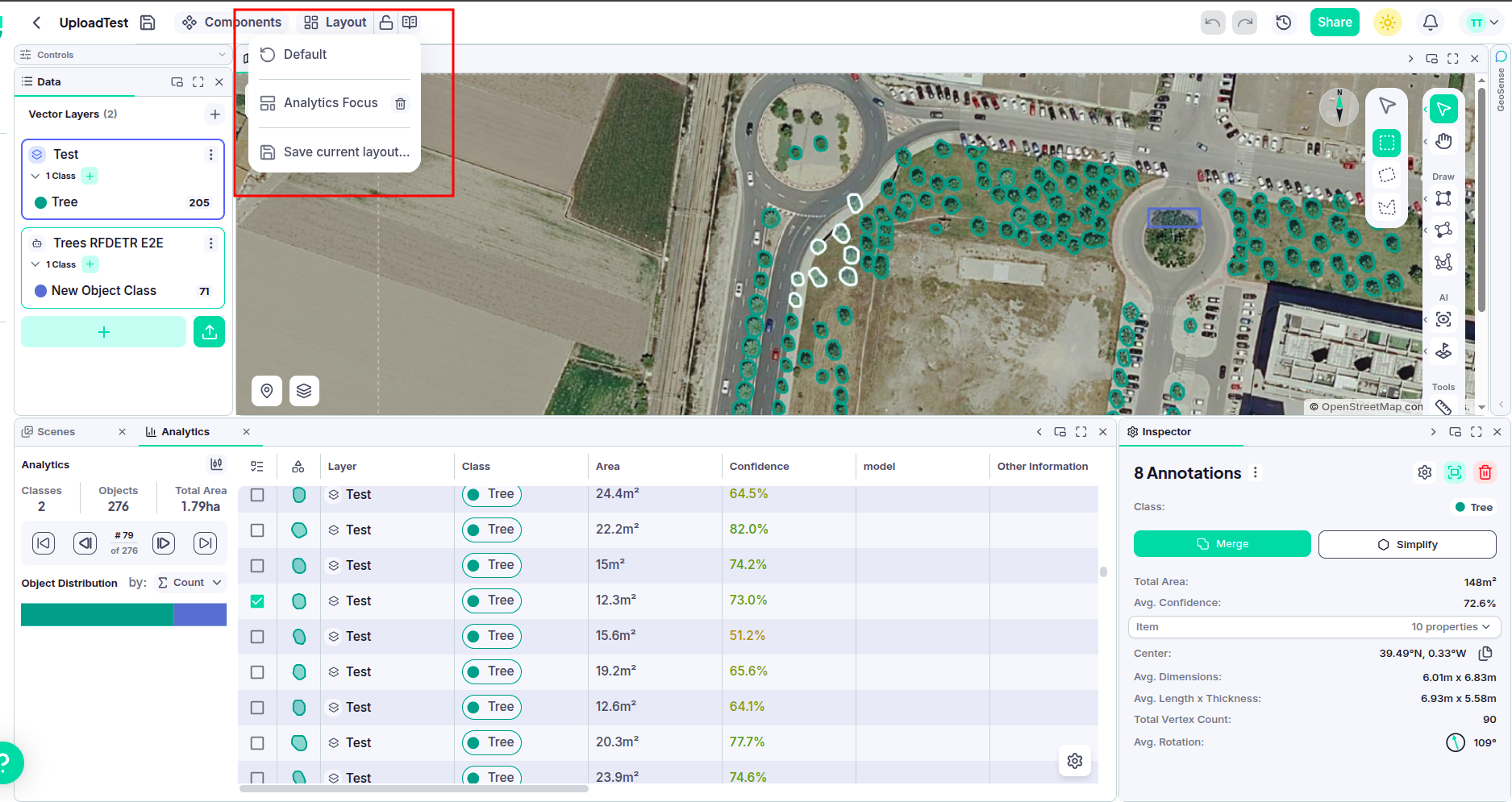
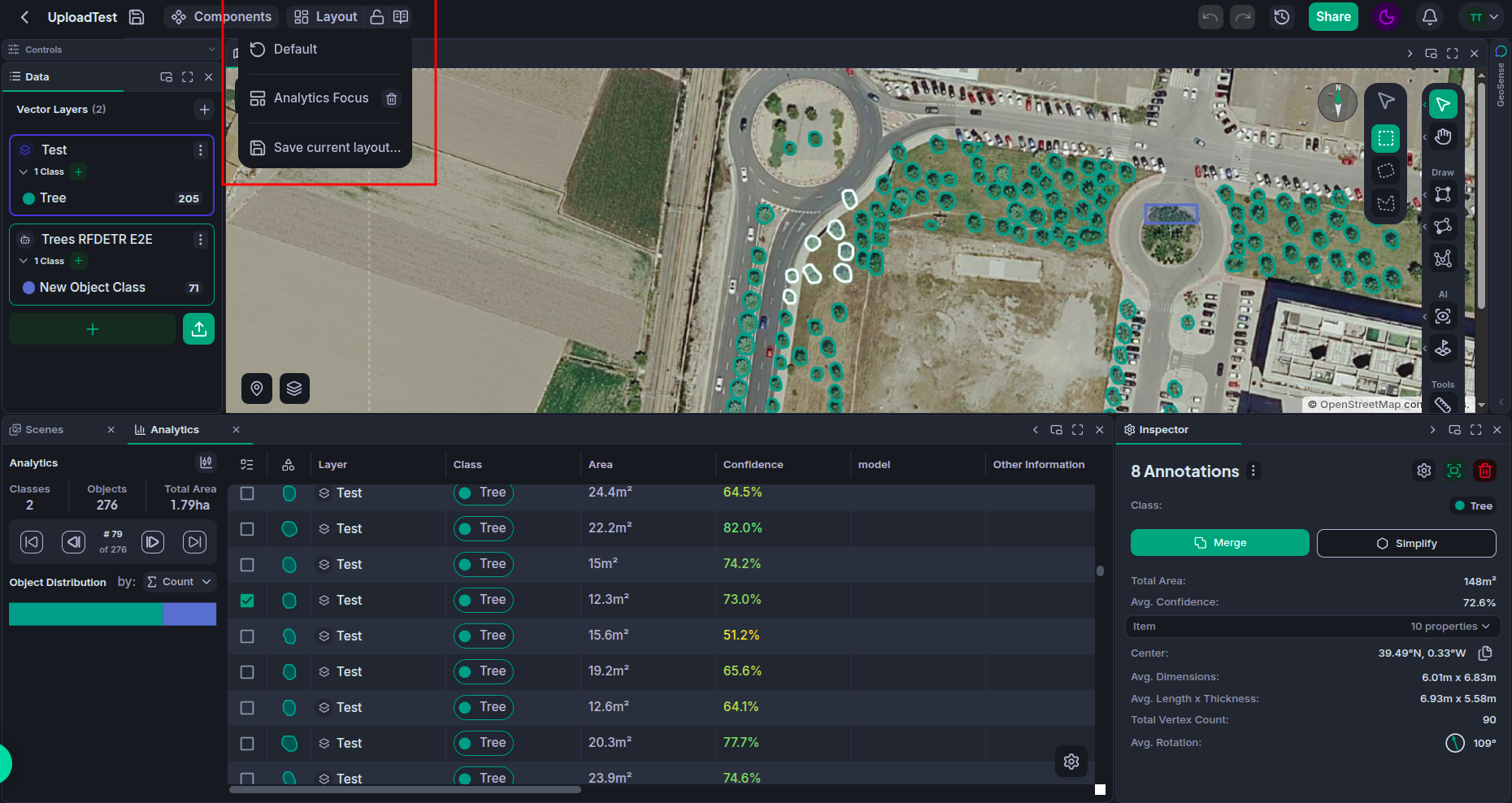
Why you would want more than one
Most people end up with a handful of distinct ways of working: a labelling layout with a big map and a tall vector list, a review layout with the Inspector open permanently, an analysis layout where the table takes half the screen. Set each one up once, save it under a name, and switching is one click instead of five drags.
Saving a layout
Arrange the workspace how you want it, then choose Save current layout… from the Layout menu and give it a name.
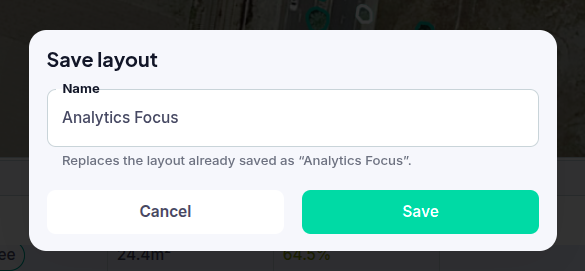
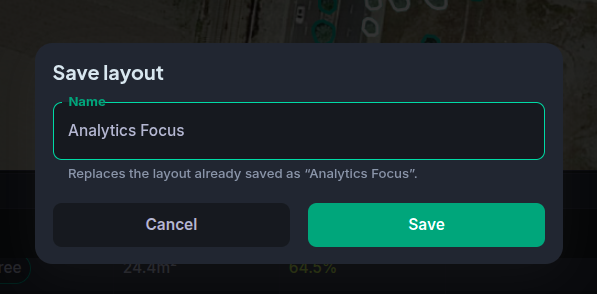
The name is the layout's identity. Saving under a name you have already used replaces that layout with the current arrangement — the dialog tells you when you are about to do that, so it is also how you update a layout you have since improved.
Applying and deleting
Every saved layout appears in the Layout menu; click one to apply it. Each row carries a delete button for when you no longer want it.
Applying a saved layout works even while the layout is locked, because reaching for an arrangement you built on purpose is the opposite of the accidental rearrangement the lock exists to prevent.
Returning to the default
Layout → Default is always there, at the top of the menu, and restores the workspace to the arrangement it ships with. It is the escape hatch: whatever you have done to your workspace, this puts it back to something known-good, without touching any of your saved layouts.
Default is not a snapshot taken the first time you opened the workspace — it is the current shipped arrangement. If we improve the default layout in a later release, pressing Default gives you the improved one.
What is saved, and where
Saved layouts belong to your account rather than to a project, so they are available in every project you open, on every device you sign in from. They record the whole arrangement: which components are open, how they are grouped into panels and tabs, the size of everything, what is collapsed, and any floating windows.
One thing is deliberately left out: maximizing a panel is a way of looking closer at something for a moment, not an arrangement, so it is not saved — not into a layout you save, and not across a reload. Whatever you had maximized, you come back to the workspace underneath it.