Arranging Panels
Every component in the workspace is a tab, and every tab can be dragged somewhere else. This article covers where you can put one, and how to hide and bring back the ones you are not using.
Rearranging is blocked while the layout is locked. If a drag does nothing and the workspace tells you the layout is locked, click the lock button next to Layout in the header, then try again.
Moving a component
Press on a tab's title and drag. The workspace shows a preview of exactly where the component will land, and it lands there when you release. Nothing is committed until you do, so a drag you change your mind about can be released back where it started.
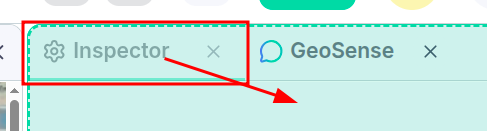
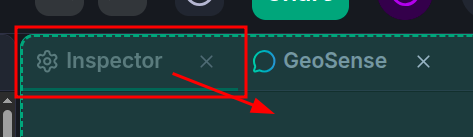
Because each component exists only once, a drag is always a move, never a copy. The place it came from closes up behind it: a panel left with no tabs disappears, and its neighbours take the space back.
Beside another panel
Drag over the edge of any panel — top, bottom, left or right — and the preview fills the half the component would take. Release, and the panel you aimed at splits, sharing its space with the newcomer.
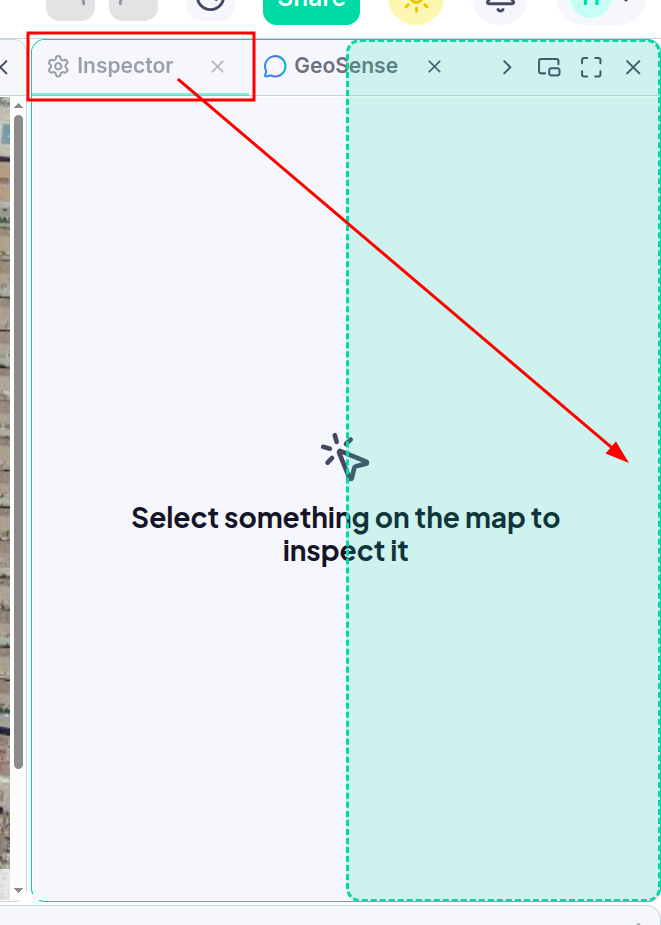
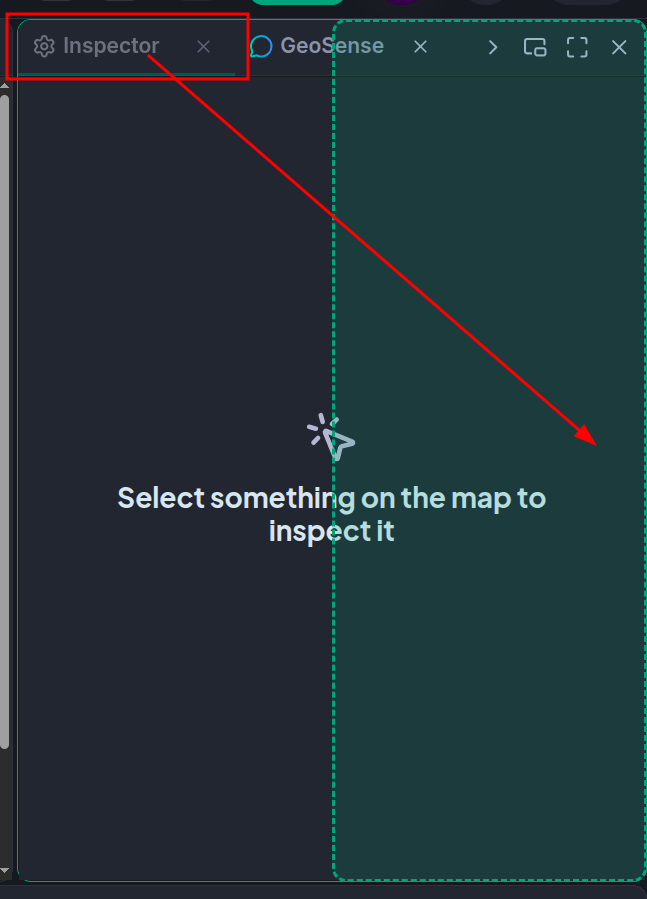
Aim at the outer edge of the workspace instead and the component takes a full column or row down that whole side, rather than sharing with one panel.
Into another panel
Drag over a panel's tab strip, or anywhere in the middle of a panel, and the preview fills the whole panel: the component joins it as another tab. Over the tab strip, a caret shows where in the row it will be inserted, so you can order tabs however you like — including dragging a tab within its own strip to reposition it.
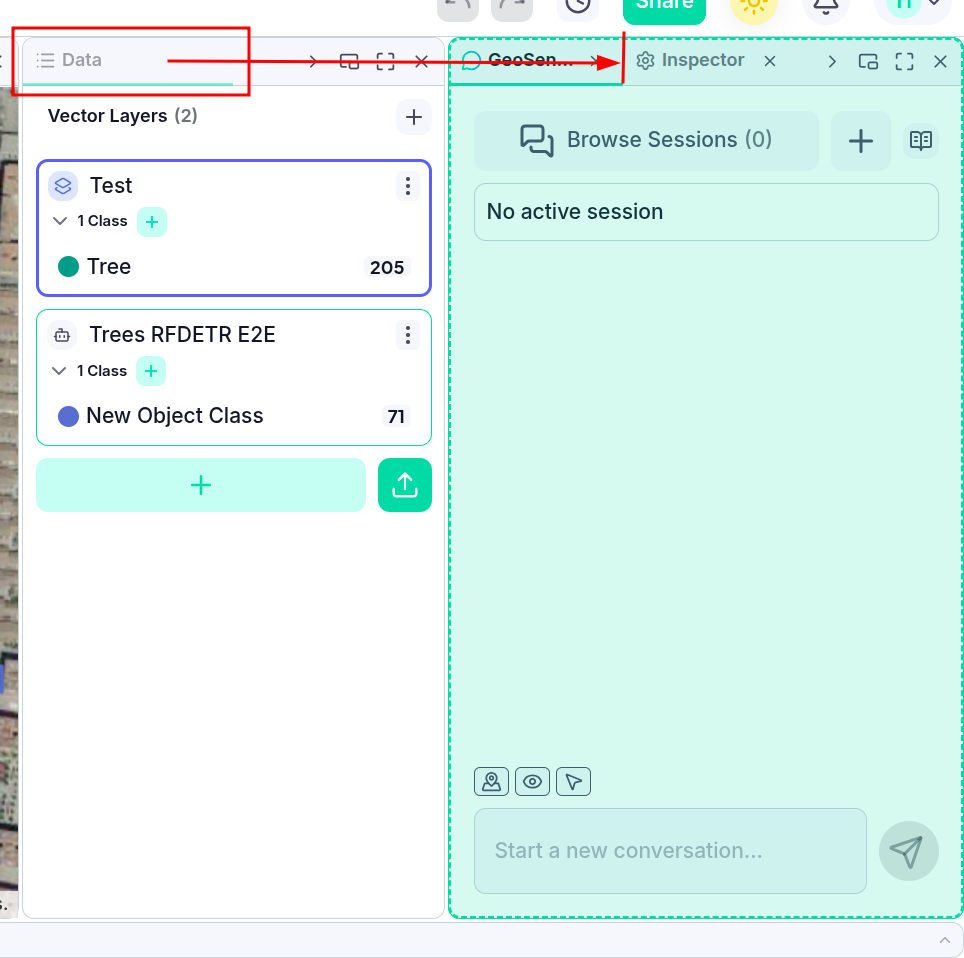
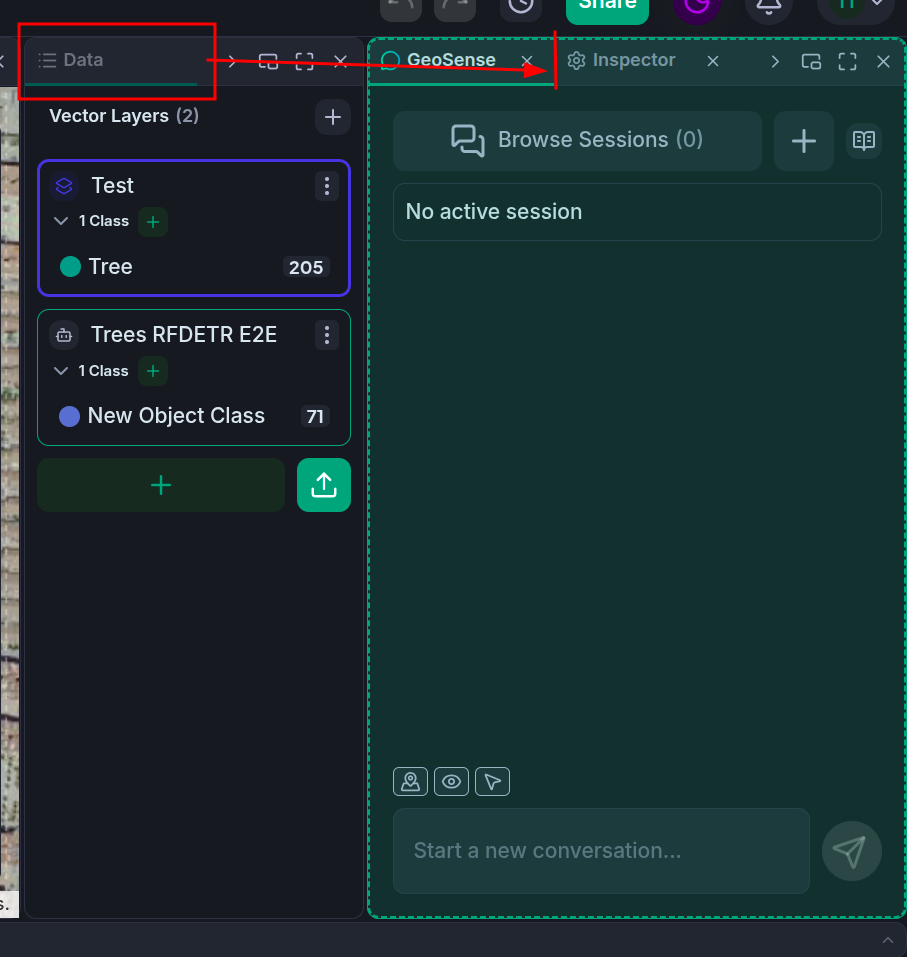
Dropping onto a collapsed rail puts the component where the railed panel is and expands it again, in one gesture.
Out into a window
Drag a tab to a spot that is not a panel — over the workspace's own borders, or right out of the browser window — and it becomes a floating window at the pointer. There is also a dedicated button for this in every panel's title bar; see Floating Windows.
Hiding and reopening components
Each panel's tabs carry a × that closes them, and each panel's title bar carries one that closes the whole panel — both greyed out while the layout is locked. Closing a component only removes it from your workspace; it does nothing to your project's data, and you can bring it back at any time.
To bring one back, open the Components menu in the header. It lists every component with a tick beside the ones currently in your workspace; click one to open or close it — and unlike the ×, this works while the layout is locked.
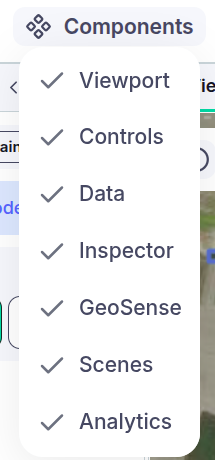
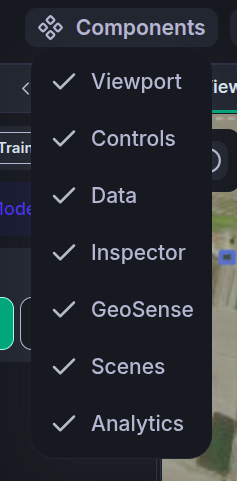
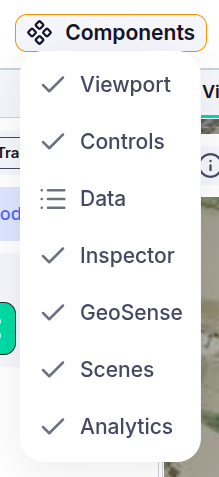
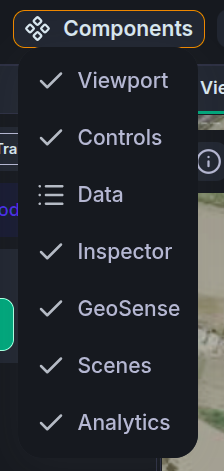
Whenever something is closed, the Components button outlines itself and that component's row shows its own icon instead of a tick — so a component you shut by accident is easy to spot and easy to find again.
A reopened component joins the largest panel currently on screen as a new tab, rather than returning to the exact spot it was closed from. If you want it back where it was, the quickest route is usually a saved layout rather than dragging it home.