Workspace Layout
The workspace is not a fixed screen. Everything in it — the map, the controls, the inspector, the analytics table — lives in a panel, and every panel can be moved, resized, stacked into tabs, collapsed out of the way, floated as a window, or hidden entirely. Arrange it once and the workspace stays that way, on every project you open.
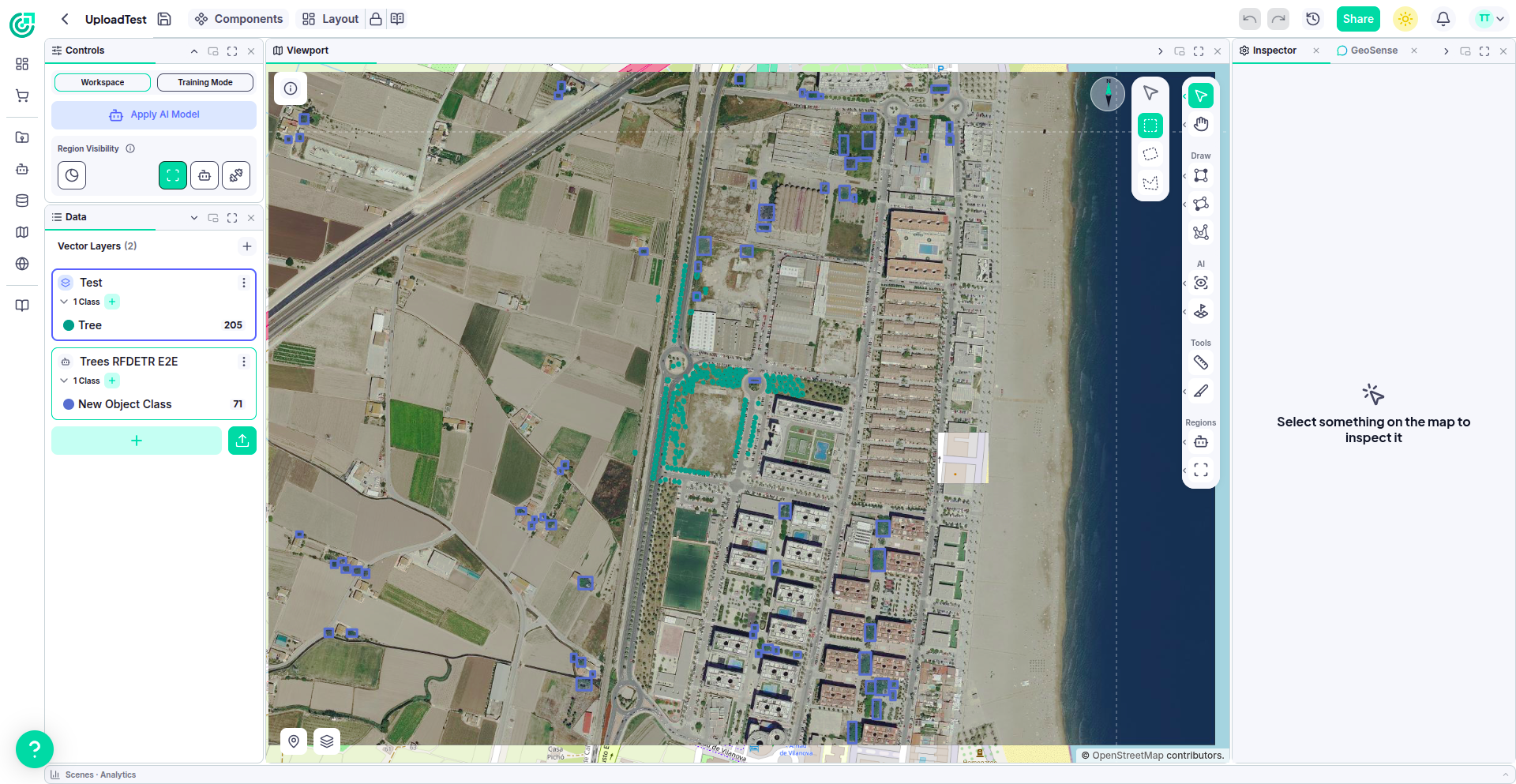
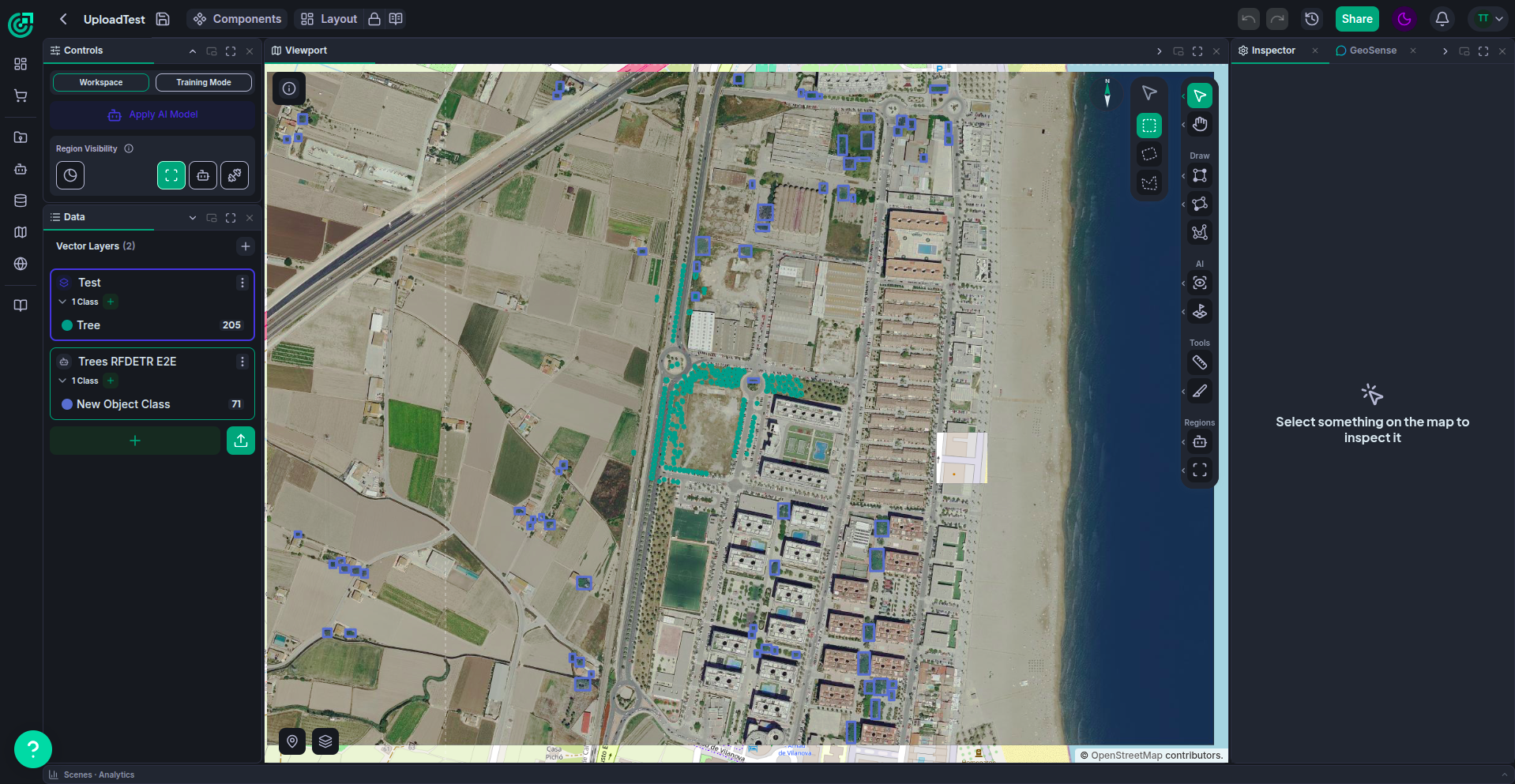
Different jobs want different workspaces. Someone labelling wants a tall vector list and a narrow map; someone reviewing model output wants the Inspector permanently visible; someone reading analytics wants the table to own half the screen. Rather than pick one arrangement for everybody, the workspace lets you build yours — and save it.
The pieces
| Term | What it is |
|---|---|
| Panel | A rectangle of the workspace holding one or more components. |
| Tab | One component inside a panel. A panel with several tabs shows one at a time. |
| Divider | The seam between two neighbouring panels. Drag it to trade space between them. |
| Rail | A collapsed panel, reduced to a thin strip carrying its icon and name. |
| Window | A panel floating freely above the workspace instead of docked into it. |
The components
These are the components you can arrange. Each one is a tab that can live in any panel, in any position, or in a window of its own.
| Component | What it holds |
|---|---|
| Viewport | The map itself, with the toolbox, overlays, compass and coordinate readout. |
| Controls | The mode switcher, the primary action for the current mode (Apply AI Model, or Train), and that mode's layer, filter and visibility controls. |
| Data | Your vector layers, classes and annotation guidelines — or, in training mode, the regions and vectors being trained on. |
| Inspector | Details of whatever is currently selected on the map, and the controls to edit it. |
| GeoSense | The GeoSense chat assistant. |
| Scenes | The scene timeline for the current project. |
| Analytics | The analytics table for the current project. |
Each component appears at most once. Moving one always moves it — you never end up with two copies of the Inspector to keep in sync.
What you can do
- Arrange panels — drag a tab by its title to dock it beside another panel, into another panel's tab strip, along an edge of the workspace, or out into a floating window. Hide and reopen components from the Components menu.
- Resize, collapse and maximize — drag the dividers to trade space, collapse a panel to a rail when you want it out of the way but not gone, or maximize one to fill the workspace temporarily.
- Float windows — pop a component out into a window that floats above the workspace, movable and resizable anywhere, and minimize it to a bar when you need the space back.
- Save layouts — save arrangements by name and switch between them, or return to Default at any time.
Locking the layout
Next to the Layout menu in the header is a lock. While the layout is locked — and it is locked by default — panels can still be resized, collapsed, maximized and swapped for a saved layout, but components cannot be dragged to a new place or popped out, and the × on a tab or a panel's title bar is greyed out. This keeps an arrangement you are happy with from being disturbed by a stray drag.
Closing a component from the Components menu still works while locked. The lock is there to stop a gesture you did not mean to make, not to stop you deliberately reaching for the menu.


Unlock it whenever you want to rearrange things, and lock it again afterwards if you like. Attempting a move while locked simply tells you the layout is locked; nothing changes. The button beside the lock opens this article, so the way out is always in the header — even if you have lost track of where everything went.
Your layout is remembered
Your arrangement is saved to your account as you go, so it follows you between sessions and devices, and it is the same layout in every workspace mode — view, training and comparison. Components that are only meaningful in one mode change their contents when you switch, but nothing moves or resizes underneath you.
Because the layout is yours rather than the project's, teammates opening the same project each see their own arrangement. Sharing an arrangement with someone else is not something the workspace does today.