Authentication
FlyPix's public API is authenticated using API Keys. This page explains how to create and manage your API keys, and how to use them to authenticate your requests.
Managing your API keys
API keys are managed from your account settings, at app.flypix.ai/account/api-keys. From there you can create new keys, see when each key was created and when it expires, and delete keys you no longer need.
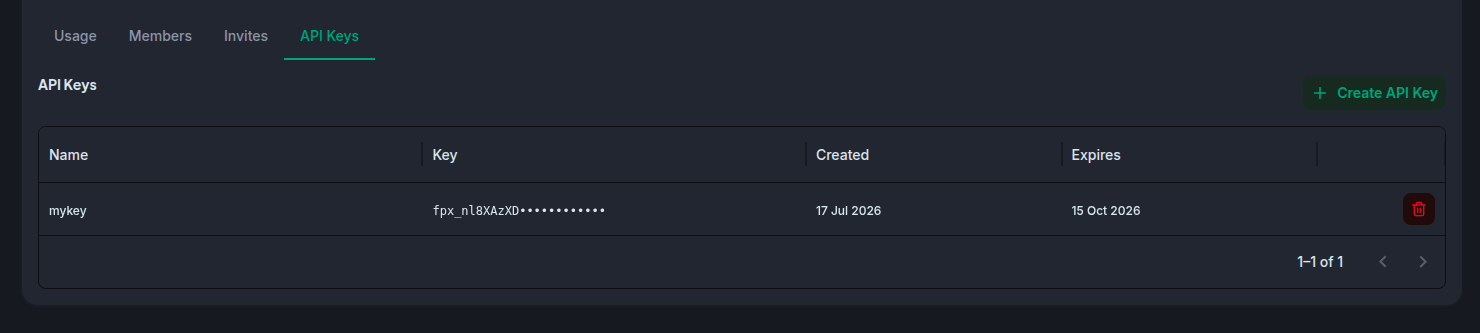
The API Keys you see on this page belong to your user, but each key is scoped to the tenant you were in when you created it. This means:
- They represent you, not a generic application identity.
- A key will not work when used to operate in a different tenant, even if you have access to that tenant — if you need to call the API against multiple tenants, create a separate key from within each one.
- A key dynamically inherits your current permissions in that tenant. If your role changes, the key's effective permissions change with it immediately — you never need to regenerate it.
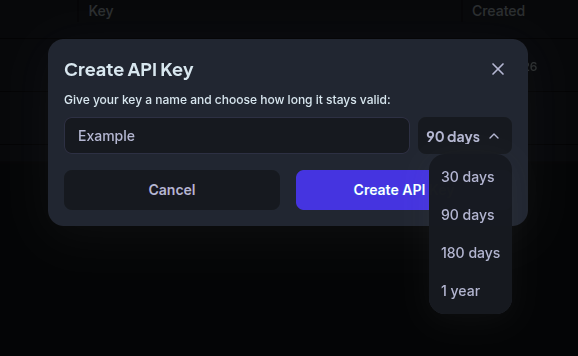
To create a new key, click Create API Key, give it a descriptive name, and choose how long it should stay valid for.
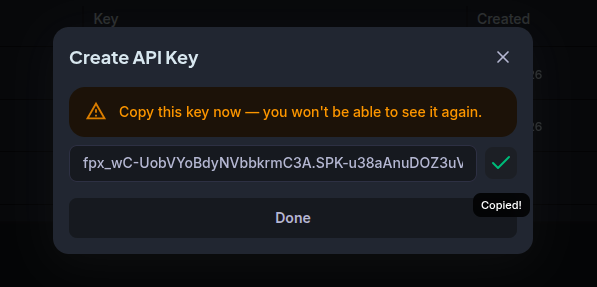
Once created, your key is shown exactly once. Make sure to copy it somewhere safe — you won't be able to view it again after closing this dialog. If you lose it, you'll need to create a new one.
Currently, API keys carry the same permissions as your user account within that tenant, in full — there's no way to scope a key down to a subset of actions. Modular, per-key permissions are on our roadmap, so you'll be able to limit what an individual key can do.
Using your API key
To authenticate a request, pass your API key in an ApiKey header. For an example of an
authenticated endpoint, see Get Tenants For User in the
API reference, and expand the Security: ApiKey
dropdown for details on how the header is used.
An official SDK is available if you'd rather not make these requests directly from your code.