FlyPix Release: v3.5.0
Version 3.5.0 brings major GeoSense improvements — multi-session management, a rich chat overhaul with tables, lists, and displays, and expanded vector layer context. This release also adds polygon and oriented selection tools, automatic project thumbnails, and new Public API endpoints for annotations and GeoSense.
Changelog
New Features and Improvements
Geosense now includes multi-session management. Instead of just working on one session at a time, you can view your session history, create new sessions, or clear old ones as you wish. Session titles are also automatically generated for your convenience.
Gone are the days where Geosense could only post plain text messages. With this new message overhaul, we are adding all sorts of rich content support, including tables, lists, property displays, and even code blocks! Check out some details in the (Geosense Chat Overhaul Deep Dive).
GeoSense is now aware of all the vector layers in your file! No need to make a new session every time you want to ask it a question for a different vector layer
If a project does not have a thumbnail set when a file is uploaded into it, we will automatically set the project thumbnail to the uploaded image.
Deletion of all objects of a class is now compatible with Action History, the action history items are also more precise about what was deleted when performing mass deletion via the inspector or by pressing Delete with an active selection.
We have added two new selection tools to the workspace: Oriented Selection and Polygon Selection. These tools allow you to create more complex selection geometries for specific use cases or workflows.
New annotation endpoints have been added to the Public API. It is now possible to create annotations using the public API, either with direct geometries, or by uploading GeoJSON/GPKG/SHP. Check the API Docs to see examples.
Using GeoSense is possible through the Public API. Check the API Docs to see examples.
Changes
The region blur opacity in the workspace in both training mode and in view mode (with region focus on) has been reduced from 40% to 22.5%.
Fixes
We fixed an issue involving cost estimation on non-ready frozen datasets when training directly from the frozen dataset details page. You will now see a frozen dataset's status in the details page, and will no longer be able to start a training from a failed or exporting dataset.
Fixed an issue where "Confirm & Find More" could return no results or trigger an error. Only suggestions fully visible in the current viewport and large enough to be valid samples are now used for the next search round.
Fixed an issue where deleting an object of a class would delete them from the active layer rather than the layer where the action was selected.
Deep Dives
GeoSense Chat Overhaul
GeoSense chat now supports richer response formats and interactive tools, so you can review results faster and keep working in context.
Rich Text
Responses now support lightweight formatting such as bold and italic text. This helps emphasize key values, warnings, and actions without changing the flow of the conversation.
Structured Content
GeoSense can also return structured blocks when they are more readable than plain paragraphs:
- Lists for grouped outputs and step-by-step items
- Tables for compact comparisons across many values
- Quotes for highlighted excerpts
- Code blocks for generated snippets and query examples
Displays
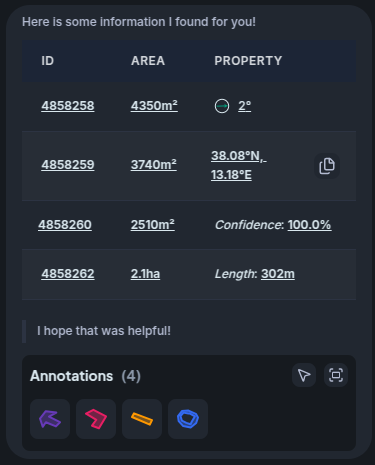
Displays present measurement and property values in a more readable format, while respecting your active preferences (for example, formatting rules and units).
Displays can include lightweight visual helpers, such as directional indicators in angle displays or quick actions like the copy button in coordinate displays.
Display blocks can either:
- Show a direct value
- Reference an existing annotation in your data
When a display references an annotation, you can interact with it as if it were a direct annotation reference in chat.
Tools
Question Tool
The Question tool lets GeoSense ask for clarification or extra input before it continues. This helps the model resolve ambiguity and improve answer quality.
It can also request additional context when needed, so you can explicitly grant the information required for a better answer.

Highlight Tool
The Highlight tool lets GeoSense return large annotation result sets in a structured grid list view. You can scan many results quickly, then navigate, select, and inspect them directly from chat.
A highlight block is also automatically added at the end of a message with all referenced annotations in the message for your convenience. You can see it at the end of the Displays example above.
GeoSense Context
GeoSense Context is additional information attached to a message to help the model clarify and answer your question more accurately.
Context can be provided in two ways:
- Explicitly by you (for example, position, selection, visibility)
- Via a context-requesting question from GeoSense
This makes conversations more reliable when the requested task depends on current map state, selected data, or visibility filters.